Blog
Search Docs…
ALL TOPICS
COMPARISONS
GAME
PRODUCTIVITY
TROUBLESHOOTING
COMPARISONS
DeskIn vs Chrome Remote Desktop: Which One Fits Your Workflow Best?
When it comes to remote access tools, the comparison between DeskIn and Chrome Remote Desktop often comes down to one simple question: do you just need quick access, or do you need performance and control?
Both tools are reliable, secure, and widely used. But they are built for very different types of users. Chrome Remote Desktop focuses on simplicity and accessibility, while DeskIn is designed for users who need high performance, stability, and advanced features across multiple devices.
If you're deciding between the two, this guide breaks down not just what they offer, but which one actually fits your workflow.
Quick Comparison: DeskIn vs Chrome Remote Desktop
Feature | DeskIn | Chrome Remote Desktop |
|---|---|---|
Performance | Up to 4K 60FPS/2K 240FPS, low latency | Standard performance |
Ease of Use | Requires app installation | Browser-based, very simple |
Device Support | Windows, macOS, iOS, Android | Works via Chrome browser |
File Transfer | Fast and stable | Limited |
Multi-device Management | Yes | No |
Mobile Experience | Optimized for iPad & iPhone | Basic |
Security | Privacy screens and granular black/whitelists | Basic |
Price | Free + paid plans | Completely free |
In short, Chrome Remote Desktop is great for quick, lightweight access, while DeskIn is built for users who expect more from their remote desktop experience.

Chrome Remote Desktop Overview
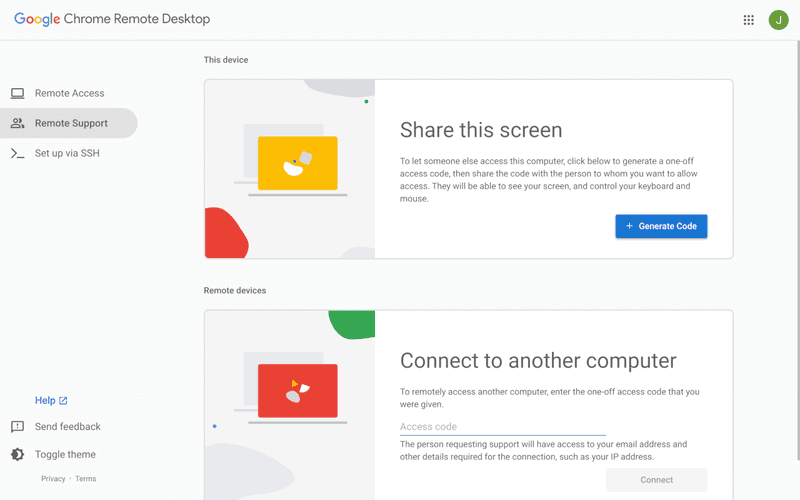
Chrome Remote Desktop is one of the simplest remote access tools available. It runs directly through the Chrome browser and requires only a Google account to get started. This makes it especially popular among casual users and those already working within the Google ecosystem.
It works particularly well on devices like Chromebooks, where everything is already browser-based. It's also accessible across platforms, including mobile devices like iPhone and iPad, though the experience on mobile can feel limited compared to desktop use.
If you're wondering how to use Chrome Remote Desktop, the process is straightforward. You install the Chrome extension, sign in with your Google account, set up a PIN on the host device, and then connect from another device using the same account. The entire setup usually takes just a few minutes.
That said, simplicity comes with trade-offs. Chrome Remote Desktop lacks advanced features like high frame rate streaming, multi-monitor control, or professional-grade file transfer. For occasional access, it works well. But for more demanding tasks, users often start to feel its limitations.
👀You may also be interested in:
DeskIn Overview: A More Powerful Chrome Remote Desktop Alternative
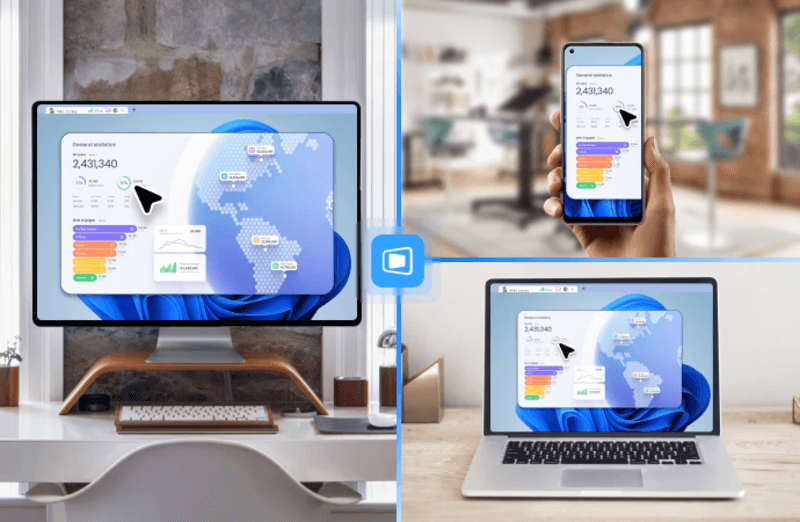
If Chrome Remote Desktop is a lightweight sketch, DeskIn is a full workstation painted in high resolution. DeskIn focuses on performance, stability, and flexibility. It supports up to 4K 60FPS streaming, making it suitable for tasks where visual clarity and responsiveness matter, such as design work, video editing, or even gaming.
As a Chrome remote desktop alternative, unlike browser-based tools, DeskIn is a dedicated remote desktop application. While this requires installation, it unlocks a much more stable and feature-rich experience. Users can manage multiple devices, transfer large files efficiently, and enjoy smoother control across different platforms.
DeskIn is also optimized for mobile workflows. Whether you're using an iPad or smartphone, the interaction feels more responsive and closer to a desktop experience, rather than a simplified viewer. For users who find Chrome Remote Desktop "good enough" at first but limiting over time, DeskIn often becomes the natural upgrade path.
DeskIn vs Chrome Remote Desktop: Real Use Cases
The real difference between these two tools becomes clear when you look at how they perform in everyday scenarios.
1. For Casual Remote Access
If you only need to check files on your home computer or help a friend troubleshoot something quickly, Chrome Remote Desktop is more than enough. It's free, easy to set up, and doesn't require installing extra software beyond Chrome. In this case, DeskIn may feel like overkill.
2. For Remote Work and Productivity
For professionals working remotely on a daily basis, stability and efficiency matter much more. This is where DeskIn starts to stand out.
Tasks like editing documents, managing multiple screens, or transferring files between devices become smoother and faster. Chrome Remote Desktop can handle basic workflows, but it often struggles with responsiveness and lacks the tools needed for a seamless work environment.
3. For High-Performance Tasks (Design, Editing, Gaming)
This is where the gap becomes impossible to ignore. DeskIn's support for high resolution and high frame rates makes it suitable for visually demanding work. Whether you're editing videos, working with design software, or running simulations, performance consistency is critical. Chrome Remote Desktop, on the other hand, is not designed for these scenarios. It works, but not comfortably.
4. For Chromebook and Google Ecosystem Users
If you rely heavily on Google services or use a Chromebook, Chrome Remote Desktop integrates naturally into your workflow. It's lightweight, requires no additional setup, and feels like an extension of the browser itself. In this scenario, it remains a very practical choice.
5. For iPad and iPhone Remote Access
Mobile usage highlights another important difference. While remote desktop Chrome iPhone, and Chrome Remote Desktop iPad are functional, they often feel like simplified versions of the desktop experience. Controls can be less intuitive, and performance may vary depending on the connection.
DeskIn, by contrast, is designed with cross-device interaction in mind, offering a smoother and more responsive mobile experience.
👀 You may also be interested in:
FAQs About Chrome Remote Desktop and DeskIn
1. Is there anything better than Chrome Remote Desktop?
Yes. Tools like DeskIn offer better performance, more features, and improved stability, especially for professional use cases.
2. Is Chrome Remote Desktop discontinued?
No, Chrome Remote Desktop is still actively maintained by Google. It continues to receive security updates and remains available for users needing simple, free remote access.
3. Is DeskIn Remote Desktop legit?
Yes, DeskIn is a legitimate remote desktop solution. It uses encryption to secure connections and provides access controls, making it safe for both personal and professional use.
4. Final Verdict: Which One Should You Choose?
When comparing DeskIn vs Chrome Remote Desktop, the choice depends on how demanding your remote access needs are. Chrome Remote Desktop is simple, free, and ideal for occasional use, especially if you just need quick access to a device without extra setup.
As your workflow becomes more intensive, the limitations start to surface. DeskIn offers a smoother, more stable experience with better performance and control, making it a strong long-term Chrome remote desktop alternative for users who rely on remote access every day.
PRODUCTIVITY
8 Best Remote Desktops for Video Editing in 2026
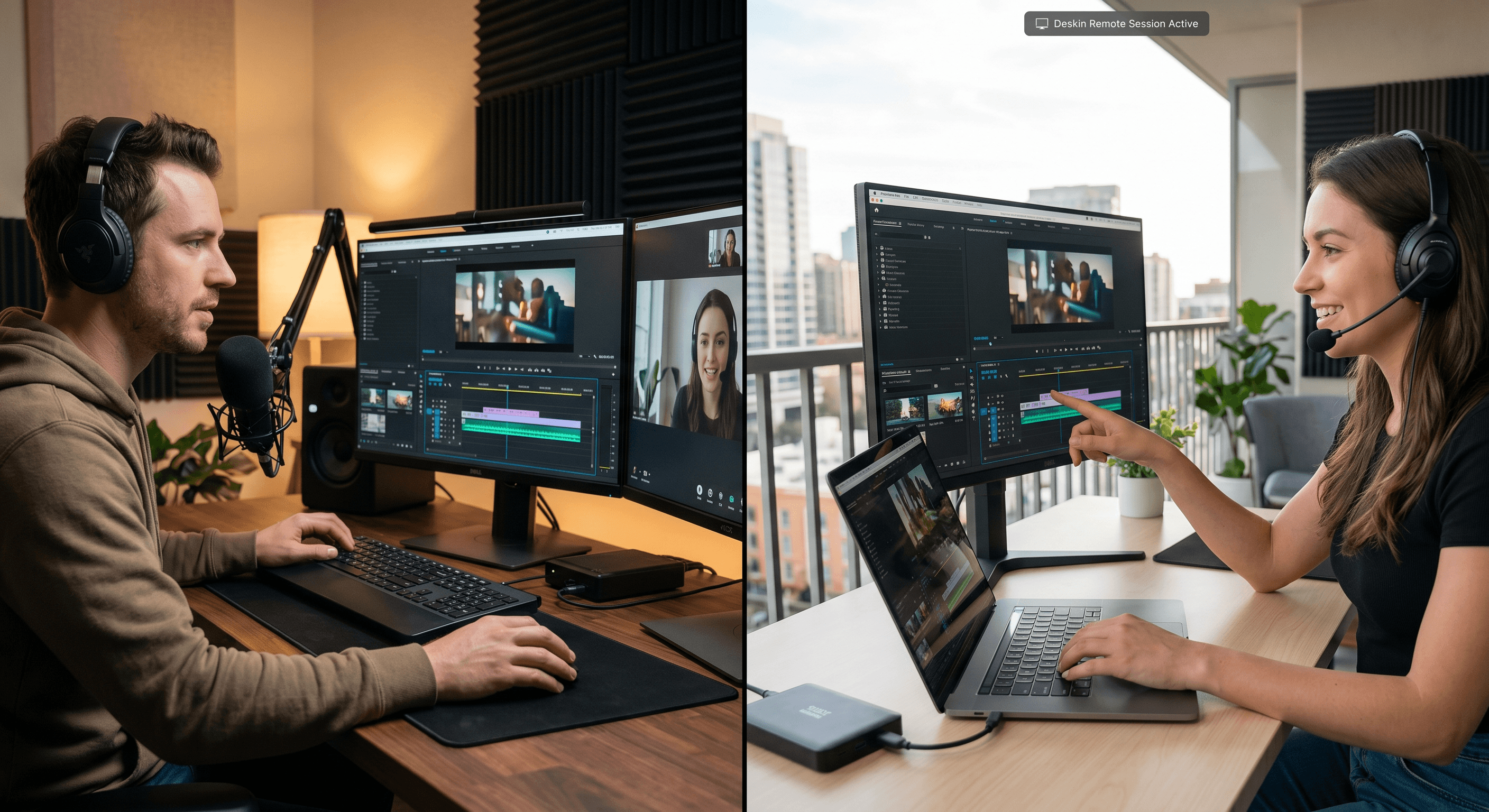
Remote video editing is no longer a compromise; it's a workflow upgrade. Whether you're working in Adobe Premiere Pro, After Effects, or DaVinci Resolve, the right remote desktop can turn your laptop into a high-performance editing station.
But not all tools are built for remote video editing collaboration. Lag, poor color accuracy, and unstable connections can ruin productivity. In this guide, we'll break down the best remote desktop for video editing tools so that you can edit smoothly from anywhere.
Why You Need a Remote Desktop for Video Editing
Modern creators are no longer tied to a single workstation. With remote work software, you can access your powerful desktop from anywhere without investing in an expensive laptop. For many editors, especially freelancers and small teams, this solves a real problem: you already have a high-performance PC, but mobility is limited. Instead of duplicating hardware, video editing remote desktop tools let you stream your workflow in real time.
Another key benefit is remote collaboration. Teams can work on the same project across different locations, review edits instantly, and avoid large file transfers via remote collaboration tools. However, this only works if your remote desktop software supports high frame rates, low latency, and stable connections. Otherwise, editing becomes frustrating.
Quick Comparison of Best Remote Desktops for Video Editing
Here's a quick overview of the best tools and who they're for:
DeskIn – Best overall for performance + affordability + multi-device workflows
Parsec – Best for ultra-low latency editing
Splashtop – Best for high-resolution streaming
HP Anyware – Best for enterprise-level workflows
Jump Desktop – Best for Mac users
AnyDesk – Best lightweight remote access
Chrome Remote Desktop – Best free basic option
RustDesk – Best open-source alternative
1. The Best Overall Remote Desktop for Video Editing: DeskIn
Pros
Up to 4K 60FPS / 2K 240FPS performance
Ultra-low latency for smooth editing timelines
Multi-device support (PC, Mac, iPad, Android)
Affordable pricing with free plan available
Cons
Smaller brand awareness compared to legacy tools
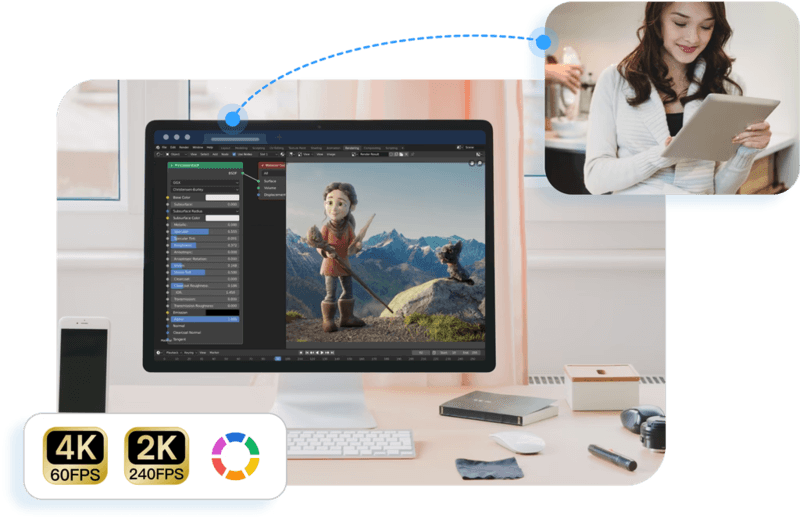
DeskIn stands out as the best remote desktop for video editing by balancing performance, stability, and accessibility. Unlike many traditional remote support tools, it is designed for high-frame-rate tasks, making timeline scrubbing, preview playback, and effects editing feel responsive and fluid.
For creators working across devices, DeskIn enables seamless remote video editing collaboration. You can access your main editing PC from a laptop, tablet, or even a secondary workstation without noticeable lag. Compared to tools like Chrome Remote Desktop, which struggle with video-heavy workloads, DeskIn maintains consistent quality and responsiveness—making it a practical choice for both solo editors and distributed teams.
2. Best for Low-Latency Editing: Parsec
Pros
Extremely low latency
High frame rate streaming
Popular among creative professionals
Cons
Limited collaboration features
Setup can be complex for beginners
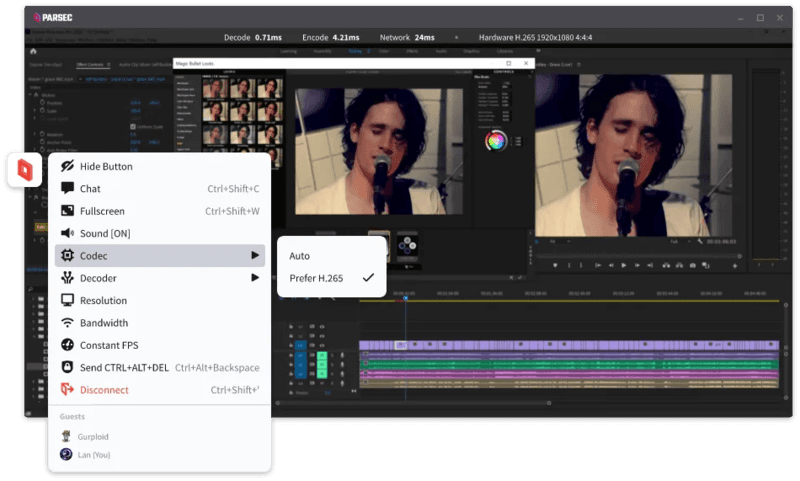
Parsec is widely recognized as a top choice for remote video editing, especially when latency is your biggest concern. Its streaming technology is optimized for real-time responsiveness, which makes it ideal for tasks like timeline scrubbing and motion graphics work in After Effects.
However, while Parsec excels in performance, it lacks some features needed for full remote video editing collaboration. Multi-user workflows and advanced access control are not as robust as some newer tools. For users who need both performance and flexibility, alternatives like DeskIn may provide a more balanced solution.
3. Splashtop – Best for High-Resolution Streaming
Pros
Supports 4K streaming
Strong color accuracy
Reliable for creative tasks
Cons
Higher cost for advanced features
Can experience latency over long distances
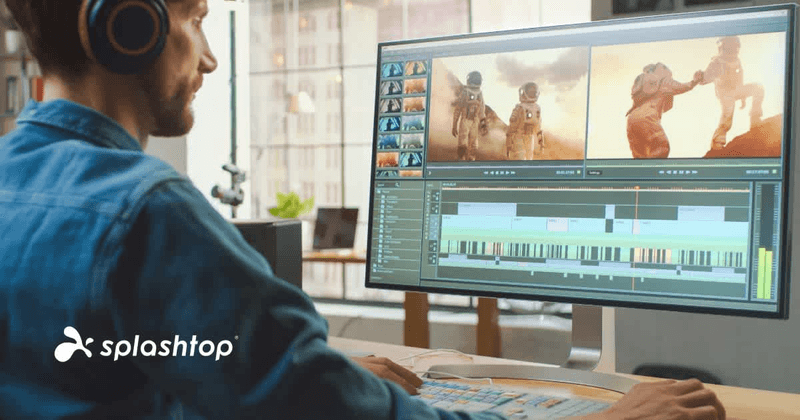
Splashtop is a solid option for editors who prioritize visual fidelity. Its support for high-resolution streaming and 4:4:4 color makes it suitable for color grading and detailed editing work.
That said, performance consistency can vary depending on network conditions. Some users report lag when working outside local networks. Compared to more optimized remote work software like DeskIn, Splashtop may require a stronger connection to maintain the same level of smoothness.
4. Best for Enterprise Workflows: HP Anyware
Pros
Industry-grade performance
Secure and scalable
Used in professional studios
Cons
Expensive
Complex setup
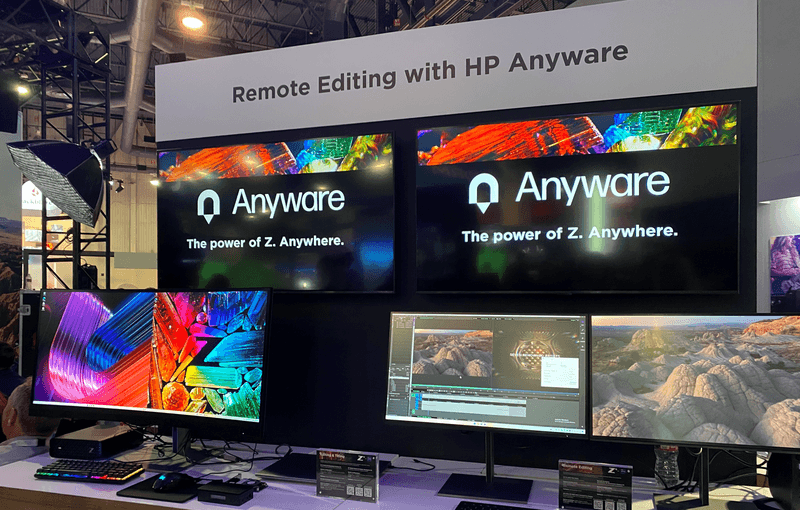
HP Anyware (formerly Teradici) is designed for high-end production environments. It uses advanced protocols to deliver excellent performance and security, making it a common choice in the media and entertainment industries.
However, for small teams or individual creators, it may be overkill. The cost and setup complexity make it less accessible compared to modern remote desktops for video editing tools that offer similar performance with easier deployment. The high cost and technical complexity create barriers that modern remote desktop solutions have eliminated, like DeskIn, offering comparable performance with far simpler deployment.
5. Best for Mac Users: Jump Desktop
Pros
Great macOS integration
Smooth performance
Easy to use
Cons
Limited advanced features
Not ideal for heavy collaboration
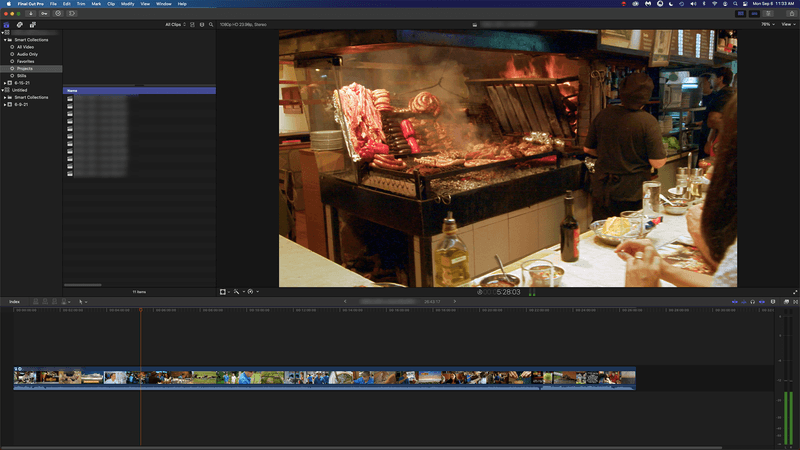
Jump Desktop has earned a loyal following among Mac users seeking a straightforward, efficient remote desktop for video editing. Its Fluid Remote Desktop protocol provides smooth, responsive performance for most editing tasks without unnecessary complexity.
Where it falls short is in collaboration. Jump Desktop is built for individual use, lacking the team-oriented features that creative groups need. For solo professionals, it works well, but teams will quickly miss real-time collaboration tools found on other platforms.
6. Best Lightweight Option: AnyDesk
Pros
Fast and lightweight
Easy to set up
Works on multiple devices
Cons
Limited performance for video editing
Lower visual quality
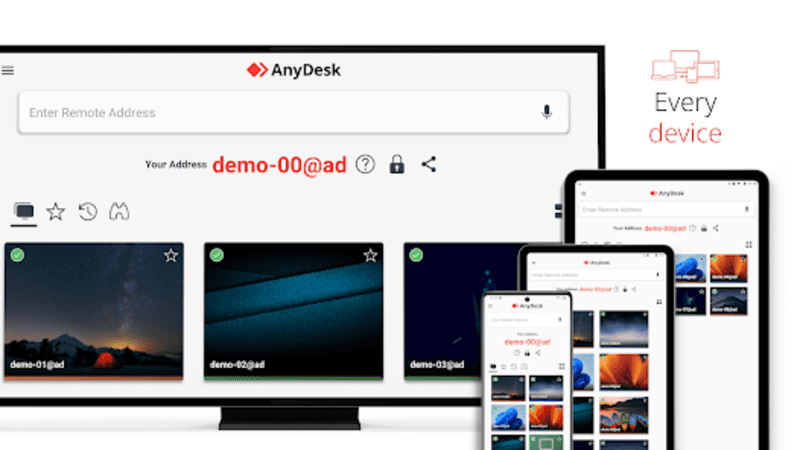
AnyDesk has built its reputation on lightweight design and remarkable ease of use for general remote access. It handles everyday tasks competently, connecting quickly and running smoothly on modest hardware.
The limitations become apparent with demanding creative work. Remote video editing requires consistent frame rates and crystal-clear visuals—areas where AnyDesk struggles. For professional editors who need precision, the performance gap becomes impossible to ignore.
7. Chrome Remote Desktop – Best Free Option
Pros
Completely free
Easy browser-based setup
Works on any device
Cons
Poor performance for editing
Limited features
Chrome Remote Desktop is one of the most accessible remote support tools, offering a simple way to access your computer from anywhere. It's free, requires almost no setup, and lets you access your computer from anywhere with just a browser. For basic technical support or quick file grabs, it gets the job done.
However, it is not built for remote video editing. Users often experience lag, compression artifacts, and low frame rates. If you're working on professional projects, upgrading to a more capable solution is highly recommended.
8. RustDesk – Best Open-Source Alternative
Pros
Open-source
Self-hosting available
Free to use
Cons
Requires technical setup
Performance can vary
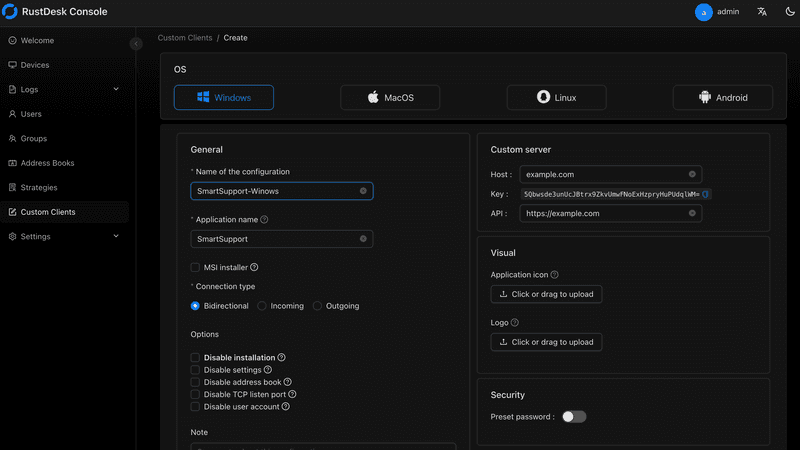
RustDesk appeals to users who prioritize open-source philosophy and want complete control over their remote access infrastructure. The flexibility to self-host and customize is genuinely valuable for privacy-conscious users. RustDesk is an interesting option for users who prefer open-source remote desktop not working alternatives or want full control over their infrastructure.
Performance, however, depends entirely on your configuration skills. Without technical expertise, achieving the smooth, low-latency experience required for professional editing is challenging. It's powerful for those who know how to tune it, but not plug-and-play.
FAQs About the Best Remote Desktop for Video Editing
Q1. Can video editing be done remotely?
Yes, with the right remote desktop for video editing, you can edit videos smoothly from anywhere. Tools like DeskIn and Parsec provide low latency and high frame rates for professional workflows.
Q2. What is the best free remote desktop for video editing?
Free options like Chrome Remote Desktop exist, but they lack performance. DeskIn offers a free plan with better performance, making it a stronger choice for real editing work.
Q3. Is Parsec good for video editing?
Yes, Parsec is excellent for low-latency editing. However, it may lack collaboration features needed for team workflows.
Q4. Why is my remote desktop not working smoothly?
Common issues include poor network connection, low bandwidth, or software limitations. Choosing optimized remote work software like DeskIn can significantly improve performance.
Conclusion
Choosing the best remote desktop for video editing depends on your workflow, budget, and performance needs. While tools like Parsec and Splashtop excel in specific areas, many solutions struggle to balance performance, stability, and usability.
If you're looking for a well-rounded solution, DeskIn offers a strong combination of high performance, smooth streaming, and cross-device flexibility. Whether you're working solo or collaborating remotely, it provides a reliable foundation for modern remote video editing workflows.
PRODUCTIVITY
Unlocking the Ultimate Remote Work Setup: Deskimo Meets DeskIn
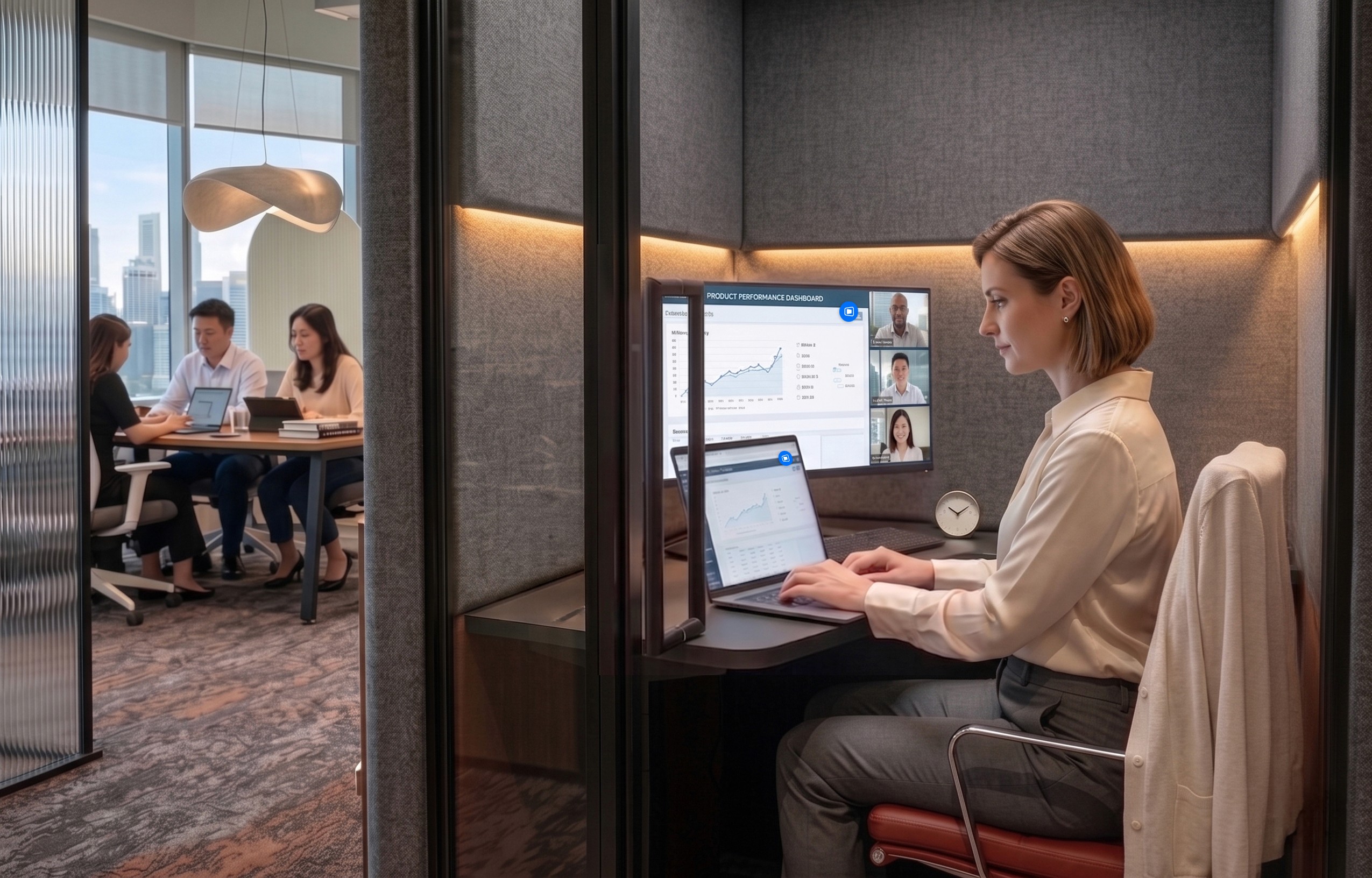
Remote work promised freedom, but for many professionals it quietly delivered a new kind of friction. The apartment is too noisy. The café Wi-Fi is patchy. The laptop bag gets heavier every month as cables, chargers, and a second monitor piles on. Somewhere along the way, "working from anywhere" started to feel a lot like hauling your office everywhere.
The fix is to pair two tools that solve opposite halves of the same problem. Deskimo, a coworking space platform, gives you on-demand access to workspaces by the minute. DeskIn, a remote desktop software, gives you access to your home or office computer from any device. Put them together and you get a workflow that removes hardware limits, keeps your data on your home machine, and lets you walk into any city with nothing but a tablet.
Why your personal space isn't always a productive space
Working from home sounds ideal until your partner takes a call in the shared study. Or when the neighbour upstairs starts drilling at 9 a.m. Most work requires deep engagement and intense focus, free from distractions. Most homes were not designed to provide these on demand.
Coworking spaces fill this gap in three ways. Firstly, they set a physical boundary between personal life and work. Research suggests coworking setup is linked to higher productivity than working from home. Secondly, they offer amenities that are difficult to replicate at home: strong Wi-Fi, ergonomic chairs, private meeting rooms and quiet zones. Thirdly, individual workstations, open-plan workspaces foster a professional presence. You are most likely surrounded by people who are also there to work, and this social context encourages you to do the same.
Keep the Desk, Skip the Membership
The downside of most coworking spaces is the commitment. Monthly memberships and yearly office leases assume you need a desk every day, but most remote workers don't. Deskimo removes that friction: book a desk or meeting room by the hour, only when you need it, at hundreds of locations across cities.
The "Light Bag" Workflow
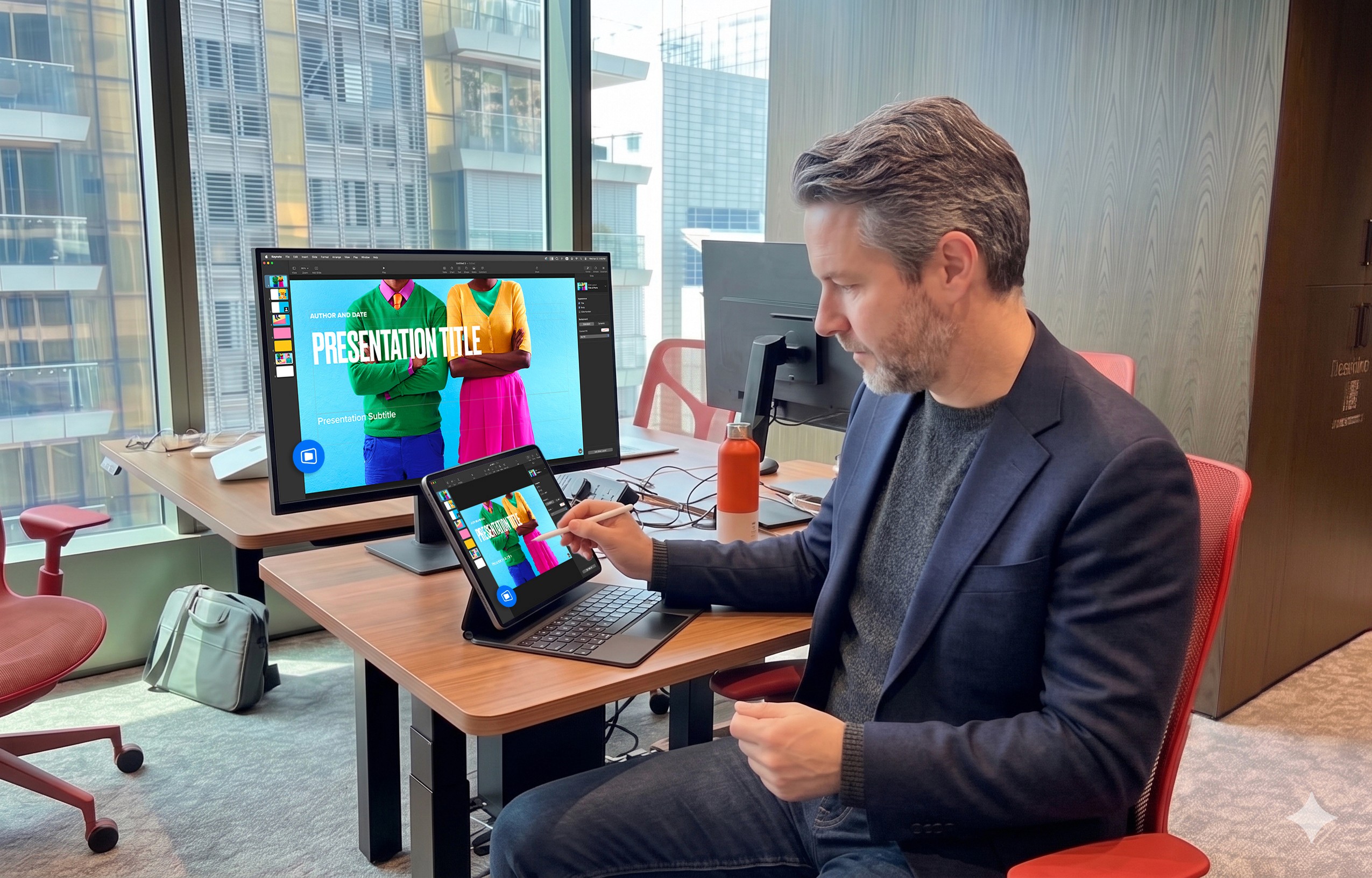
Once you start working outside of home regularly, the first thing you'll notice is the bag. A full laptop setup - machine, charger, mouse, maybe a portable monitor - adds up fast, especially if you're commuting by train or bike.
The fix is simple: leave your powerful machine at home. Carry only a lightweight tablet or thin laptop. DeskIn bridges the gap: open the app on your tablet, connect to your home workstation, and your full desktop environment streams to your screen. CAD software, video editing timelines, 40-tab research sessions. Everything runs on your hardware at home while you sit at a Deskimo desk across town.
What a Light Bag Day Actually Looks Like
A typical morning might start with email and focused work at a café-style hot desk over coffee. After lunch, you book a Deskimo private meeting room, connect to your home workstation through DeskIn, and tackle the heavy rendering or design work. Your bag weighs less than a paperback. Your output doesn't change.
Security Without the Usual Compromise
Working on public Wi-Fi has always been a quiet risk. When you open sensitive files on a portable device at a hot desk, those files are now physically travelling with you on a drive that could be stolen or compromised.
DeskIn's architecture sidesteps this. Your work runs on your home or office machine; the actual files never leave your network. Your device becomes a window: it displays pixels, sends back your clicks and keystrokes, and stores nothing from the session. Combined with DeskIn's end-to-end encryption and Privacy Mode (which blanks the host screen so no passerby sees what you're working on), the setup is arguably safer than carrying a laptop.
This matters most for teams working with regulated data - legal, healthcare, finance. Now you can offer staff the freedom to work from any Deskimo location without stretching your security perimeter to every space they visit.
Multi-Screen Workflows Without Buying Monitors
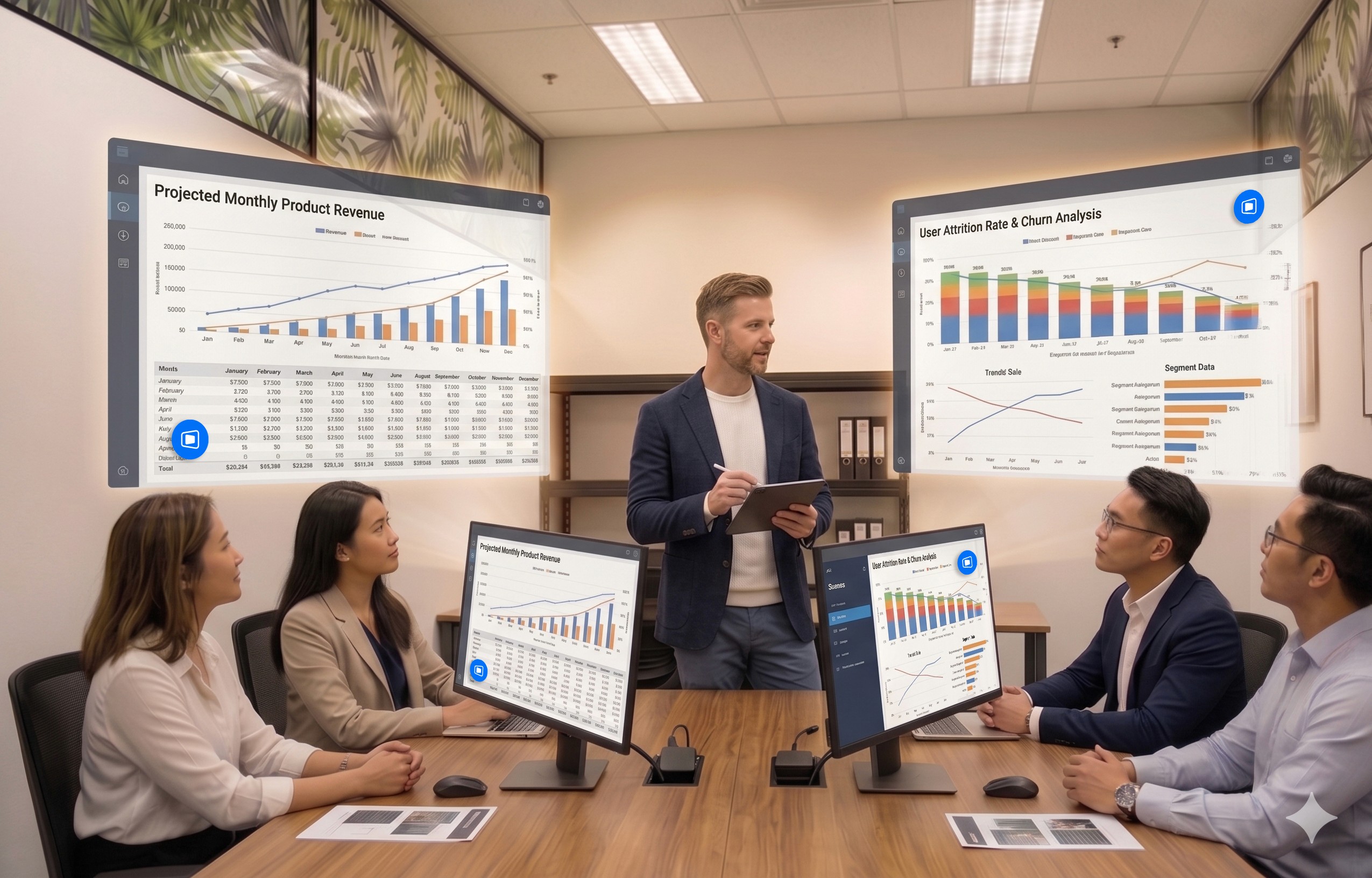
One of the underrated benefits of coworking spaces is that they often provide equipment that you wouldn't buy. Many Deskimo locations have meeting rooms equipped with external monitors, smart TVs or dual-display desks. Check the amenities at your chosen location and ask the staff if this is important for your session.
Bring the Desktop, Borrow the Screens
DeskIn's screen management feature allows you to make the most of these setups without the need for additional cables or adapters. You can wirelessly extend your remote desktop across multiple displays, which is a great upgrade for anyone working with spreadsheets, design files or code. For example, you could put financial models on one screen, reference documents on another, communication on a third; all without buying a single monitor.
How to use Remote Desktop in a coworking Space
The idea is appealing, but the practical question is where to begin. Here are a few guidelines:
1. Start with the space, then add the software.
If focusing at home has been a struggle, book a few Deskimo sessions across different locations and see what clicks. Some people thrive in café energy; others need a silent private booth. Once you know where you work best, install DeskIn on both your desktop and your portable device. Spend a session fine-tuning the connection before you depend on it for work.
2. Match the space to the task
Open coworking areas suit light communication and email. Quiet zones are better for focused writing or deep analysis. Private meeting rooms belong to client calls and heavy multi-screen work. With Deskimo's pay-per-minute pricing, you only pay for the room type you actually need; no overspending on a meeting room when a hot desk will do.
3. Be honest on your budget
A permanent private office in a major city can run from several hundred to several thousand dollars a month. A combined Deskimo and DeskIn setup, used a few days a week, typically costs at a fraction of that, before you even count the hardware you no longer need to buy. Ask the Deskimo staff about location pricing and team plans, as costs vary by city and space type.
4. Be aware of the trade-offs
Coworking spaces are not a perfect substitute for a dedicated office. Availability fluctuates, noise levels vary, and long sessions on pay-per-minute pricing is costly. The fix is simple: book ahead for important sessions, have an alternative location in mind, and use Deskimo day passes or bundles when you know you'll be there all day.
Bringing It Together
If you are using remote desktop software to work but struggle with noisy home environments, a coworking space could be the missing piece. Try booking a workspace on Deskimo app using the referral code DESKIN to get for $10 off (new users only). Setting up a new Deskimo Business account? Use referral code DESKBIZ for 60% off your first credit package. If you already have a Deskimo membership but find yourself hauling heavy gears to every session, DeskIn could change that. Download the app, connect to your desktop in minutes. Use promo code DESKIMO for 50% off DeskIn for the first month (or 20% off on annual plans). This promotion is valid until 31 July 2026. Terms and conditions apply.
The best remote setup isn't about buying more gear. It's about showing up anywhere with almost nothing, and still doing your best work.
About Deskimo
Deskimo is an on-demand workspace platform that gives professionals pay-per-minute access to coworking spaces, private offices, and meeting rooms. No long-term leases. No monthly subscriptions. Book a space when you need it and only pay for the time you use.
About DeskIn
DeskIn is remote desktop software that delivers low-latency access to your personal and enterprise computers from any device. With end-to-end encryption, multi-screen management, and fast data transmission, it's made for professionals who need all the power of a desktop computer without having to carry the hardware.
TROUBLESHOOTING
How to Control Alt Delete Function on Remote Desktop [Troubleshooting]
If you've ever tried pressing Ctrl + Alt + Delete on your keyboard while connected to a remote desktop session, you know it doesn't work the way you expect. The command is intercepted by your local machine, not the remote one. Frustrating, right?
When Ctrl + Alt + Del Doesn’t Work Remotely
For remote workers, freelancers, and digital nomads, knowing how to control alt delete on remote desktop is crucial. Whether you’re trying to lock your screen, access the Task Manager, or change a password, this simple shortcut matters more than you think.
Good news: there’s a better way to handle it, and I’ll walk you through it step-by-step.
1. Why Ctrl + Alt + Del Doesn’t Work by Default
What’s the Problem?
When you're using Remote Desktop Protocol (RDP) or remote access tools, your keyboard commands go to the local system unless told otherwise.
Ctrl + Alt + Delete is a protected system command.
Your local system always takes control of it first.
The remote computer never receives it.
This is by design, but for those managing remote PCs, it's a headache.
Who Needs This?
Remote workers managing multiple machines
IT admins doing maintenance
Freelancers working across time zones
Digital nomads accessing office PCs from anywhere
What You Really Need
You need a way to send Ctrl + Alt + Delete to the remote machine without causing local disruptions.
You may also like:
Using DeskIn: A Smarter Way to Handle Remote Access
DeskIn is a free remote desktop tool that lets you access any PC, from anywhere. One major perk? It lets you send Ctrl + Alt + Delete directly, no stress.
How to Do It With DeskIn
Launch the DeskIn app on both devices
Connect to your PC/Mac/Laptop with DeskIn (if it is connected then your mobile display will be like this)

On the bottom right corner menu, click the arrow and another add button will appear
Then select the action menu on the far left

Then the ctrl+alt+delete button appears which you can easily use at any time.

Click it — problem solved!
You don’t need to remember complex shortcuts or keyboard hacks. DeskIn makes it one-click easy.
Try DeskIn Now
Still stuck figuring out how to control alt delete on remote desktop? Let DeskIn handle it for you. Click here to download DeskIn.

TROUBLESHOOTING
Why I Can't Install Chrome Remote Desktop
Chrome Remote Desktop is a common choice when you need to access remote devices. However, many users are having trouble installing and using Chrome Remote Desktop. This article will explain some common reasons for failure to install Chrome Remote Desktop and give reliable solutions.
Why is Chrome Remote Desktop not installing, and how to solve it?
1. Network issues:
The network is unstable or too slow, causing the downloaded installer file to be incomplete or damaged.
Solution: Check your network status to make sure the network connection is stable and fast enough. Check your firewall and router settings to make sure they allow the download and installation of Chrome Remote Desktop.
2. System compatibility issues:
Chrome remote desktop supports iOS, macOS, Chrome OS, Android, Windows, Linux system, but not all versions. Make sure your operating system version matches the requirements of Chrome Remote Desktop.
Windows: Windows 10 and above
macOS: macOS 11 Big Sur and above
Linux: Wayland and X11 display protocol, automatic adaptation
Android: Android 8.0 Oreo and above
iOS/iPadOS: iOS 15 and above
Other requirements:
Browser: Requires the latest version of Google Chrome or Chromium
Network: A stable network connection is required to ensure a good remote control experience
3. Security software interference:
Antivirus software, firewall, or other security settings on your computer identified Chrome Remote Desktop as malware or an unauthorized application may cause the installation failure.
Solution: During the installation process, temporarily disable antivirus software, firewalls, or other security settings that may interfere. Once the installation is complete, re-enable these settings and make sure they are configured correctly to allow Chrome Remote Desktop to run.
4. Insufficient permissions:
The current user account lacks permission to install new applications. The system administrator has set up settings to prevent the installation of unapproved applications.
Solution: Run the installer as administrator: Right-click the installer and select "Run as administrator". You may need to enter the password to verify.
5. Registry issue:
Registry left over from an older version of Chrome or Chrome Remote Desktop interfere with the installation of the new version.
Solution: Use the regedit tool to find and delete old registry entries related to Chrome or Chrome Remote Desktop.
6. Incomplete installer file:
The downloaded installer file itself is defective or corrupted.
Solution: Redownload the Chrome Remote Desktop installation package from the Chrome official website or other reliable sources. During the download process, ensure a stable network connection to avoid corruption of the downloaded files.
If you still can't use Chrome Remote Desktop after trying the fix, here is a better alternative for you——DeskIn remote desktop.
DeskIn remote desktop: a better remote desktop software.
DeskIn is a remote desktop software designed for individual users. It is not only easy to use but also provides richer functions and a smoother connection experience than Chrome remote desktop.
High features of DeskIn:
Simple installation, strong compatibility
DeskIn supports multiple operating systems, including Windows, macOS, iOS and Android, and also supports initiating connections on the web. Installation is easy and you don't need to use it on a specific browser.Stable and low latency
DeskIn provides a stable connection with no connection time limit and wont drop even connect for a long time; the latency is as low as 40ms, which is especially suitable for efficient office and remote support needs.Flexible and safe login
Beside email registration, DeskIn also supports one-click registration and login using Google accounts and Apple IDs. When you first login on a new device, you need a verification to keep your account safe.High security
DeskIn uses 256-bit encryption technology to ensure the security of data transmission. It also has a variety of security settings, such as unattended access and security passwords, privacy screen, black and white lists, etc., to prevent the device from being maliciously connected.Rich functionality
DeskIn supports up to 4K60FPF/2K144FPS and also supports manual adjustment. Free features like screen expansion, remote CDM, projection, voice calls making it suitable for more usage scenarios.
Get started with DeskIn easily
Step 1: Install and open DeskIn on the local and remote devices respectively, register a free account and log in. For the first log in on a new device, you need email verification to keep your account safe.

Step 2: Enter the ID of the controlled device on the main control device, click Connect, you can use password connection or password-free connection to complete the verification.

After a few seconds, you can control the remote device as if it were right next to you.
Conclusion
If you encounter problems with Chrome Remote Desktop not being able to install, DeskIn is a more stable and powerful alternative. DeskIn is not only easy to install, but also provides stable connections and high security, making it an ideal choice for remote connections.
PRODUCTIVITY
3 Ways To Send Large Files That Exceed Email Size Limits
We usually use email to transfer files, but most email services refuse to accept attachments that exceed a certain size—claiming this helps prevent malicious attacks and reduce risks. Therefore, when sending large files, you cannot rely on this common method. However, there are other equally easy ways to transfer large files. This article will introduce you to three of them.
You may also like:
Method 1: Compress the file before emailing
Email providers often have limits on the size of attachments that can be uploaded. For example, Gmail only allows attachments of 25MB or smaller, and Outlook only allows attachments of 20MB or smaller. To work around this, you can compress the large file to a size that meets the email attachment requirements.
Advantage: Compressing files is the simplest and most direct way to reduce file size to fit attachment limits, allowing you to transfer large files via email directly.
Limitation: File compression typically reduces the file size to only about half of its original size. As a result, this method is only suitable when the file exceeds the size limit by a small margin. Additionally, compressing and decompressing files may lead to data loss or damage. For instance, the quality of videos or images may deteriorate.
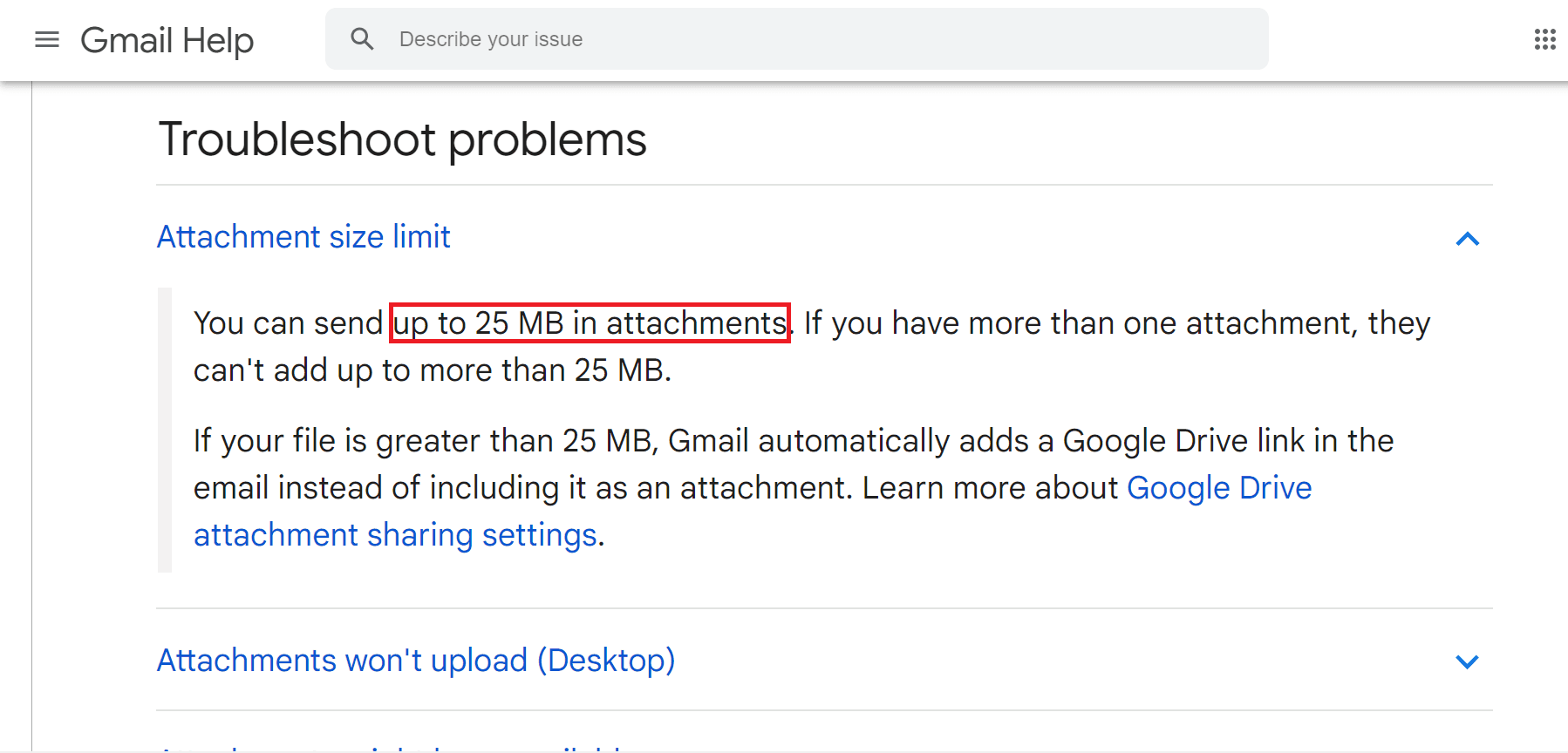
Gmail only allows attachments under 25MB
Method 2: Use a cloud drive to transfer files
In addition to sending via email, there are other ways to send large files, such as using Cloud Drive.
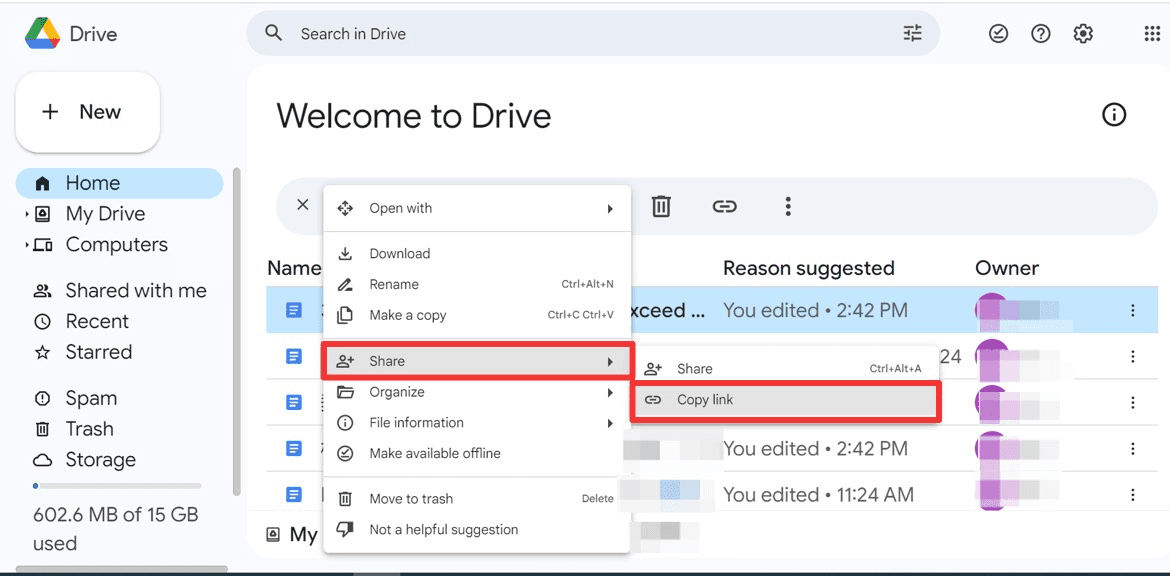
Upload large files to a cloud drive (such as Google Drive), then you can send them to the other party by sharing a link.
Advantage
This method ensures better file quality and allows you to send much larger files compared to email attachments. Additionally, the files are saved in the cloud and can be accessed at any time.
Limitations
The free storage space on Google Drive is limited to 15GB. Other cloud drives also have similar free storage limits, so you may need to purchase additional storage space if required.
Since the file must first be uploaded to the cloud and then downloaded by the recipient, the transfer time depends on your network conditions. This process may take longer than traditional methods.
Method 3: Use DeskIn remote desktop software to transfer files (Most recommended)
Currently, most remote software on the market supports file transfer. DeskIn has enhanced the standard file transfer functionality to provide an even better experience:
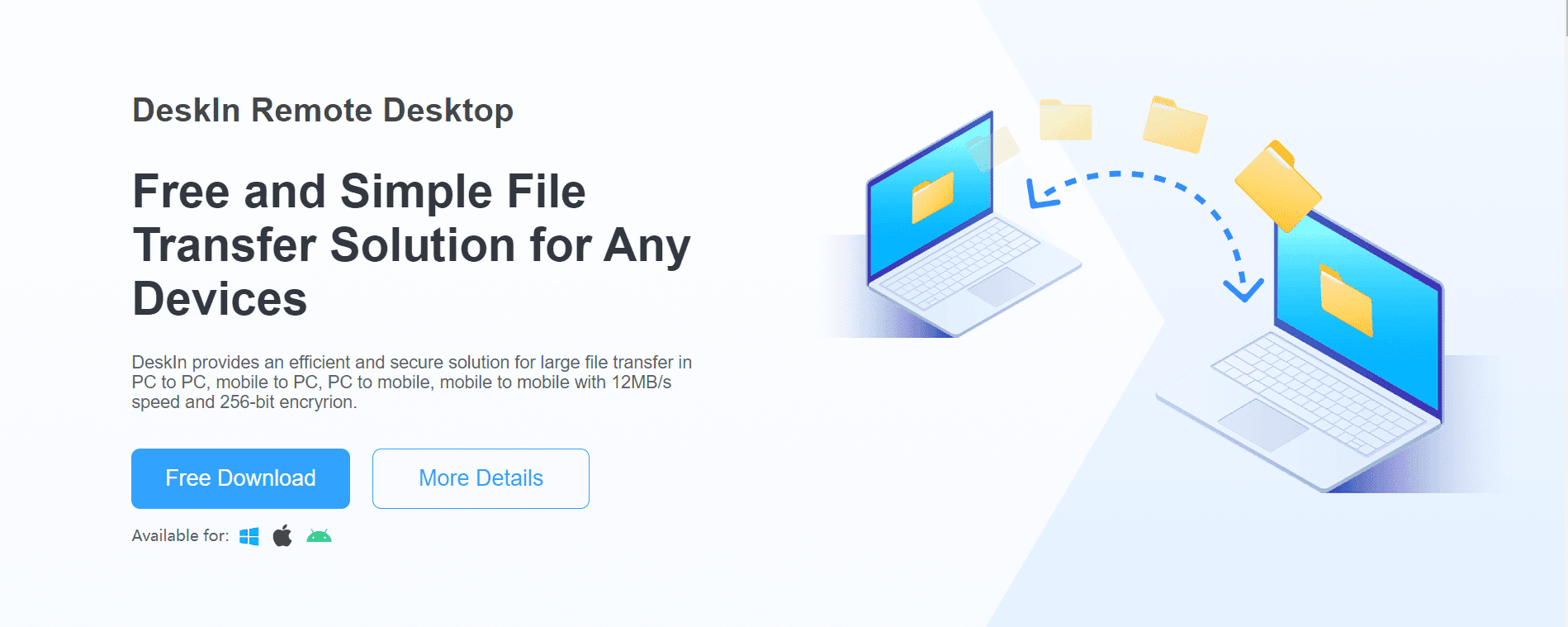
The free version already supports file transfer with no limit on size and quantity;
Fast transmission speed, up to 12MB/s;
Ensure your files remain confidential and protected from unauthorized access using 256-bit end-to-end encryption;
There is no need to upload or download files like a cloud drive. You can directly transfer files from one device to another, time-saving;
DeskIn supports seamless file transfer between different devices and operating systems. Whether you are using a Windows PC, Mac or mobile device, DeskIn allows you to easily transfer files across platforms.
There are also security risks when using email to transfer files. Even if you enter just one wrong character, your email may be sent to another person and cannot be withdrawn, which may easily lead to information leakage. While using DeskIn, you need to match the device ID and password, or manual passwordless verification from the other party's computer, which avoids transferring to the wrong object.
How to use DeskIn for file transfer?
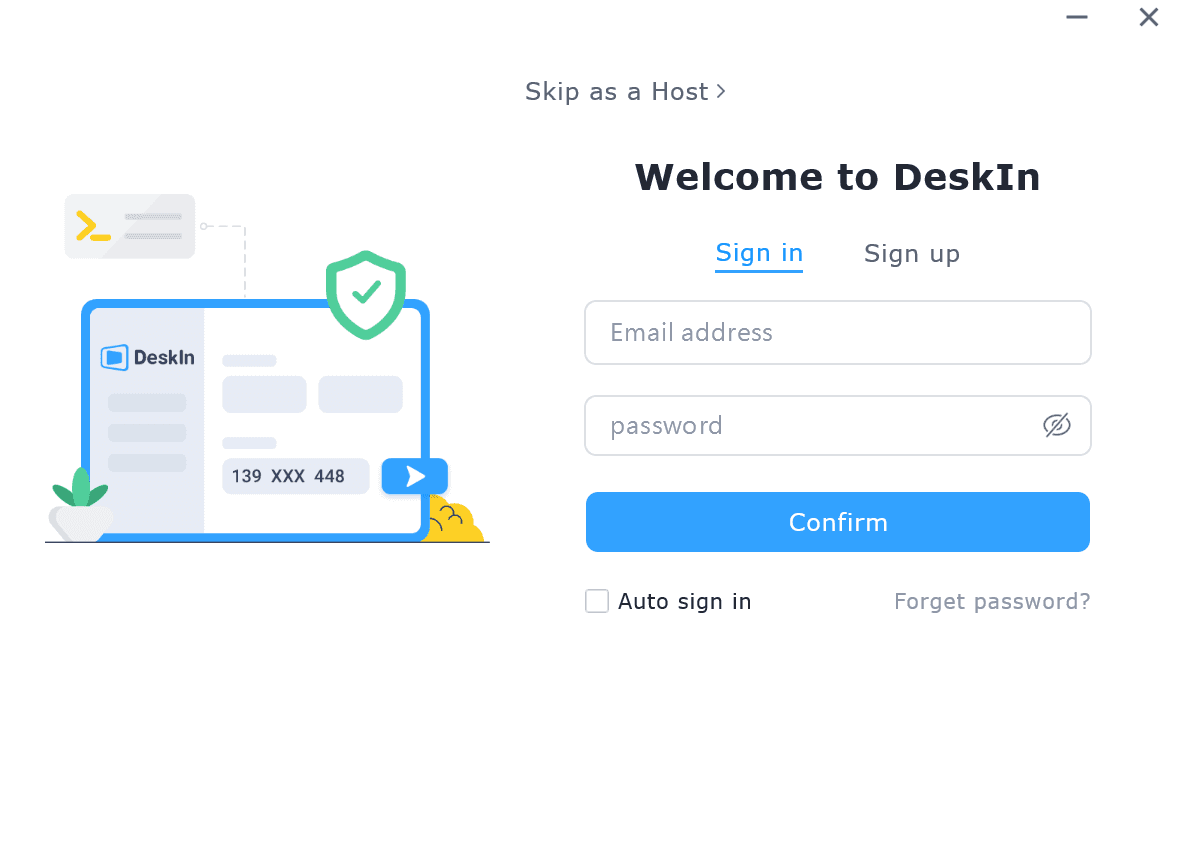
1. Download DeskIn respectively on the transmitting device and the target transmitting device, register a free account and log in separately. If you are logging in on a new device for the first time, you need to go to the registration email to complete verification.
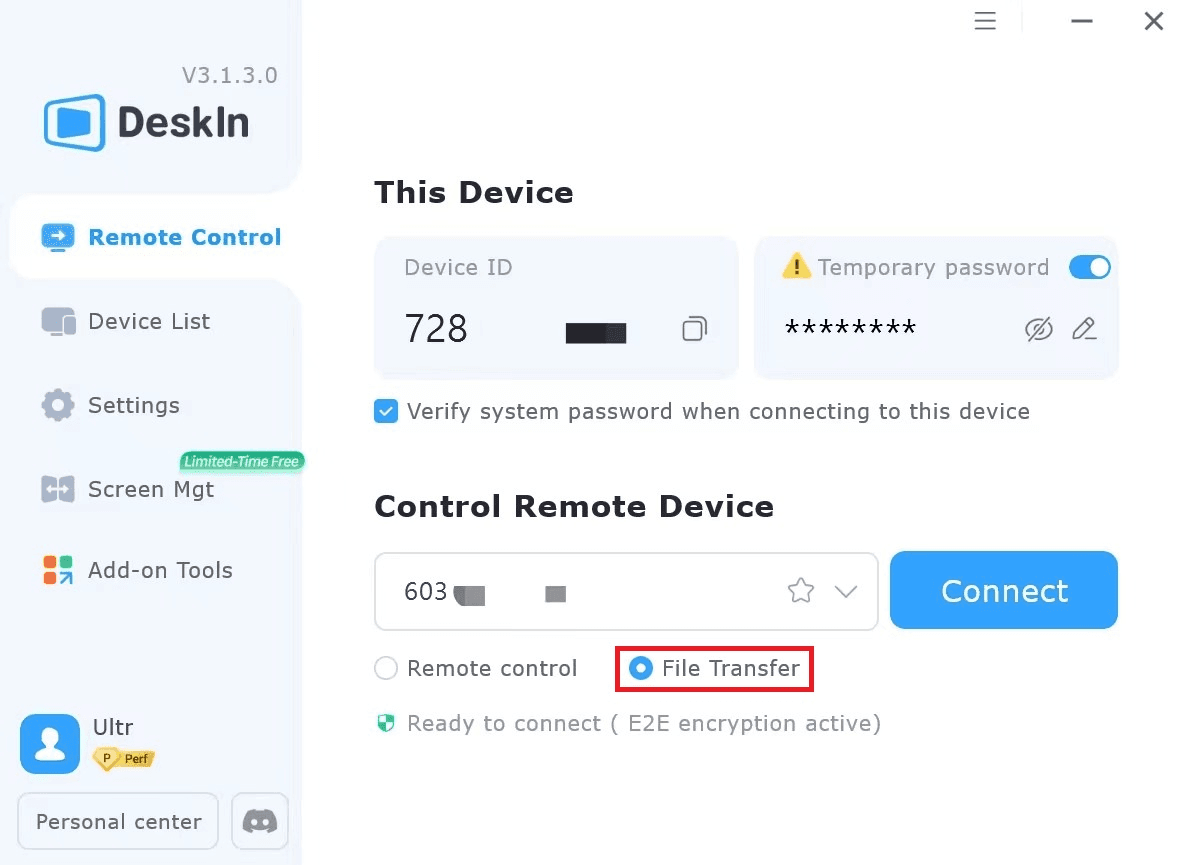
2. After successful login, enter the device code of the device to be transferred, select file transfer, and then select Connection. You can choose a password or manual passwordless verification method.
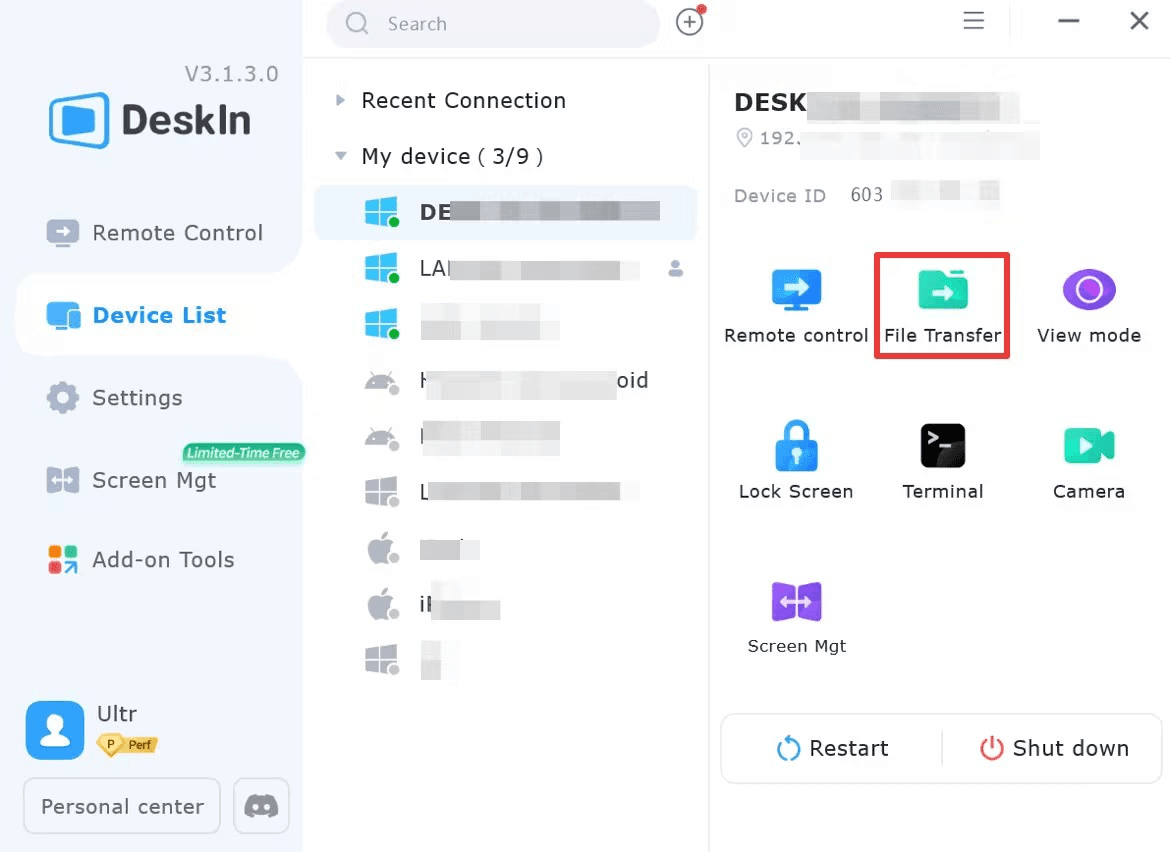
Three ways to find “File Transfer” on PC:
(1) In "Remote Control">>”Control Remote Device”>>Select "File Transfer">>"Connect".
(2) Find the device to which you want to transfer files in the "Device List" and select "File Transfer" in the right functional area.
(3) Find "File Transfer" in the toolbar of the DeskIn icon on the remote control page.
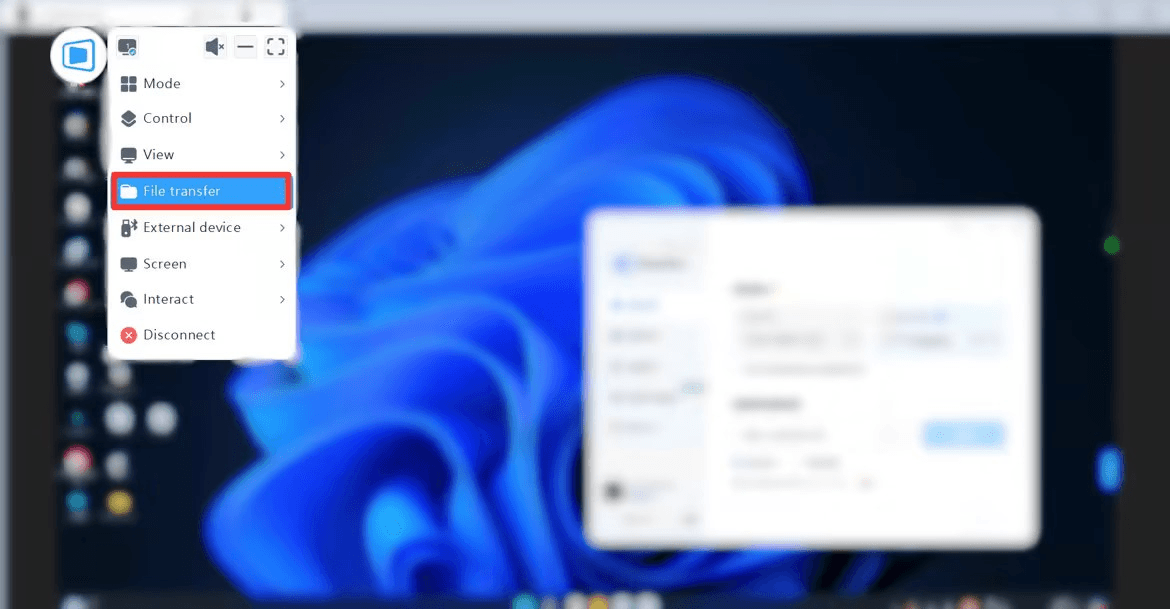
After finding "File Transfer", click to connect with password or manual verification. After the connection is successful, the file transfer page will appear.

In the file transfer page, click on the file you want to send, select the destination location for the transfer, and click the "Send" button on the sender to complete the transfer.
You can click “Send” or you can directly drag and drop the files that need to be transferred to complete the transfer.
4.Three ways to find "File Transfer" on mobile devices:
(1) "Remote Control" >> Remote control Device ID >> Select "File Transfer".
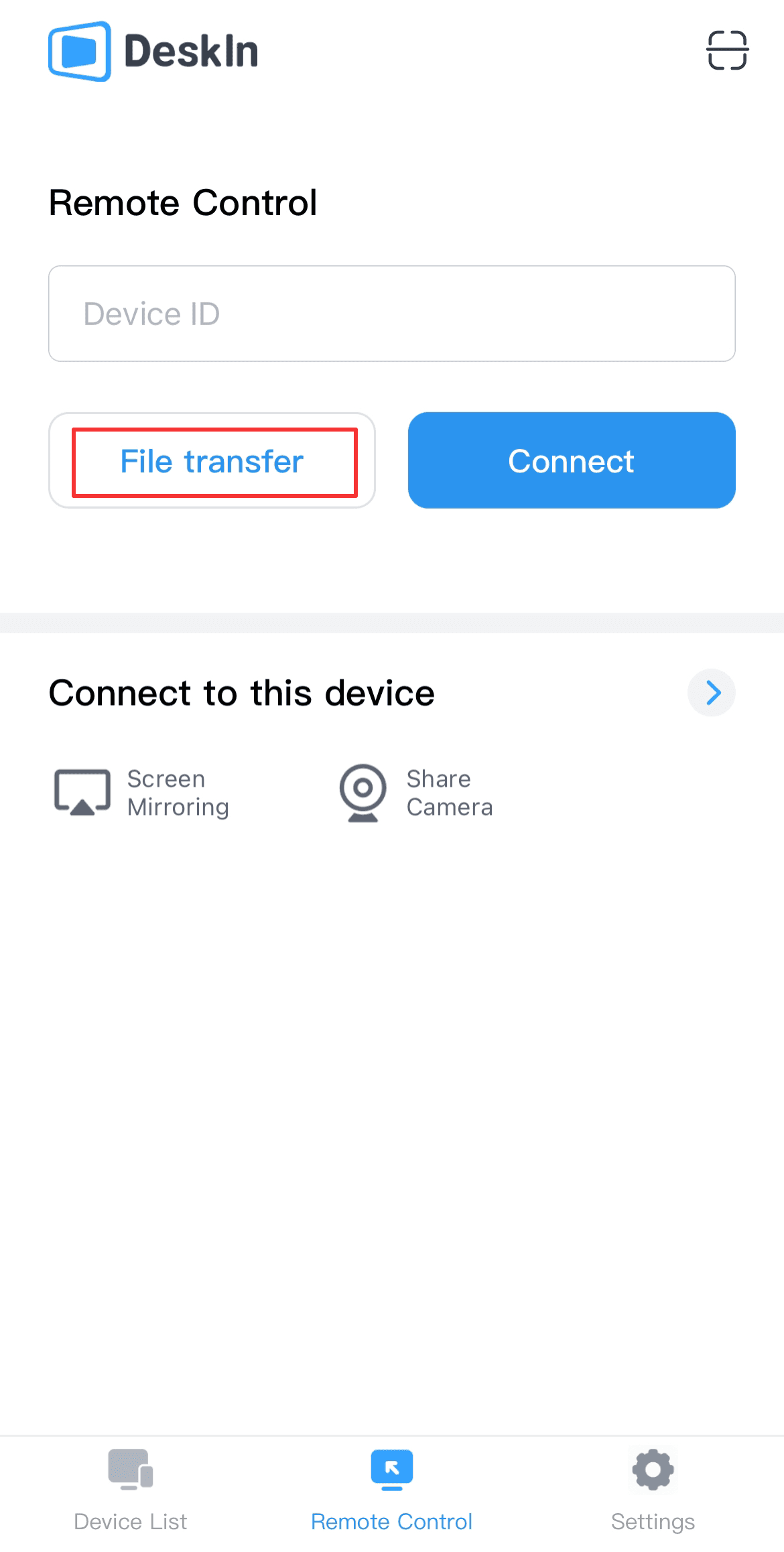
(2) Find the device to which you want to transfer files in the "Device List", click to enter and select "File transfer".
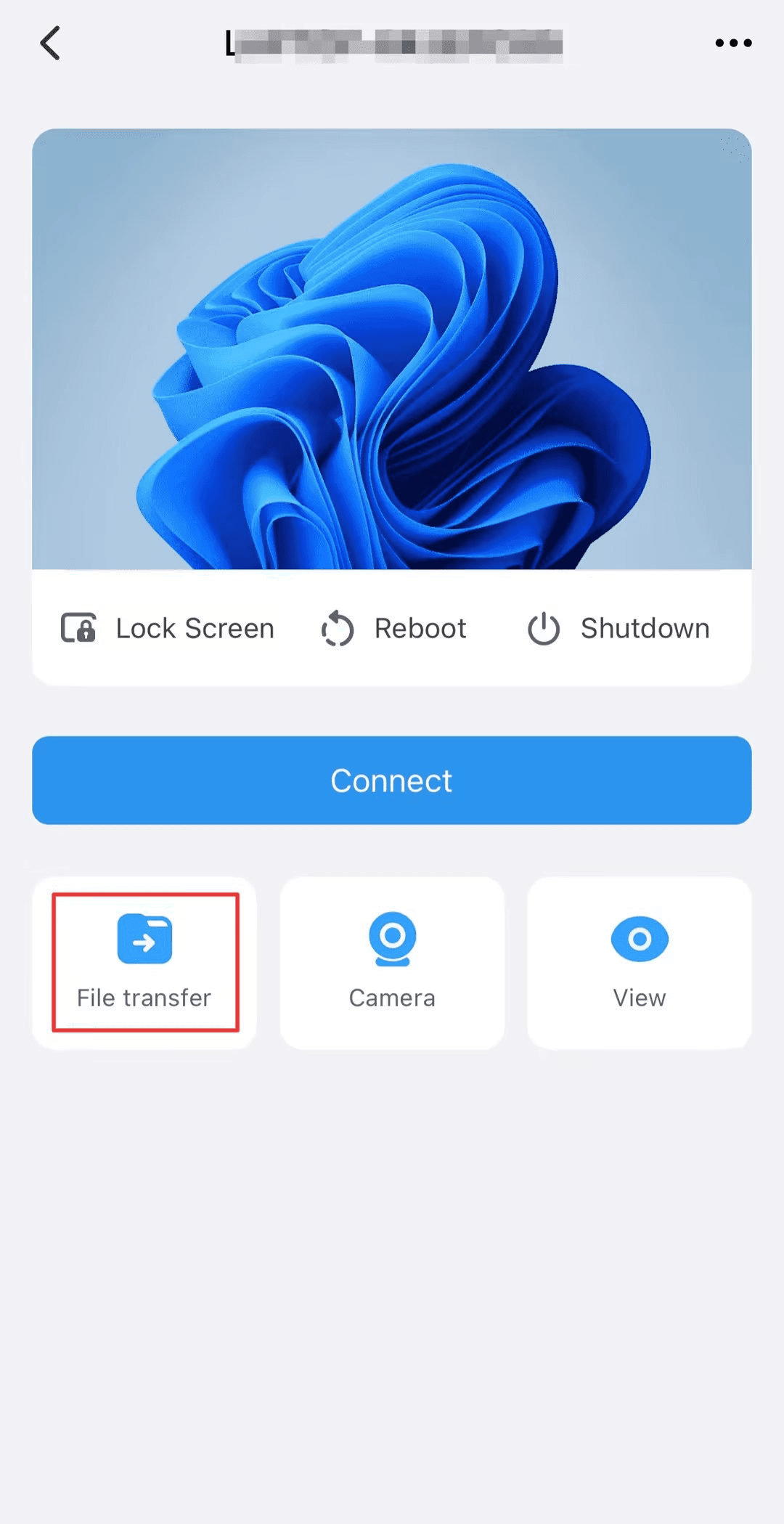
(3) After the remote control connection is successful, go to "Interact" >> "File transfer".
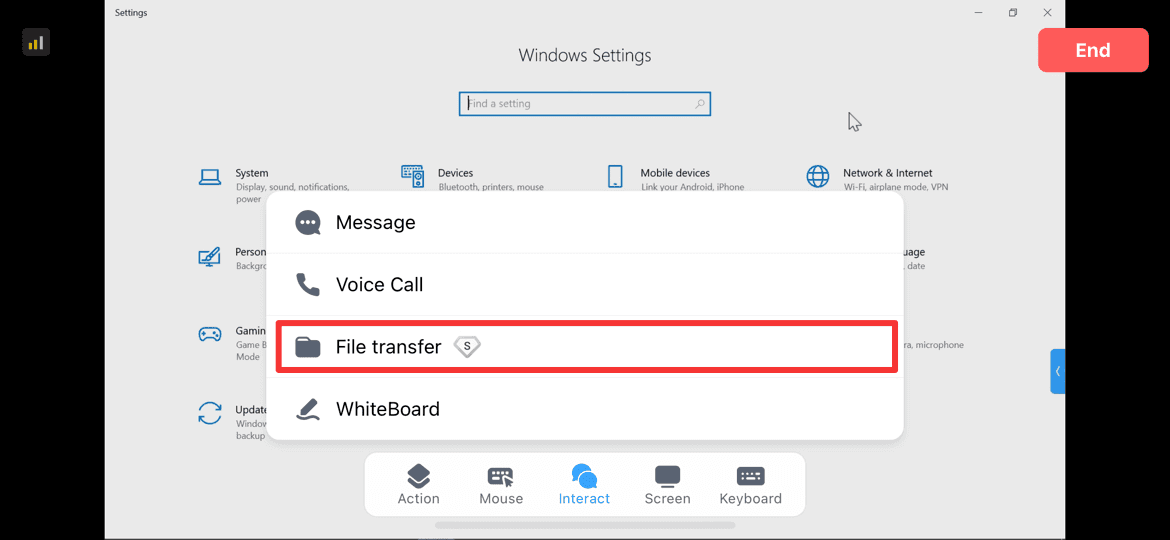
After finding "File Transfer", click to connect with password or manual verification. After the connection is successful, the file transfer page will appear.
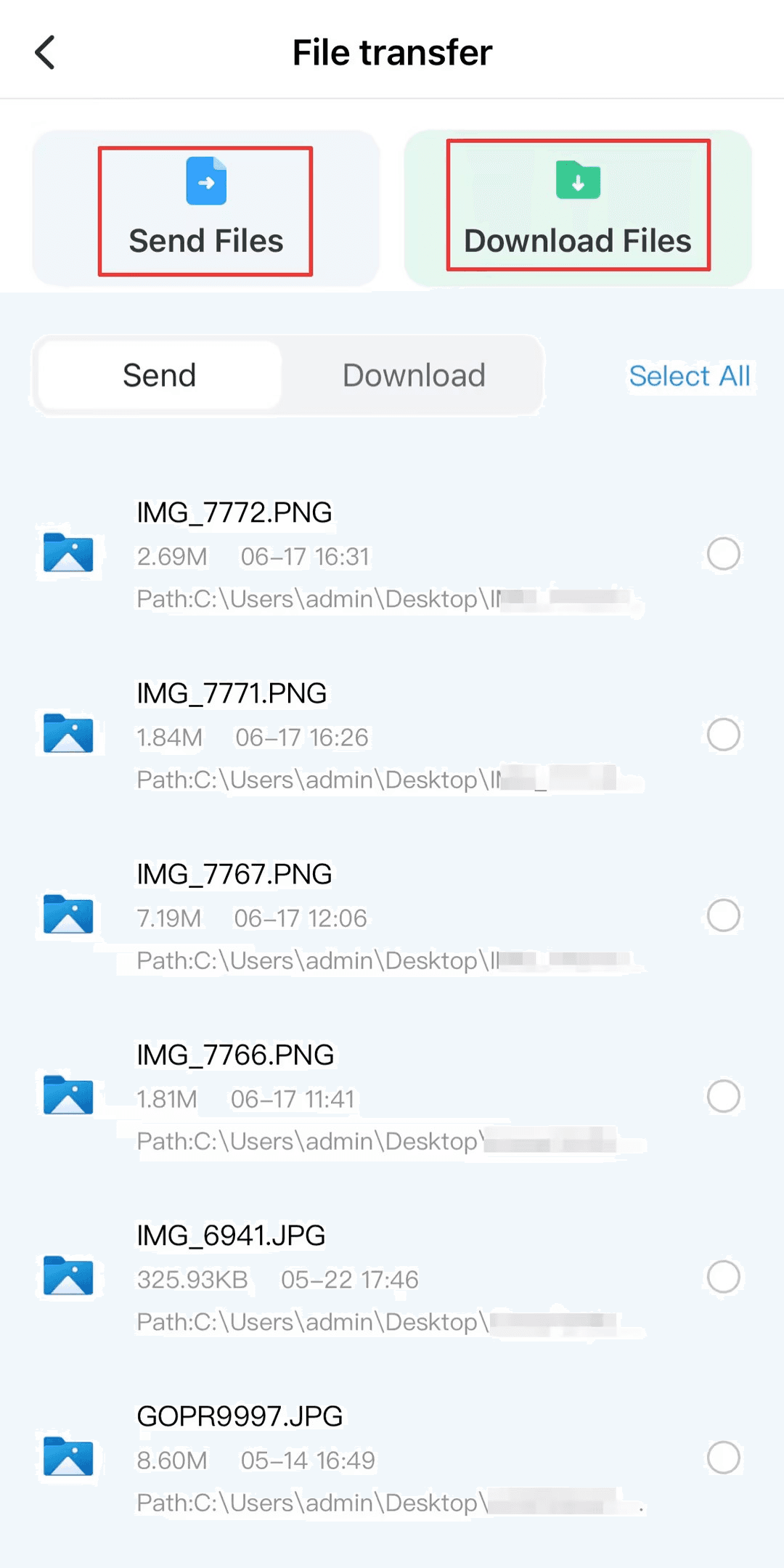
Click "Send Files", select the file on your mobile device, "Change Path" to select the destination location for transfer, and finally click "Send".
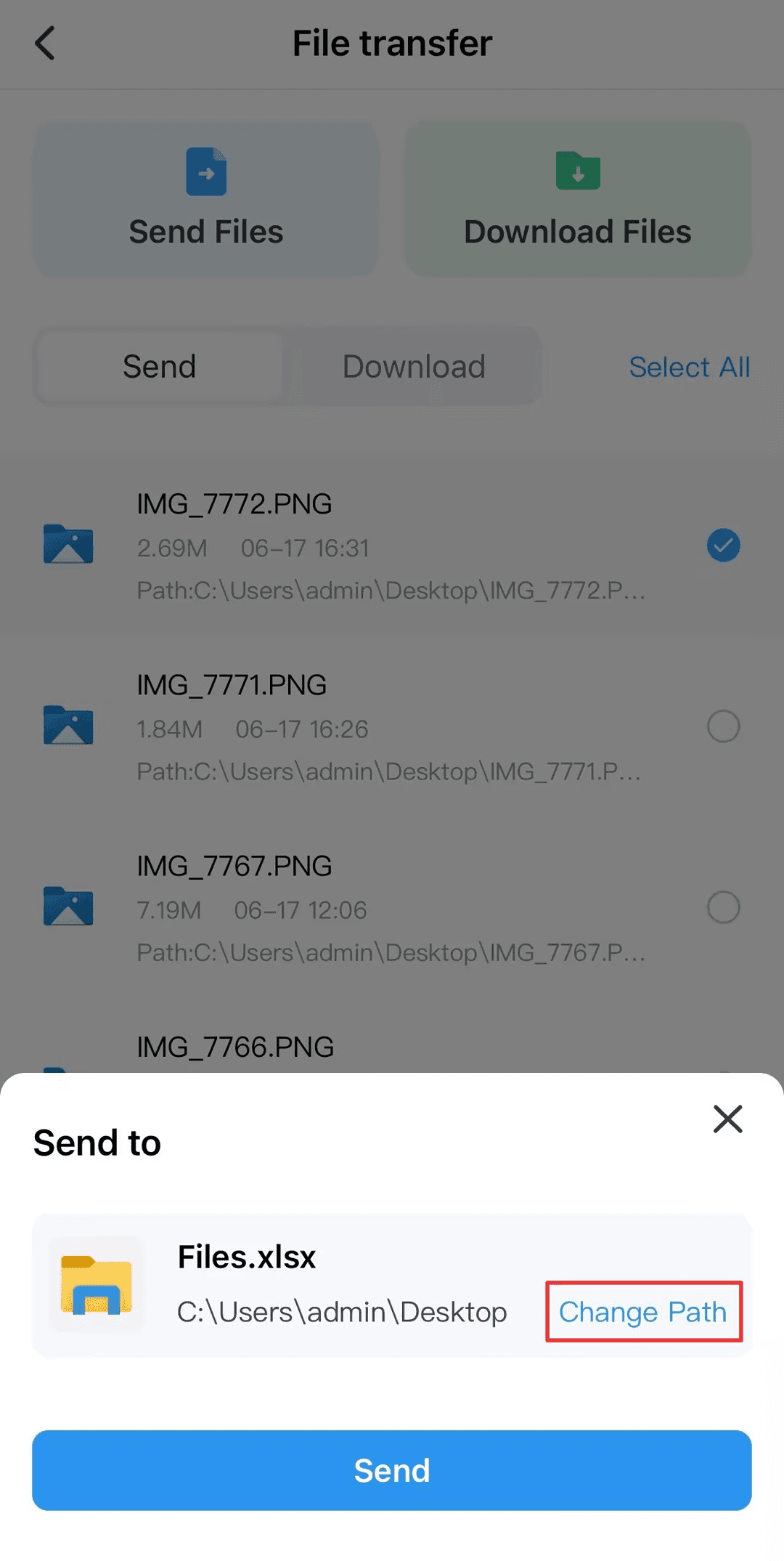
Select "Download Files" to download files from the remote device. Select the file you want to download and click "Download".
📖 Read more:
Conclusion
This article introduces 3 methods of transferring large files and analyzes their advantages and limitations. It is recommended that you use the third method - use DeskIn to transfer files.
It's free and it supports cross-platform transfers with no limits on file size and quantity, high transfer speeds, and you don't have to sacrifice file quality. This is the ideal choice for transmitting large files, you should definitely give it a try.

PRODUCTIVITY
Use Samsung Galaxy Tablet As Second Monitor For Windows PC
For multitasking workers, having a second monitor can increase productivity greatly. If you are a home office person or a student who don't have a dual screen. Here's how you can easily turn your Samsung Galaxy Tablet into a second monitor for your computer.
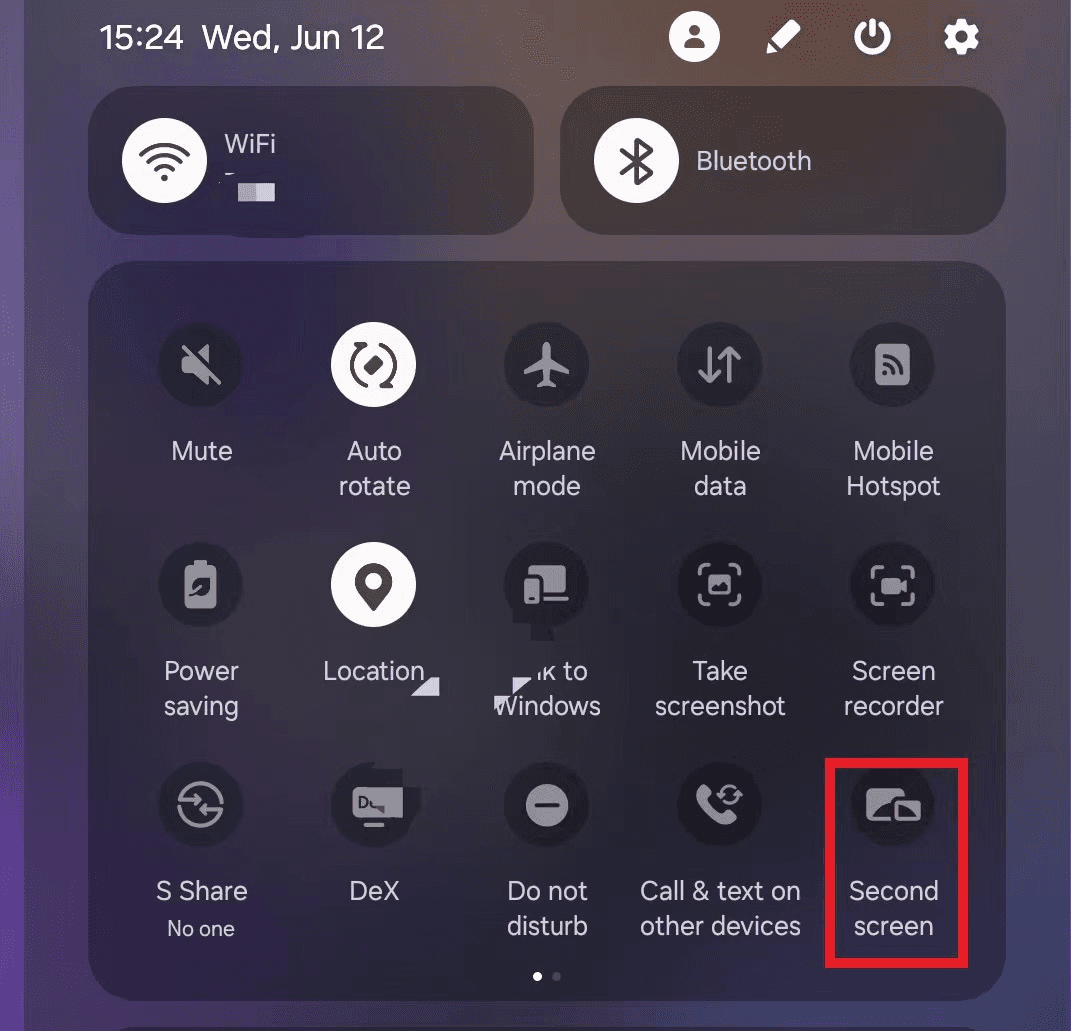
Step 1: Turn on your Samsung tablet, swipe down from the top of the screen to open the 「Quick Settings」panel.
Step 2: Find the "Second Screen" icon and tap it.
Step 3: Keep the tablet in the "Second Screen" screen (as shown below)
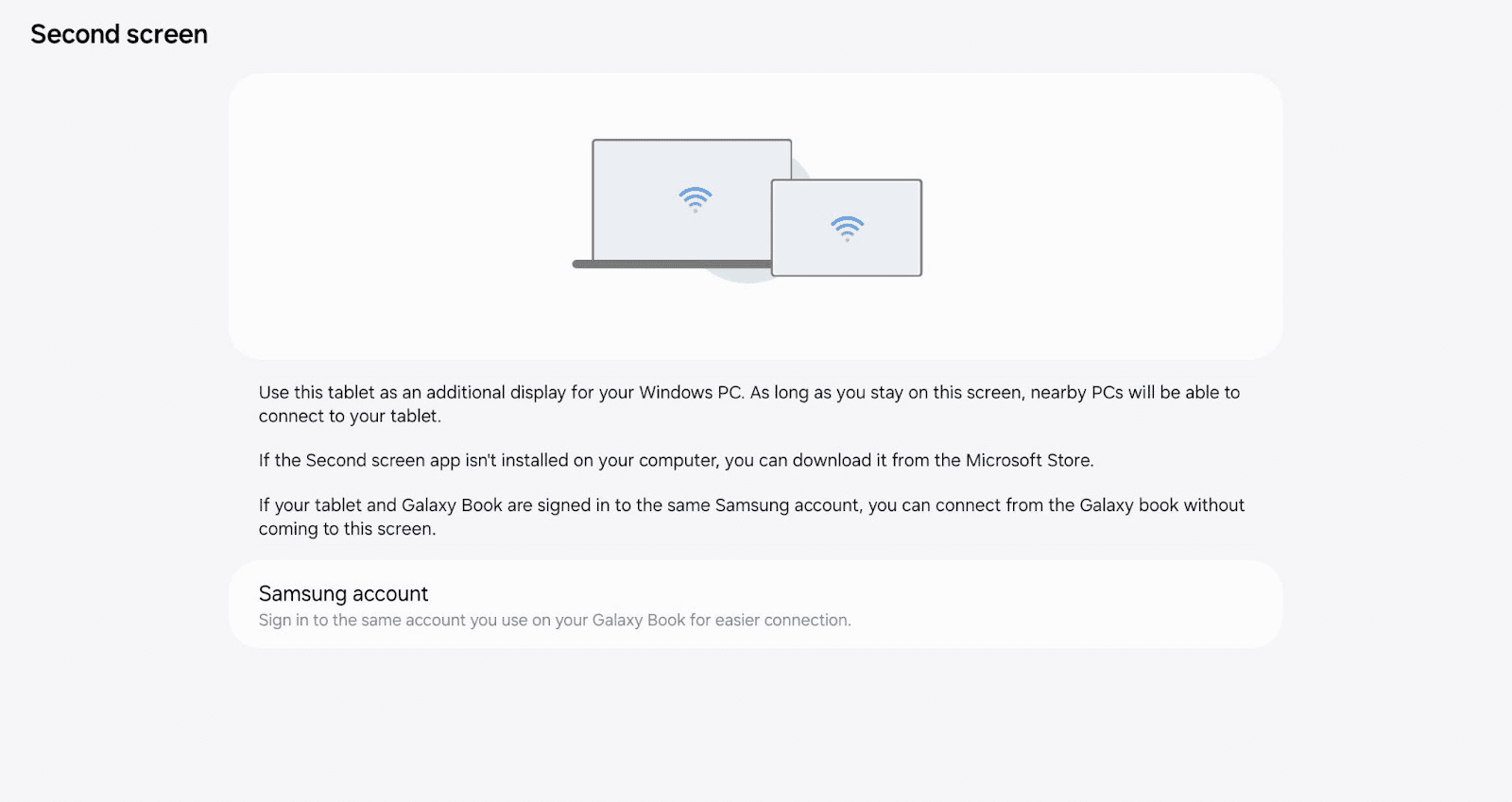
Note: If your Samsung tablet and Galaxy Book are logged into the same Samsung account, you can directly start from step 4 to connect through the Galaxy Book
Step 4: Press "Windows + K" on your computer, find and select your tablet from the pop-up device list, your tablet will become the extended screen.
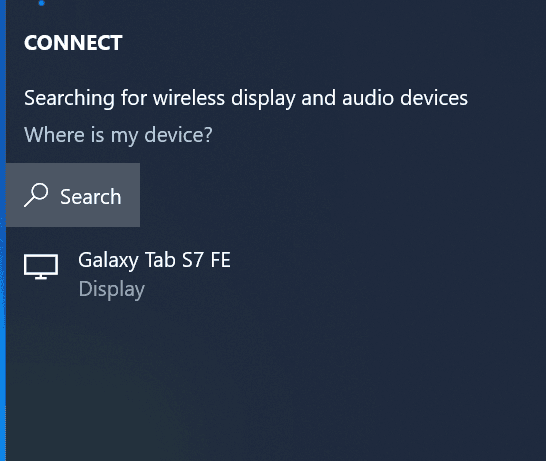
Step 5: If you find the tablet only mirrors the contents of the computer, click "Change Projection Mode" and switch the projection mode to "Extended".
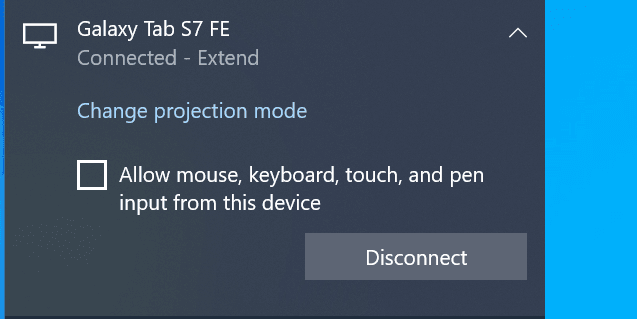
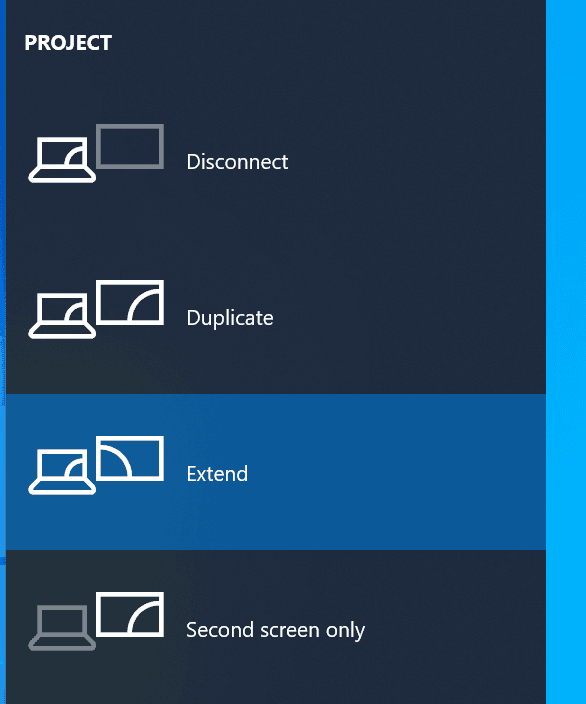
Note: The extended screen feature only available on Galaxy Tab S7、S8 and S9 running One UI 3.1 and later, and Windows PC running Windows 10 v.2004 and higher.
Best tool to extend screen on Windows and macOS: DeskIn
The method introduced above is only applicable to Samsung tablets and Windows computers. If you are looking for a more comprehensive screen extension solution, you should try DeskIn- supports cross-platform screen extension on iOS, Android, Windows, and MacBook, adjusting resolution and completely free. Whether you're using an iPad, MacBook, laptop, or PC, it's easy to do that in just a few steps:
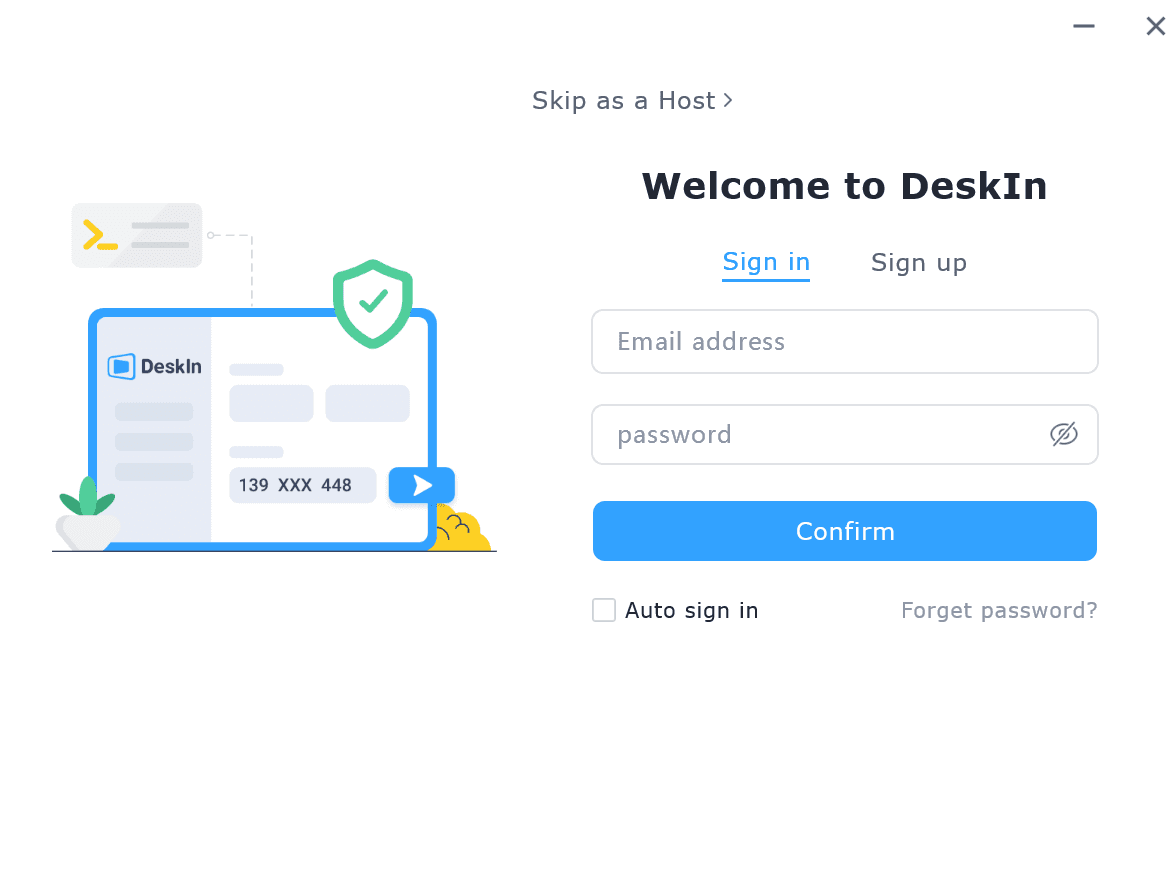
Step 1: Download and register a DeskIn account
Download DeskIn on both your devices, register for a free account and log in.

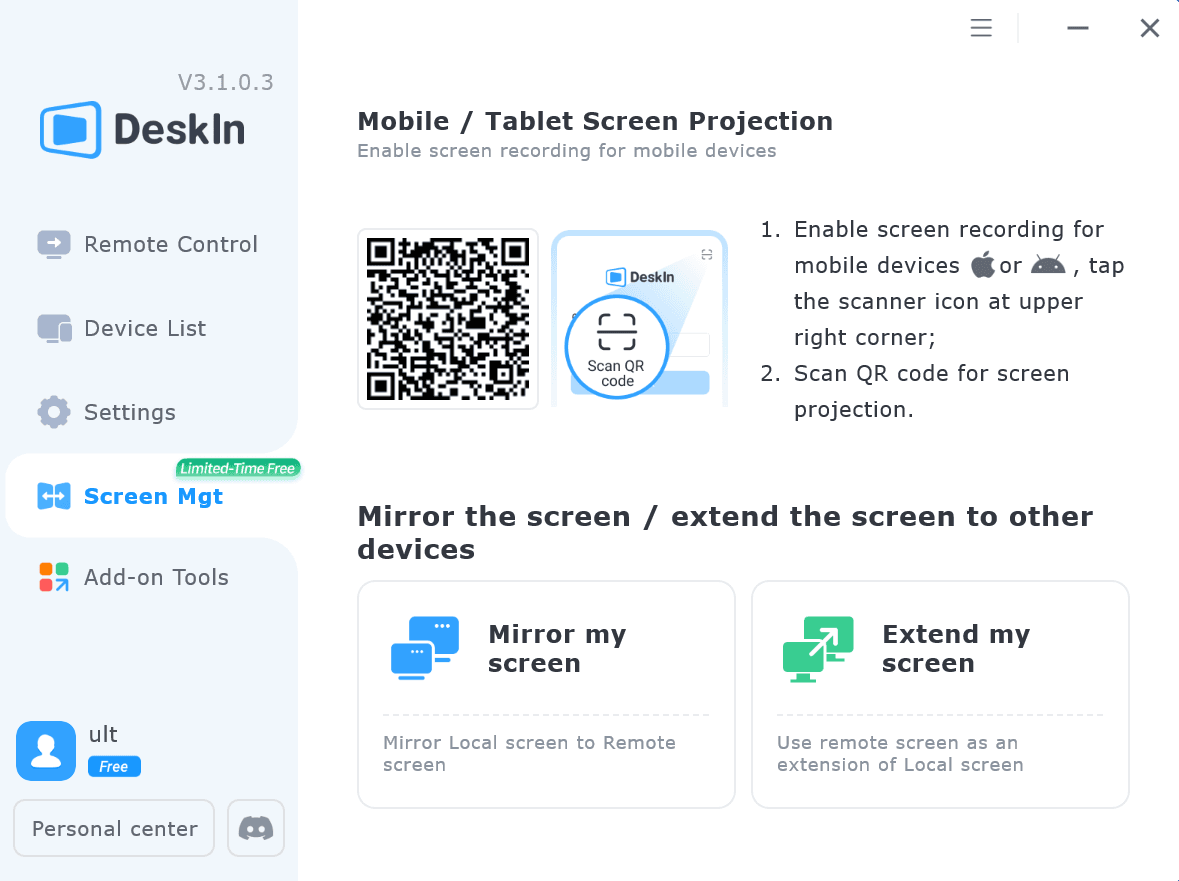
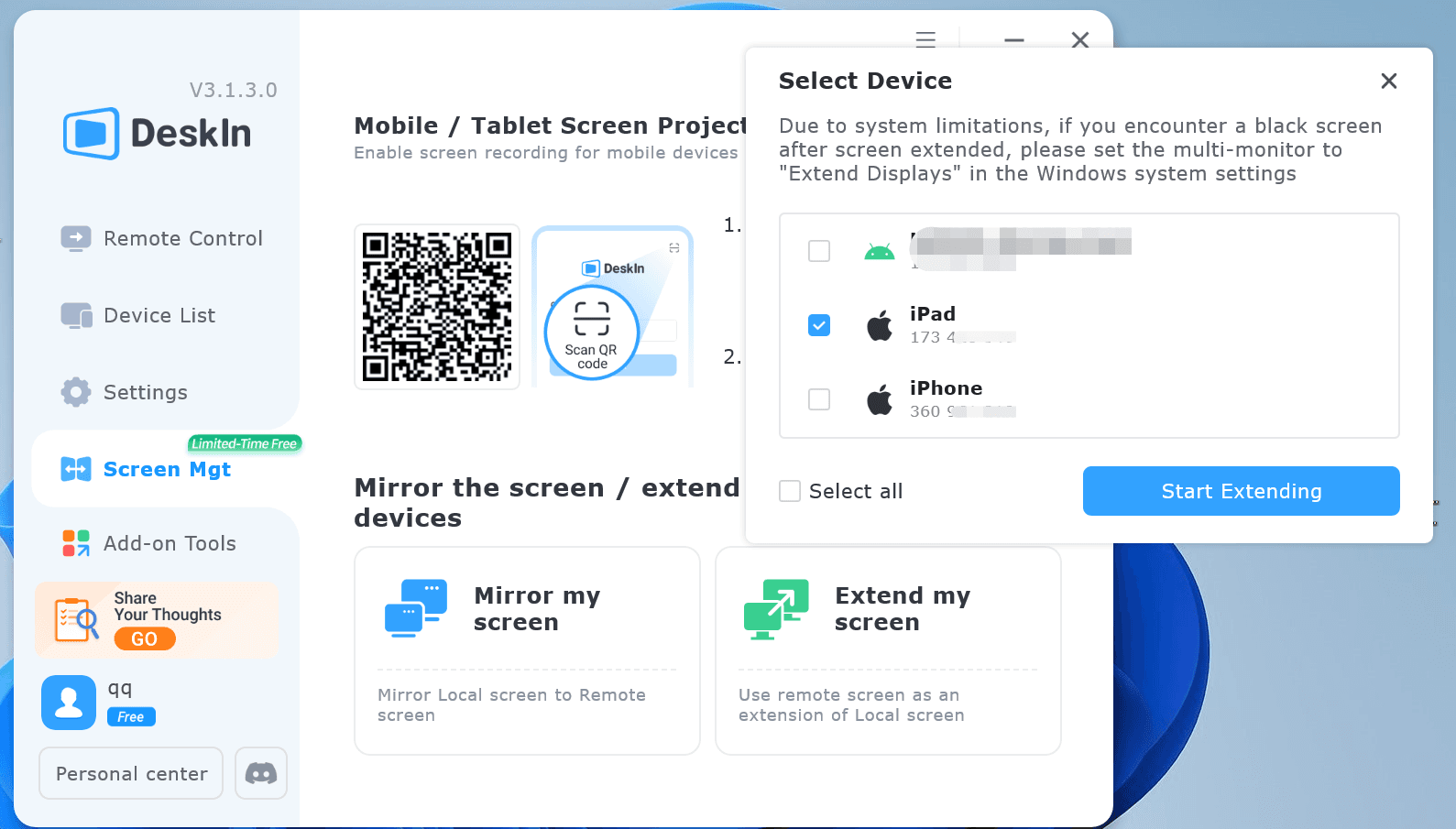
Step 2: Open DeskIn on the computer, go to "Screen Mgt" tab and click "Extend my screen".
Step 3: Select the device you want to expand the screen on and click "Start Extending". Then the selected device would become the second display of the computer.
Conclusion
This article introduces how to use a Samsung tablet as a second monitor. If you are looking for a screen extension tool that is suitable for all devices and has no limit on brand or system, we recommend using DeskIn. Click DeskIn Personal Features to learn more.
TROUBLESHOOTING
How To Tell If Someone Is Accessing Your iPhone Remotely
While mobile phones bring us convenience, they also bring risks. Spyware can be installed simply by just clicking on a link. Scammers will use Remote Desktop Software to access people’s phones. Once your phone is being hacked, your passwords and credentials may leak. Knowing how to tell if someone is accessing your iPhone remotely is critical. Read on to learn more about the signs and how you can protect your phone from being malicious accessed.
Six suspicious signs that your phone is being accessed
1. Battery runs down much faster than usual
Rule out the decline in battery health, if your phone consumes significantly more power than usual during normal usage or even on standby mode, it may be that an unauthorized software is quietly running in the background and accelerating battery consumption.
2. Overheat
Similarly, if the phone temperature is higher than usual under normal usage, you need to pay more attention. Malware keeps running for a long time and occupying CPU memory, causing the phone to heat up.
3. Frequently reboots
Unauthorized apps and settings can slow down your phone or even cause it to crash. Rule out the reason that your phone is too old or has too little available memory, it may be because your phone has been accessed by someone else.
4. Phone screen moving by itself
If you find that your phone suddenly restarts, shuts down or lights up on its own even when there are no new notifications, or even occasionally the screen moves on its own, then you should pay more attention.
5. Strange messages or browsing history
If your phone receives an inexplicable message with a link, be careful and don't click on the links. Oce you click on it, your phone may be quickly infected with a virus. You should also check your web browsing history regularly. If there are web pages that are not browsed by you, this is also a sign that your phone is accessed by others.
6. Strange noises
When you are talking to others and you hear noises from unknown sources or other voices, please be vigilant because this may be a sign that your phone is being monitored or monitored!
If you suspect that your mobile phone is being monitored, how can you check and disable it?
What to Do If Your iPhone is Being Remotely Accessed
1. Check whether there are hidden programs on your phone
Both Android and iPhone allow hiding apps. You can first check the installation history on the app store, and check whether there are hidden programs through the following steps:
iPhone: Swipe left on the main interface until you see the "APP Library", there will be a folder named "Hidden", you can unlock it using password or Face ID.
Android: Go to "Settings" >> "Apps" >> "Show Hidden Apps"
If you find any unfamiliar software, please uninstall it immediately. If you find that the app can't be deleted, seek help from professionals.
2. Modify application location permissions
Both Android and iPhone allow adjusting the location permissions, and by not sharing "Precise Location", you can enhance security. Here is how to change location settings.
iPhone: Go to "Settings" >> "Privacy and Security" >> "Location Services" >> find programs that you think are high-risk,and turn off the "Precise Location" option. You can also change preference of other normal apps.
At the same time, you can also clear previous location records on "Location Services" >> "System Services">>"Important Locations">>"Clear History"
Android: Go to "Settings" >> "Location" >> "Google" >> "Improve accuracy" >>Turn off "Improve accuracy"

3. Install anti-virus software or anti-tracking software
Especially for Android devices, you can consider some anti-virus software or anti-tracking programs to detect whether malware is installed on the phone. Remember always download software from the official app store and do not install unknown software through links or QR codes.

4. Clear browsing history
Android: Open Google Chrome >> click "┇" button in the upper right corner>>"Settings" >> "Privacy and Security" >> "Clear Browse Data">> Select the data category and the time range to clear
iPhone: Go to "Settings"> "Safari" >> "Clear browsing history and website data".
5. Reset Google account or Apple account password
If your phone is at risk of being monitored, your password may have been leaked. Since Google accounts and Apple accounts are bound to many other programs and software, updating your password is necessary:
Change Google Account password: Open Google Account >> "Security" >> Log in to Google >> "Password" > Enter new password >> "Change Password"。
Change Apple account password: Go to device "Settings" >> Click on the account name >>"Password and Security" > "Change Password", follow the on-screen prompts to update your password.
6. Reset your phone (do not use it unless necessary!)
This method is only recommended when you think you really cannot access the monitoring. Please back up your mobile phone before use to avoid data loss.
Android: Go to "Settings" >> "General management" >> "Reset" >> "Factory data reset" >> "Reset "
iPhone: Go to "Settings" >> "General" >> "Transfer or Reset iPhone" >> "Erase All Content and Settings"
How to use remote software safely and avoid malicious access
Everyone is worried that their phones might be maliciously accessed and there might be security issues when using remote desktop software. However, the convenience of remote software is becoming more and more obvious, and it would be a pity to give up using it. In fact, as long as you pay attention to these tips, you can basically avoid most potential risks:
Try not to use public Wifi
Choose remote software with high security level
Do not click on unfamiliar links or download unknown software
Don’t trust any stranger asking you to download remote control app
Regularly update the connection password and account password and never share them with people you don't know.
Avoid logging into remote accounts on unfamiliar devices
Make good use of security settings
The best secure remote software DeskIn
Using a remote software with high secure level can greatly reduce the risk of being monitored or maliciously accessed and DeskIn is the software that meets this requirement. In addition to using 256-bit encryption, DeskIn also has all-round security settings to ensure that your device is safe:
Email verification is required when login on new devices.
Secondary verification is required at each remote connection session: temporary password, security password or manual verification.
2 devices should be on the same account when accessing phone.
Protection mode: When the phone being accessed is entering password or on a payment page, DeskIn will block the remote screen for the time being to avoid privacy leakage.
Privacy screen: protect the remote session from being observed.
Use blacklist and whitelist to avoid connections from unfamiliar devices.
You can also set up Lock Client, Lock Screen, Mandatory Manual Verification, etc. when accessed by different accounts.
How to use DeskIn?
Step 1: Download DeskIn on your devices, register for a free account and log in.

Step 2: Allow connect to this device and set security connection password

Step 3: Use device ID and password to access another phone

Conclusion
This article teaches you how to identify whether your phone may be controlled, proposes prevention methods, and recommends a highly secure remote desktop software - DeskIn. Its security settings are very comprehensive and can protect your information very well. It is also easy to use and is an ideal choice for remote access software.

PRODUCTIVITY
Set Up Android/iPhone To Make It Friendly For Seniors
Many people want to set "Elder Mode" or "Easy Mode" for their elders' mobile phones to make the user interface more intuitive and have larger font icons to facilitate their elders' use. How should they do this? In fact, in addition to "Elder Mode", there are actually Functions such as "Anti-accidental Touch Mode" and "Anti-One-touch Dialing" are also very helpful to the elders. An article teaches you the specific setting methods. Whether it is Android or iPhone, the elders can use it painlessly!
iPhone "Easy Mode" set up guide
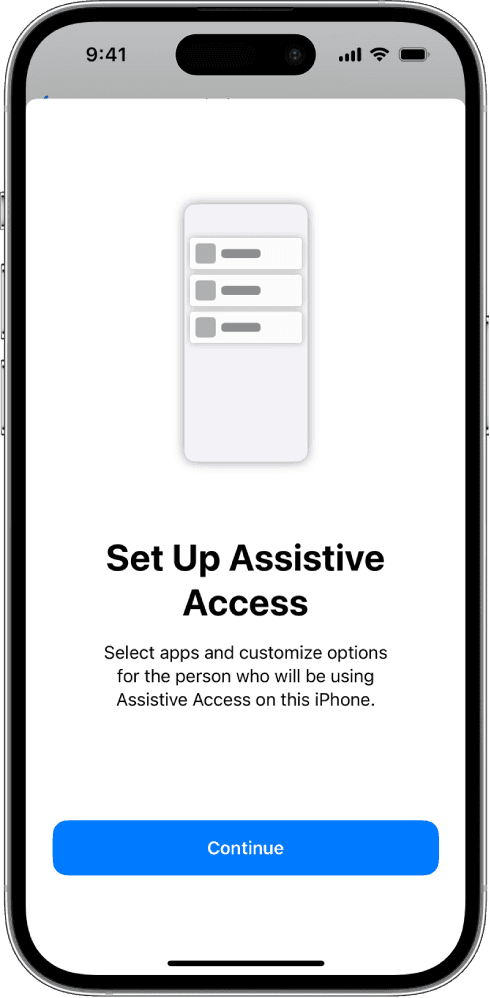
Step 1: Find the "Assistive Access" setting
Go to "Settings" >> "Accessibility" >> "Assistive Access" and enter, click "Set Up Assistive Access"
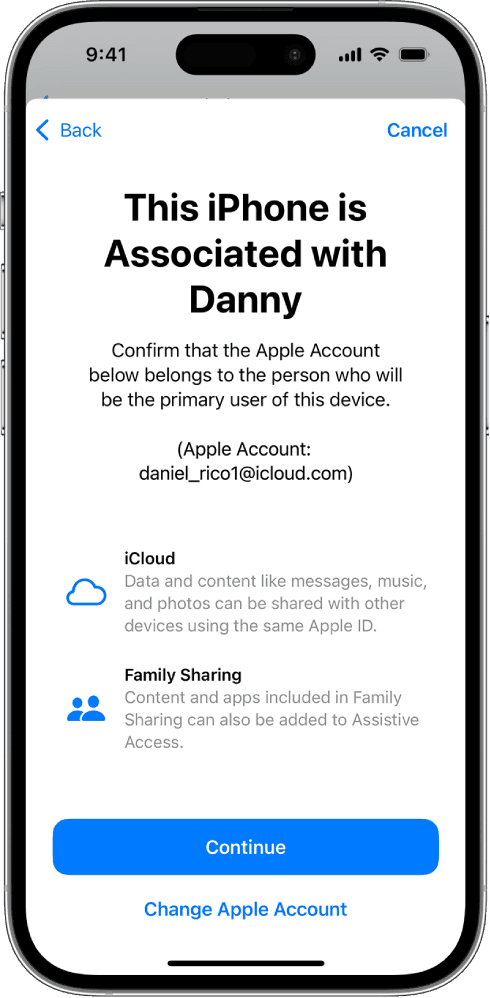
Step 2: Associate Apple account
Step 3: Choose the layout
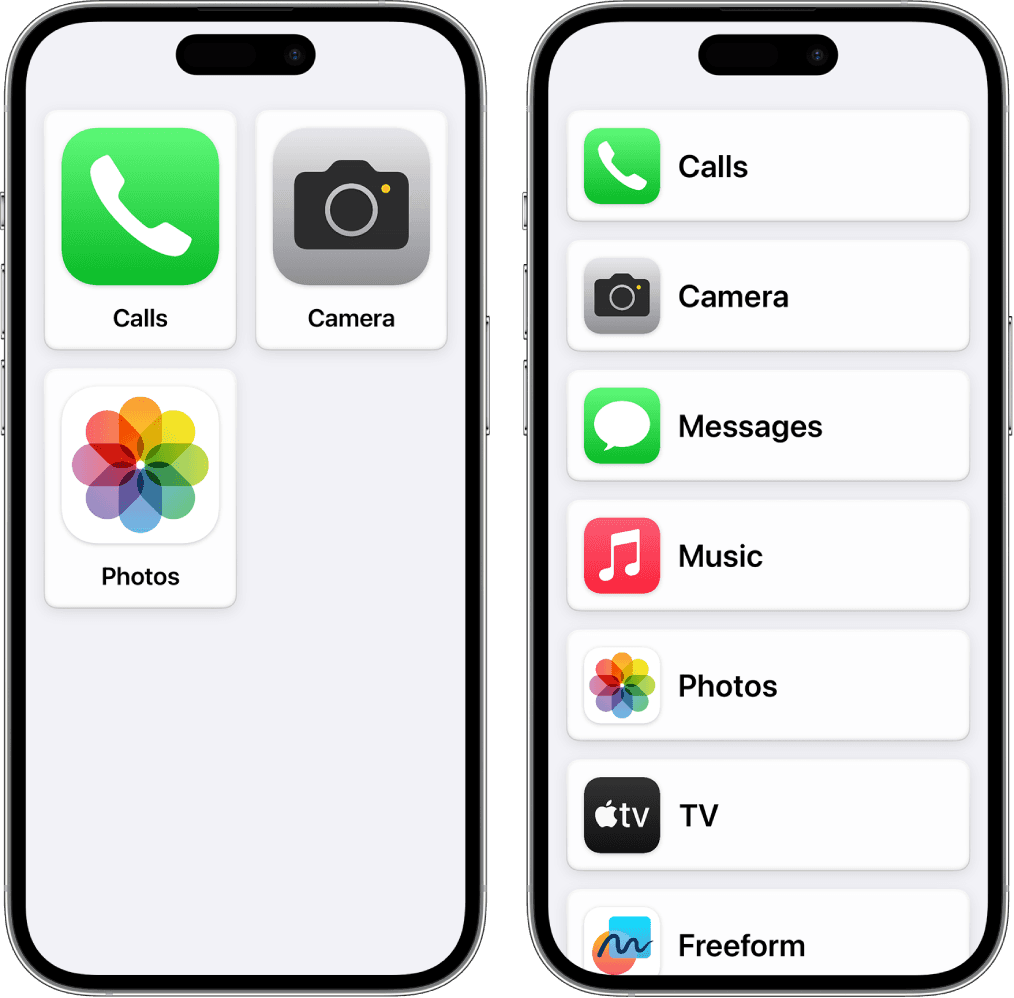
Apple provides two appearance settings, chosen according to the elder’ preference,
Rows (Left): Apps are arranged in a list and increase the text size.
Grid (Right): More similar to the usual app display format, the icon and images are bigger and more emphasized
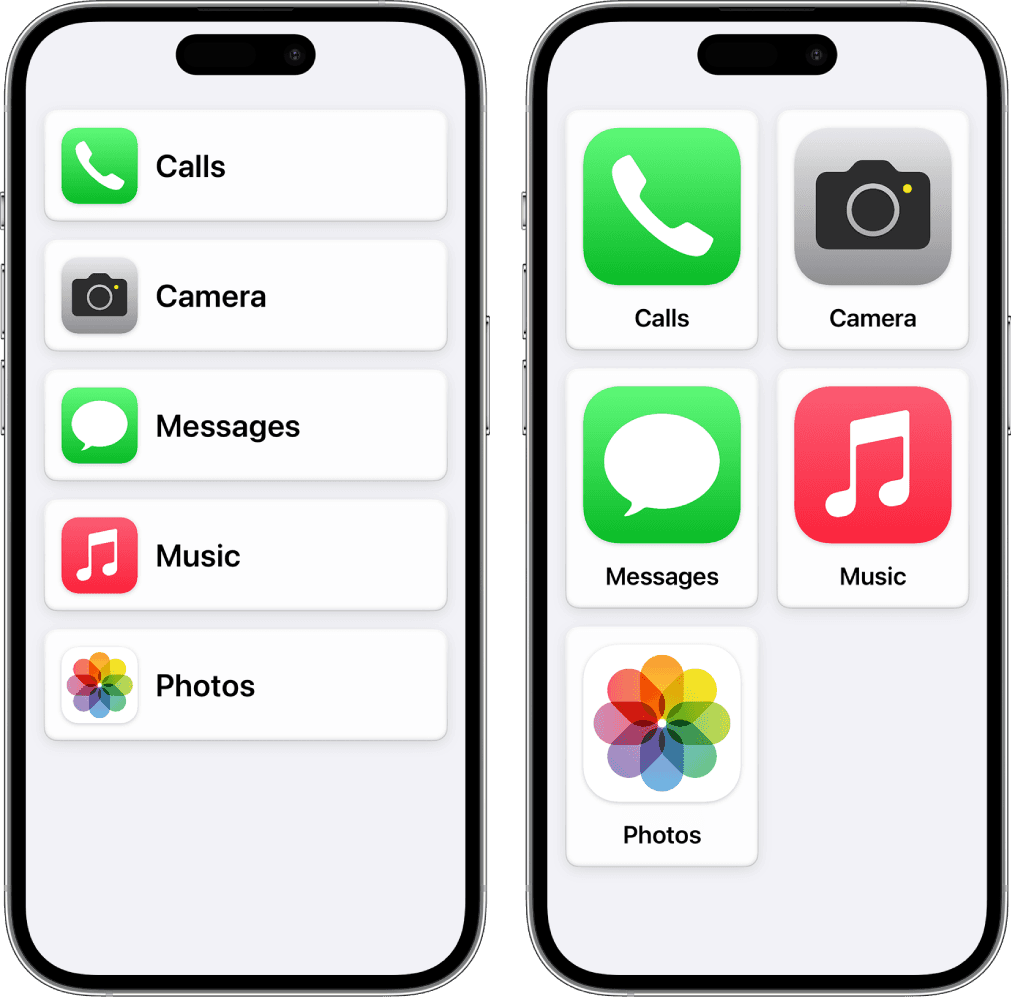
Step 4: Choose the apps elders need to use
Select apps commonly used by elders and complete various permission settings. The entire setup is basically completed. Note that unselected applications will not be available in "Elder Mode".
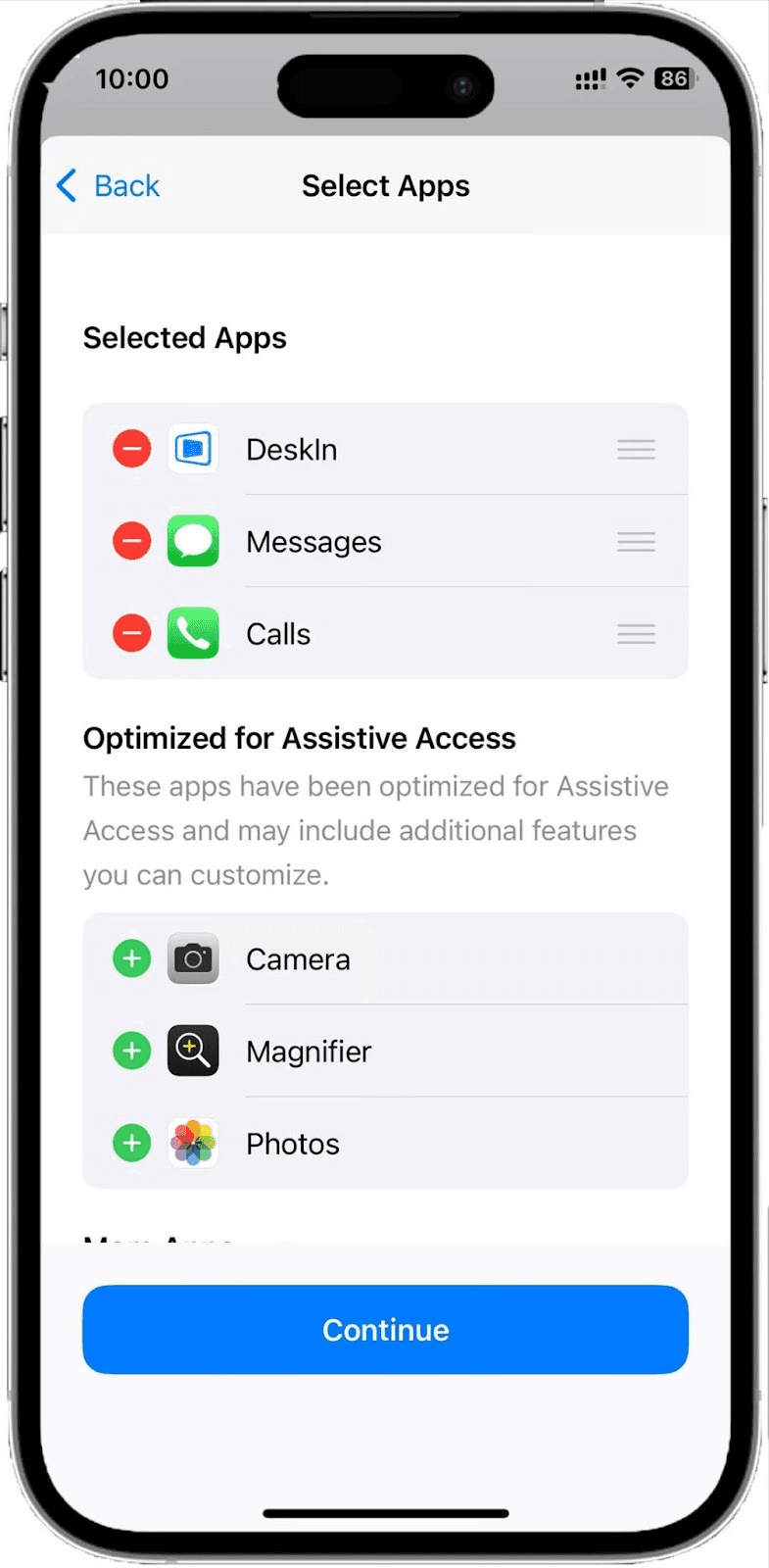
Step 5: Set password
After selecting the application, the system will prompt you with restrictions on the use of features like emergency services, notifications, and privacy information in "Assistive Access". Then follow the system guides to set the "Assistive Access" and "recovery Apple Account and password" to enter and exit "Assistive Access".
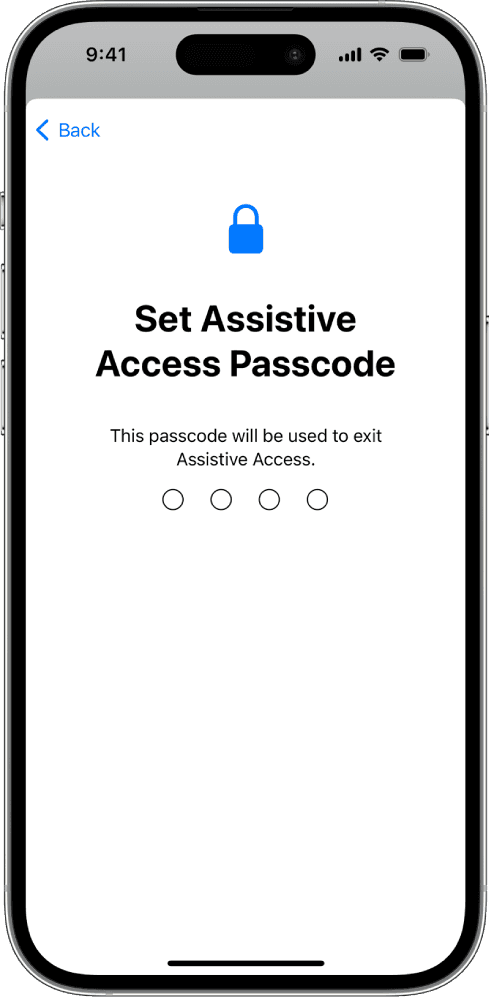
After setting it up, you can start using it. If you want to Exit Assistive Access, press the side button three times and enter the Assistive Access passcode.
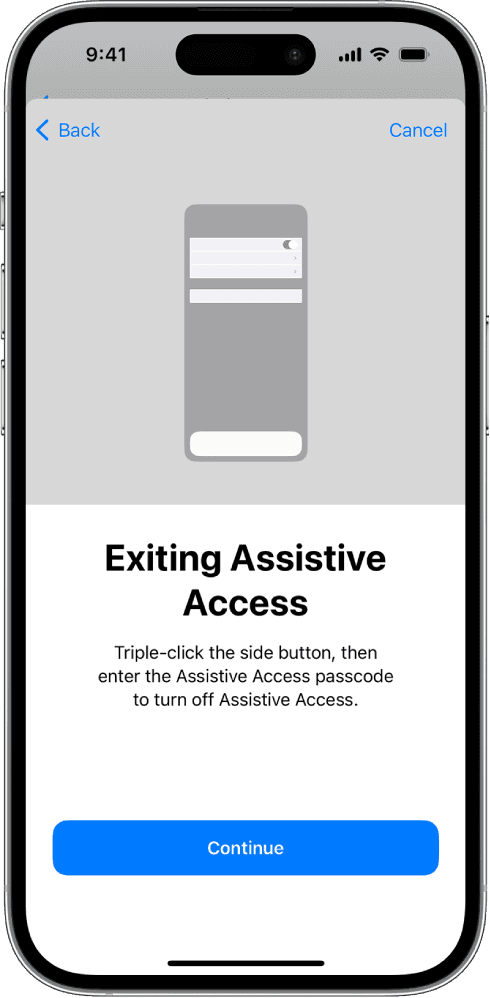
2. Simplified version of "Elder Mode": adjust icon and font size
Since the "elderly mode" will basically turn the phone into a "dump phone", many functions will be basically unusable. If the elders in the family do not need it to that extent and only need to simply adjust the font size or icon size, you can take a look at the following settings:
1. Adjust the size of desktop icons
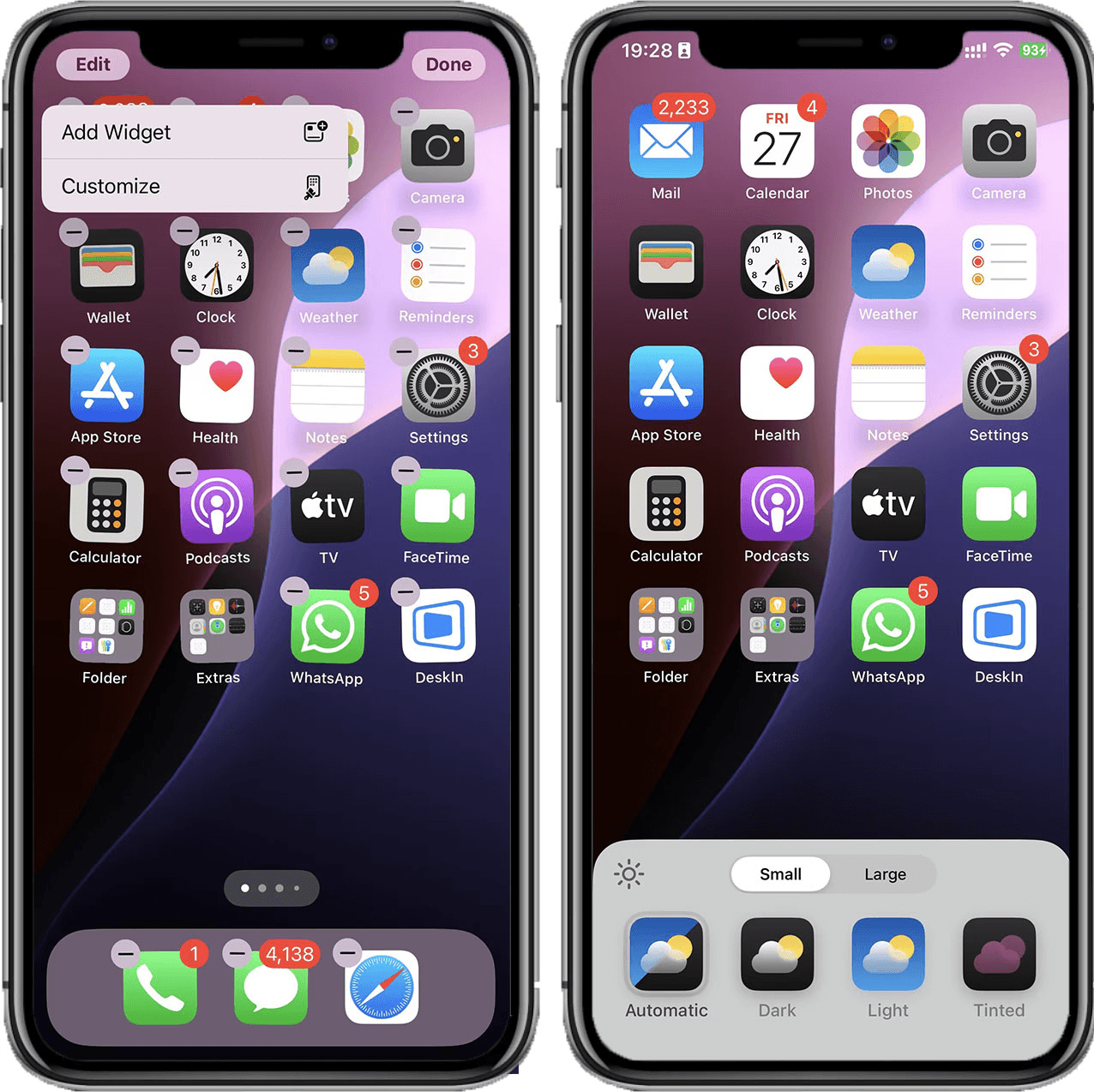
Long press the home screen to enter the editing interface >> Click "Edit" >> "Customize" >> Select "Large"
You can see that the icons on the screen have become larger, but the software name will not be displayed.
2. Adjust the font size:
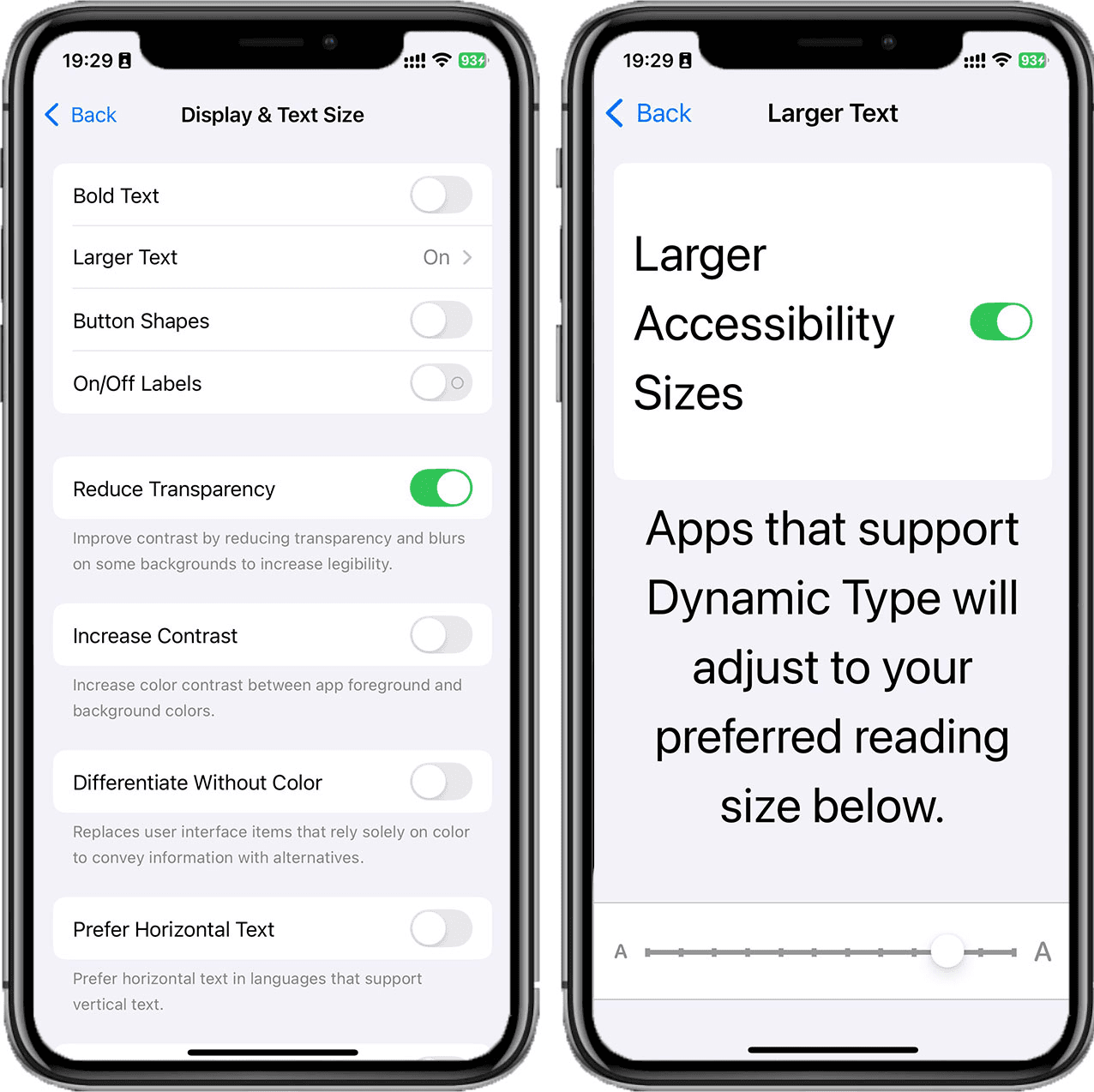
Go to "Settings" >> "Accessibility" >> "Display and Text Size" >> "Larger Text" >> Drag the slider to select your preference font size
3. Android "Elder Mode" set up guide
Brands using Android systems usually have similar settings, this article will use Samsung as an example.
Samsung "Easy Mode":
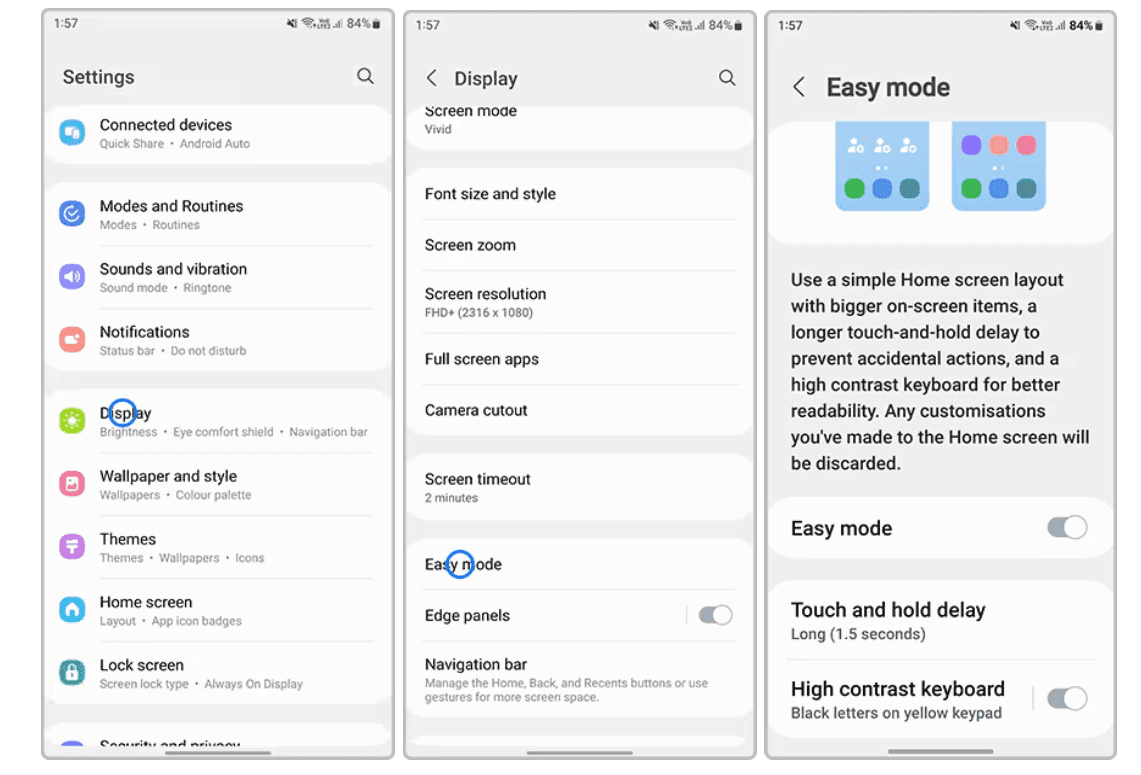
In Samsung's easy mode,the screen size & font will increase
The setting steps are as follows:
Go to "Settings" >> "Display" >> "Easy Mode" >> Tap to switch on
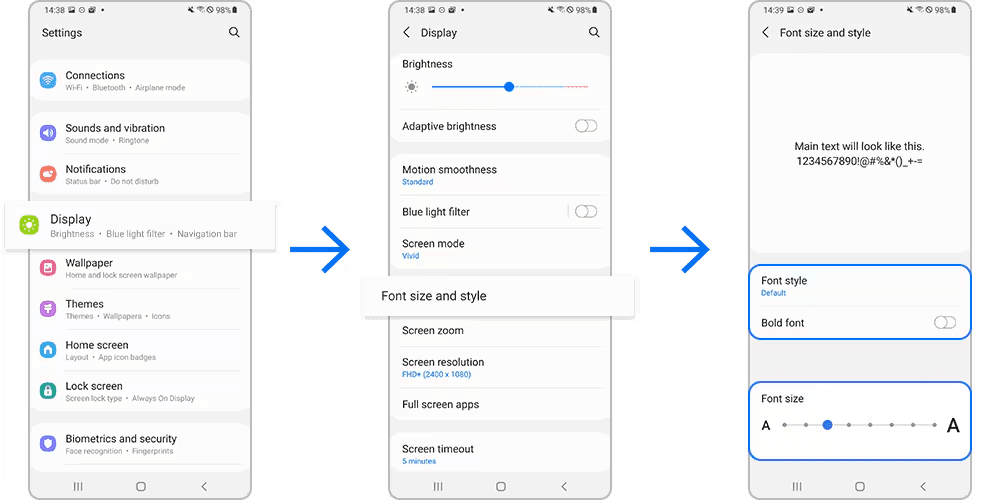
Adjust font size
Go to mobile "Settings" >> "Display" >> "Font size and style" >> Adjust the font size according to preference, you can also use bold font to make the text clearer
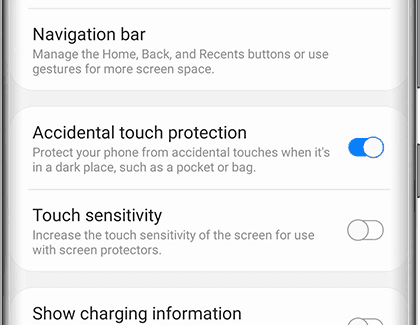
Turn on Accidental touch protection
Go to"Settings" >> "Display" >>Toggle on"Accidental touch protection "
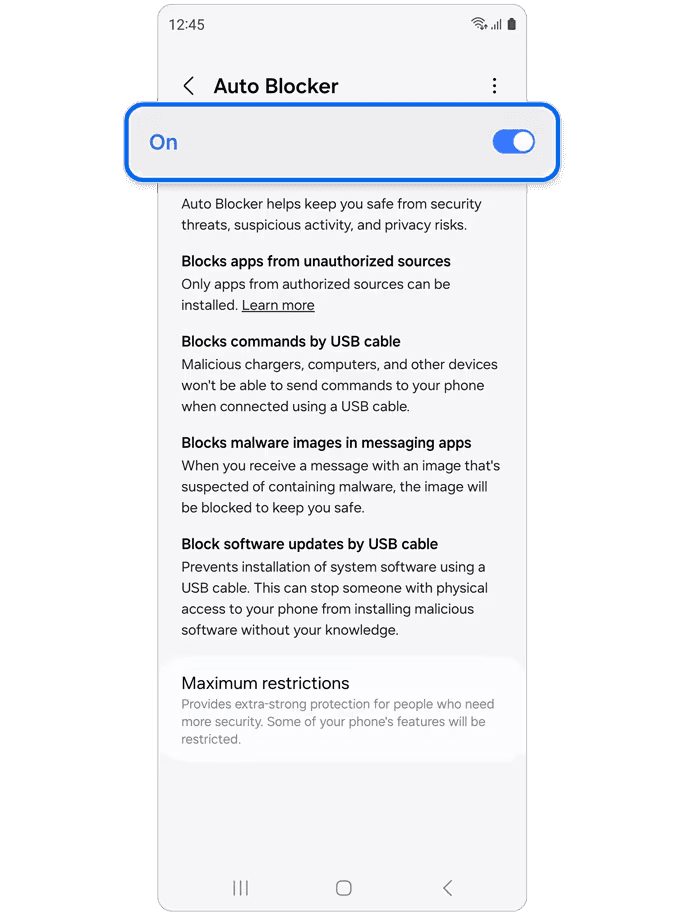
Enable Auto Blocker
This setting can automatically block apps from unknown sources and can only install applications from the Galaxy Store or Play Store; blocks software updates and commands by USB; blocks malware images in messaging apps to better protect elders from receiving a scam message.
You can enable Auto Blocker by following steps:
Go to mobile"Settings" >> "Security and Privacy" >> "Auto Blocker" >> "On"
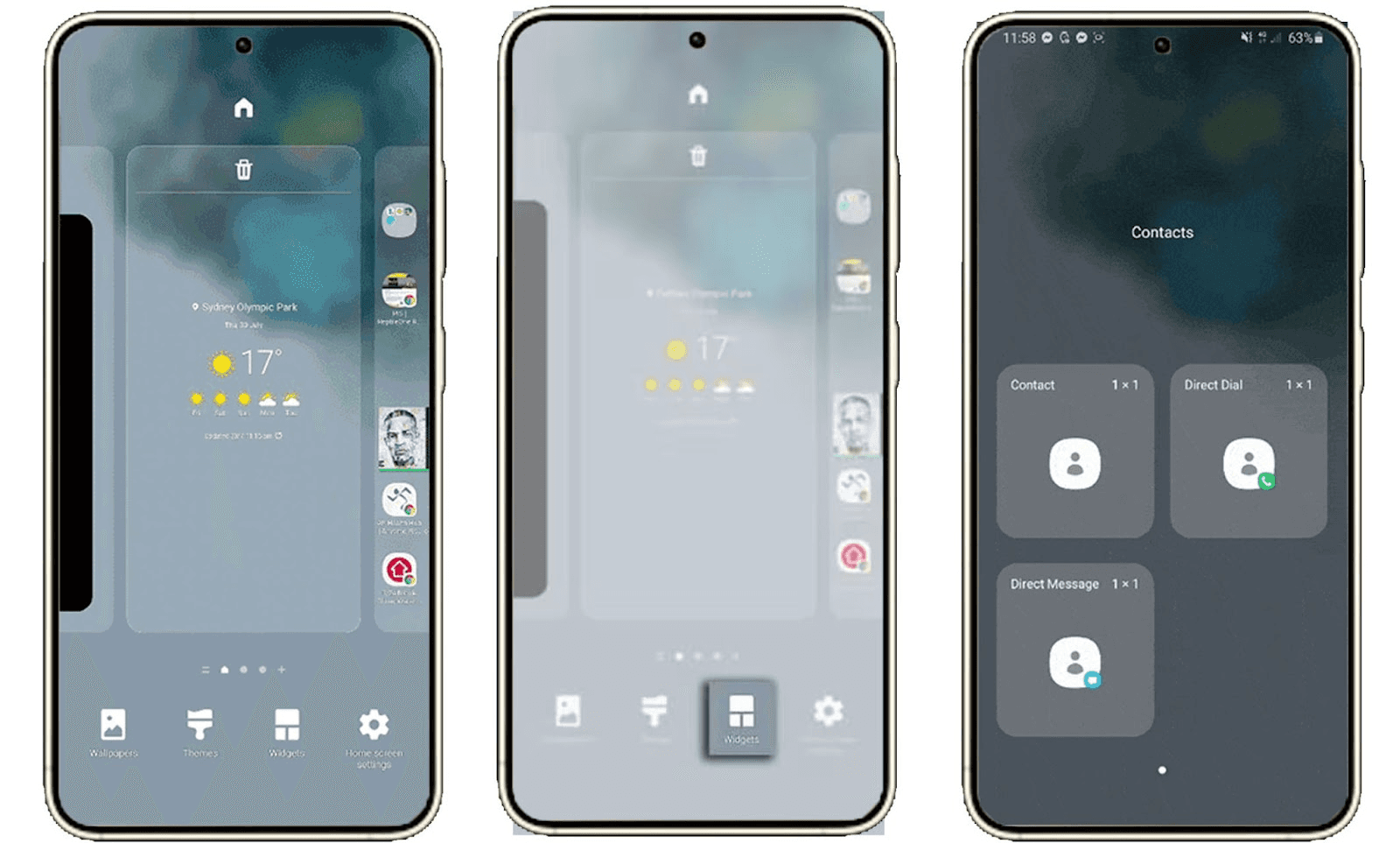
Set up speed dial
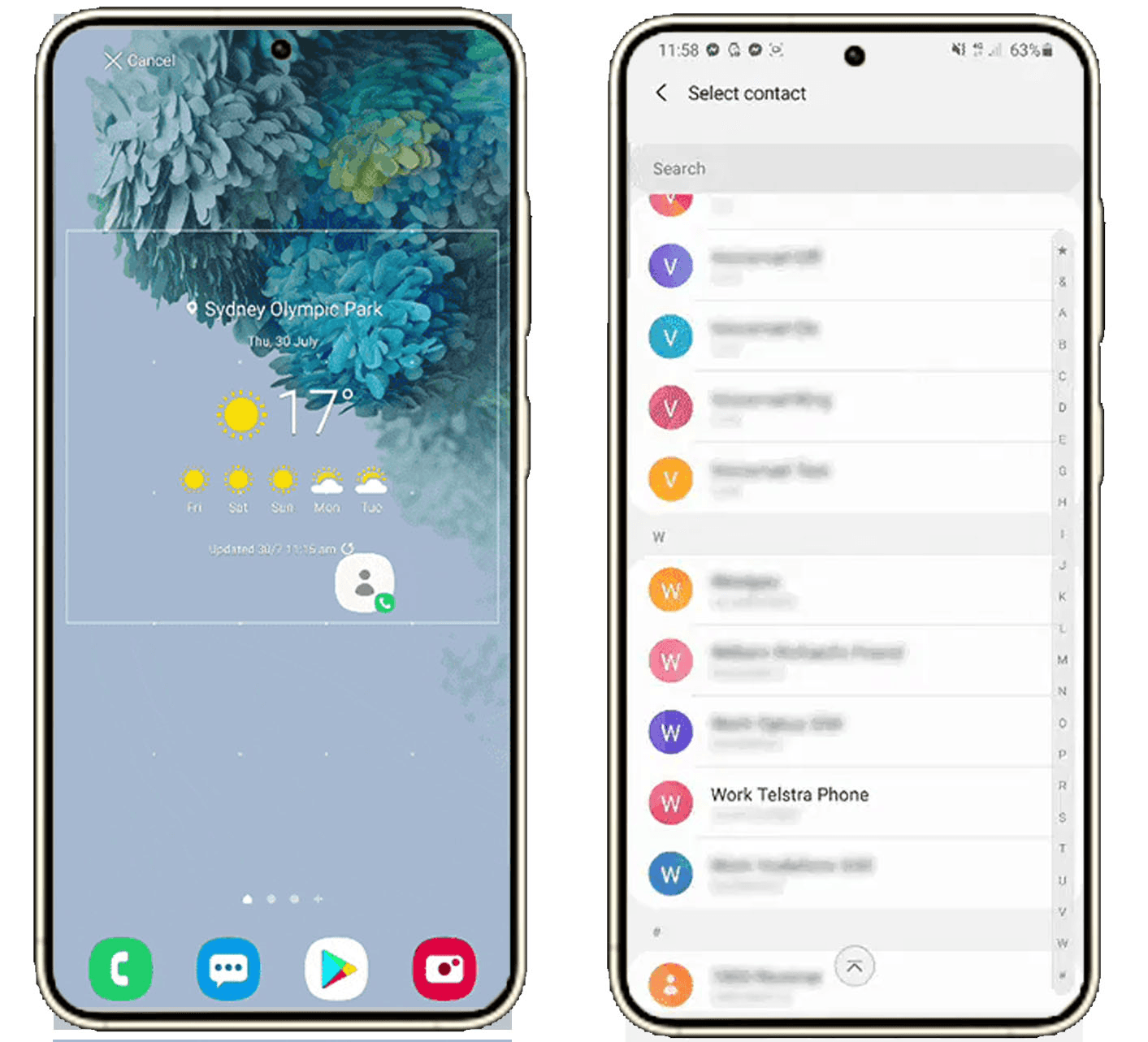
Pinch the home screen for more Home Screen options >> Tap "Widgets" >> Locate and select the Contacts widget>> Drag to you preference location and release >> Choose your preferred contact
Set up SOS emergency contact
After setting the SOS emergency contact, the elderly can send the emergency contacts a quick alert with a 5-sec audio recording and pictures from both the front and rear cameras simply by pressing the power key button 3 times when they are in an emergency. Then people can locate them and come to help them immediately.
You can set up with the following steps:
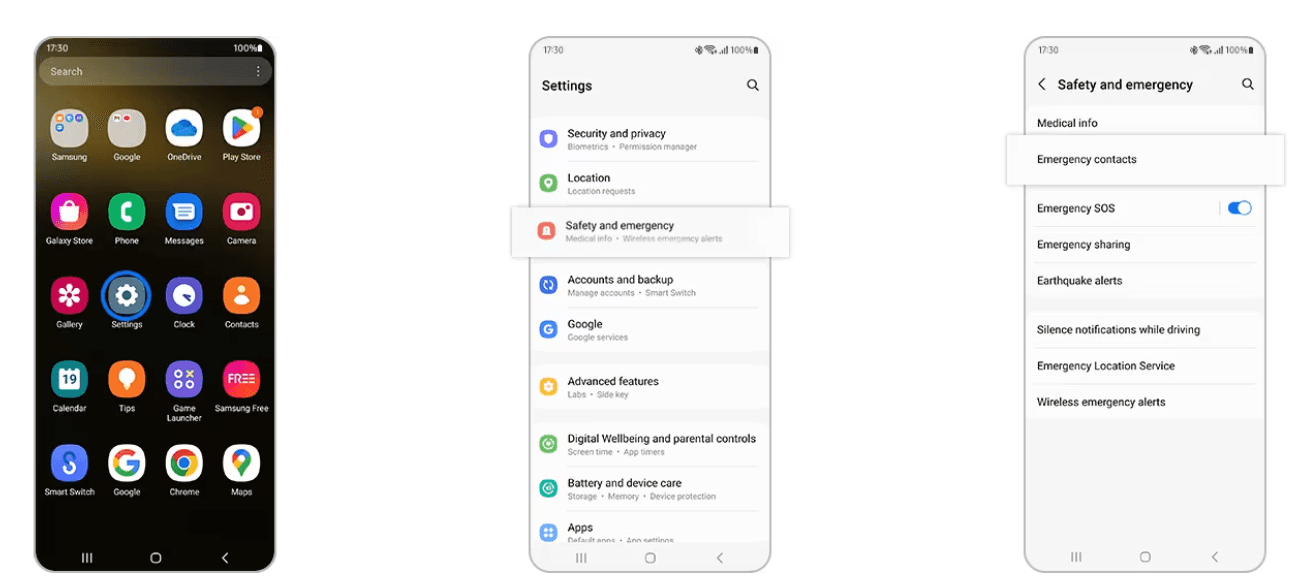
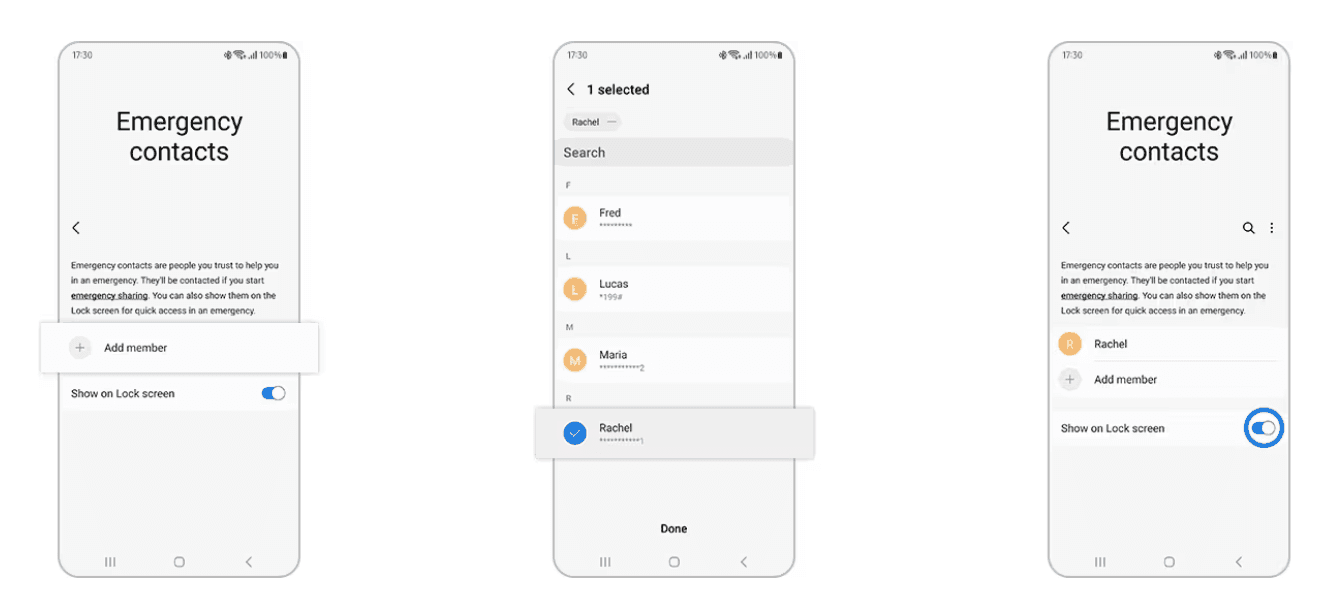
Go to "Settings” >>"Safety and Emergencies" >> "Emergency Contacts" >> "Add Member" >> Select one existing contact >> You can also toggle on the “Show on Lock screen” button to add the contact on lock screen
Use DeskIn to help set up elder’s mobile phone remotely
If you are not at home with elders, you can use the DeskIn remote desktop to remotely access their mobile phone and easily help them complete all settings.
4. Why you should use DeskIn to access elder’s phone remotely
Compatible: DeskIn supports using Mac, iPhone, Android, and Android to remotely control another Android phone and watch iPhone screen, allowing you to help family and friends solve mobile phone problems faster with any devices at hand.
Communication-friendly: DeskIn has built-in voice call function and annotation function. During remote sessions, you can guide and teach your elderly family members while operating, making the elders more impressed.
Smooth and stable: DeskIn has extremly low latency, and there is no limit on the connection time, which means there won’t be unexpected disconnection during the remote session.
High image quality: DeskIn free version already supports 1080p30fps, and the picture is super clear.
High-secure level: The DeskIn mobile phone control function can only be performed under the same account, which can prevent the elderly’s phone being accessed by people they don't know. When connecting, you can choose to let the elderly manually verify the connection, or you can set a password in advance and use the password to connect.
Easy to use: The interface of DeskIn is simple and clear, even elders can easily get started.
5. How to use DeskIn to remotely set up elder’s mobile phone
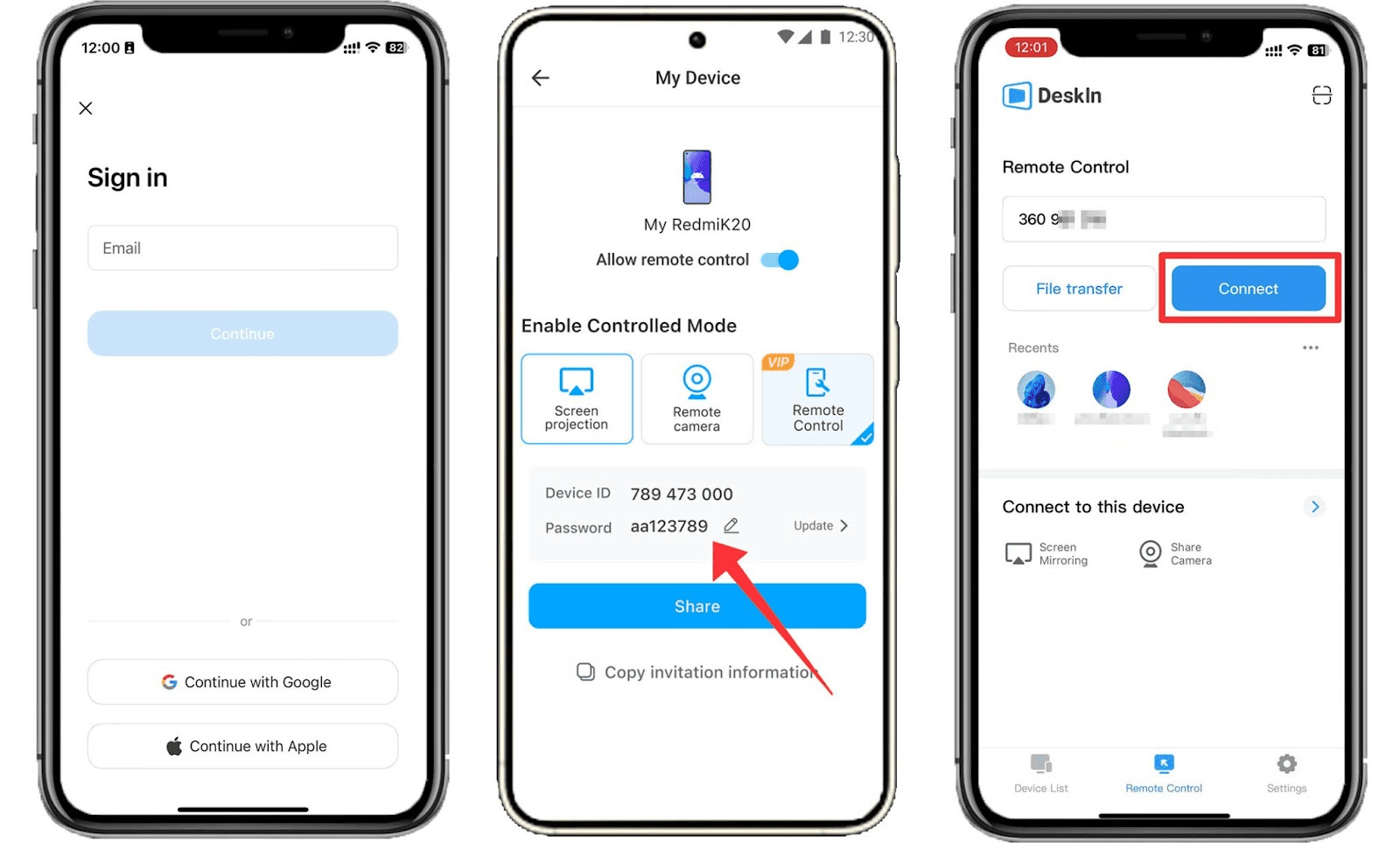
Step 1: Install DeskIn on your device and the elderly's phone and log in with the same account.
Step 2: Ask the elderly to toggle on the “Allow remote control” button on the DeskIn app when you need to access their phones.
Step 3: Find the elder’s mobile phone in your DeskIn device list and click Connect to access. The you can operate their phone and help them set up the phone.
Conclusion
This article introduces how to set up "Easy Mode" on iPhone and Android phones, as well as some other useful settings to make smartphones more friendly for seniors. When you buy a new phone for your elderly adult, try these set up before you give the phone to them! Even if you are not at home with your elderly family members, you can use DeskIn remote desktop to remote access their phone and help set everything up. Give it a try now!

PRODUCTIVITY
4 Best Parental Control App 2025. What Should Pay Attention To When Using.
More kids are having their own smartphones as parents are prioritizing safety and instant communication. While communication becomes increasingly convenient, children owning smartphones has also exposes them to more dangers. Out of concern for the safety of their children and excessive phone usage, some parents install parental control app software to monitor their kid’s phone. What should parents look out when using these apps? This article provides 4 useful tips and reviews the 4 parental control apps. Check it out!
Why should parents monitor their children's phones?
1. To manage phone usage time
Children may be addicted to games, short videos, social media, and use mobile phones uncontrollably. At this time, by monitoring their children's mobile phone usage time and managing app usage time, parents can guide their children to live a healthier, more time-managed life.
2. Detect harmful messages and programmes
Children may not be able to distinguish toxic and harmful information on the Internet at their young age. Regularly checking your children’s mobile text messages, web browsing history and social media can prevent them from getting bad influence from sexual, violent, gambling, fraud and drug-related content. At the same time, you can give them proper guidence of using internet.
3. Avoid accidental payment
Currently the payment verification process on phones is becoming more and more simple, which brings convenience but also hidden dangers. Children may purchase in-game items, donate to streamers, or accidentally subscribe to an app. If not discovered in time, it may cause big losses.
4. Keep eyes on children and prevent dangers
Parents cannot be with their children at all times and cannot 100% be aware of what happens at school or with friends. By monitoring the text messages or chat records of children's mobile phones, they may be able to know at the first time when there are conflicts with classmates, school bullying (being bullied or bullying), violence, etc. Some monitoring programs can also track the location of kid’s phones, so when kids are in danger, parents can arrive as soon as possible.
5. Troubleshoot tech problems
When kids encounter technical problems with their phone, such as settings, backup problems, upload files etc,. parents can use remote programs to control their children's mobile phones and help fix it.
4 things to pay attention to before monitoring your children’s phones
1. Respect children
Although we understand that parents monitor their children's mobile phones out of concern. But please remember that the child also has their own ideas, secrets and privacy. Please remember this before using a monitoring program:always respect your child and their opinions. Don't go too far or you may cause the relationship to deteriorate.
2. Communicate with your children
Talk about your thoughts and reasons with your child before monitoring their phone. At the same time, listen to theirs, communicate to reach a consensus. Make sure you have your child's consent before downloading and using a phone monitoring program. If they strongly disagree with the idea, communitate and figure out other ways.
3. Make an agreement and stick to it
Make an agreement with your child when you can monitor their phone, what apps you can monitor and can’t and stick to it. Remember, trust and communication are more important than anything else.
4. Choose safe monitoring software
When you decide to use a monitoring program, remember to choose one with a high security level. Since these programs gain access to most of your phone's permissions, using unsafe programs may cause the risk of information leakage. In serious cases, it may also pose a threat to the safety of your children.
4 best parental control software 2024
DeskIn
DeskIn is a remote desktop software suitable for web, Android, ios, Windows and MacBook. This means that you can use not only your phone, but also a computer to remotely control your child's mobile phone. You can delete risky messages, check phone usage time, block apps by remotely accessing your kid’s phone. Compared to other programs, DeskIn will not record the browsing history, track location of the remote mobile phone. You can only view and operate the remote phone with its permission. This leaves space for kid’s privacy and makes it easier for children to accept.
Pros:
Secure: DeskIn only allows devices under the same account to remotely control the phone ,which can prevent children's phones from being monitored by strangers.
Cross-system compatible: DeskIn has Android, ios, Windows and MacBook versions. You can use a computer to remotely monitor your child's phone, or you can use your phone to remotely monitor your child's computer.
Voice call: DeskIn allows you to make voice calls while accessing your child's phone. When you discover some harmful apps or messages, even if the children are not around, you can ask your kids for more details and provide guidance. You can also conduct synchronous teaching when helping them fix tech problems.
Use the remote camera: You can also use DeskIn to access the front and rear camera of your kid’s phone. When your child is in danger, you can know where they are are what’s going on.
Flexible connection methods: DeskIn allows two connection methods, manual verification and unattended password connection, which makes it more acceptable to children. Under normal circumstances, you can ask your child to do manual verification when monitoring their phone, just to inform them. In an emergency, you can still use a password for unattended connection.
Cons:
Can't track the location of the kid's phone.
Family Link
Family Link is a parental control software developed by Google that allows users to manage Android phones. It essentially manages children’s phones by managing their Google accounts. It can block or allow individual apps, hide apps, find devices, set a bedtime and set app limits. But it also has loopholes that when using a hidden browser, kids can bypass browsing restrictions. Some netizens also reported that its time limit function is easy to be bypassed by children.
Pros:
Set time limit: You can set downtime for kids’ devices and time limit for apps.
Block software or websites: You can manage app permissions and website browsing permissions of your kid’s phone. Limit the display of adult content or even allow them to view only certain websites.
You can approve or block apps kids download from Playstore and .
Track your child’s location: You can use a map to track your child’s real-time location, or you can set to receive a reminder when your child reaches a certain location.
Cons:
Can manage Android phones only
Don't support remote control the mobile phone
Website browsing restrictions and control time can be bypassed
KidsGuard
KidsGuard is more of a “spyware”, it can monitor all operations of the mobile phone, obtain all files on the mobile phone and record chat messages. Basically, all usage information of the binded mobile phone will be scanned and recorded. However, it does not have many operational functions, such as setting usage time limits, restricting web pages to browse, etc.
Pros:
Free simulation demo screen is provided. You can simulate it first and then decide whether to pay.
Can monitor iPhone via iCloud, receive and manage emails, view contacts, photos, reminders, etc.
Track social media messages with keywords: You can query messages using keywords.
Payment monitoring: can record children’s subscription consumption in the app store
You can view all usage status and reports of the remote mobile phone through the web panel: usage time, mobile phone files, browsing history, chat history, etc.
Cons:
You need to pay to unlock advanced features
The mobile phone cannot be directly controlled and set.
Obtaining too many permissions on the mobile phone and recording too much content can easily lead to privacy leaks.
Airdroid
Airdroid is a comprehensive control application that allows you to control devices with AirDroid Kids through AirDroid Parental Control App. Supports monitoring remote mobile devices using mobile phones or web pages. After payment, it supports management of up to 10 devices.
Pros:
You can use the camera and microphone of your kid’s Android phone to view and listen to the environment and sounds around your child.
Synchronously receive notifications from apps on your child’s Android phone, such as Line and Facebook.
You can get the daily/weekly report of your child’s mobile phone usage through the report panel.
You can manage and limit the usage time or permissions of mobile phones, software, and web pages.
Keyword detection: Conduct keyword detection on social software to identify harmful content or potential bullying issues.
Track the location of the mobile phone.
Cons:
There is no free version, you need to pay to unlock all features
Obtaining too many permissions on mobile phones and recording too much content can easily lead to privacy leaks.
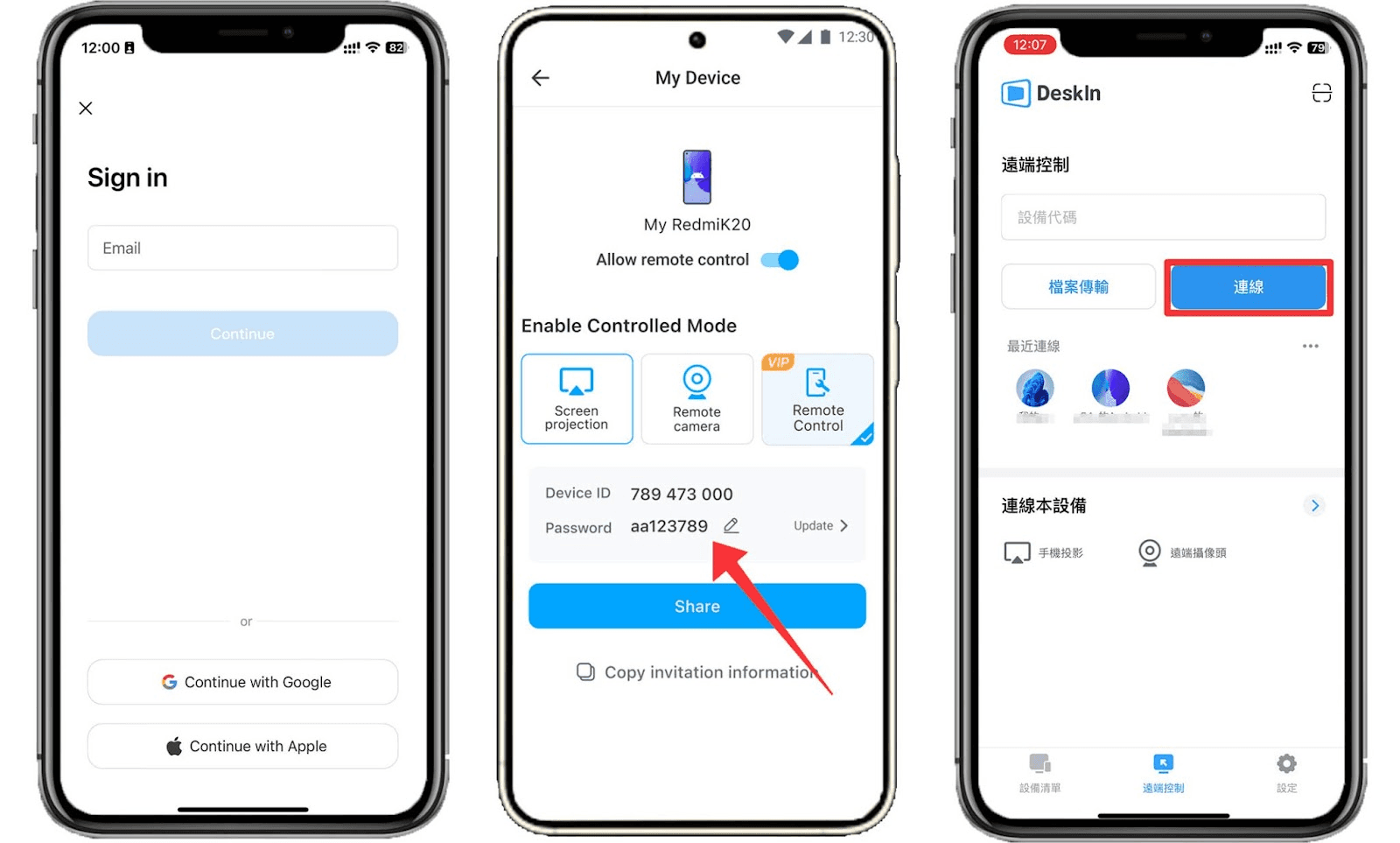
How to use DeskIn to access your child’s phone
Step 1: Install DeskIn on your device and your child’s phone, register and log in to a same DeskIn account.
Step 2: Ask your child to open DeskIn, toggle on “Allow remote control" button to allow accessing, and set a connection password.
Step 3: Then you can find your child's phone in the device list or use the device ID to access their phone. Your child can do manual verification, or you can use password to do unattended access.
Conclusion
This article introduces 4 parental control software to help parents monitor their children's mobile phone. Each software has its pros and cons, and you can choose according to your needs.
Among the four software, DeskIn can full-control kid’s mobile phone and requires fewer permissions, making it easier for children to accept. Although parents have a good intention to monitor their children's mobile phones, parents should not go too far and give children space and respect their privacy. What’s important in a good parent and kid relationship is mutual trust.
Load More
Blog
Search Docs…
ALL TOPICS
COMPARISONS
GAME
PRODUCTIVITY
TROUBLESHOOTING
COMPARISONS
DeskIn vs Chrome Remote Desktop: Which One Fits Your Workflow Best?
When it comes to remote access tools, the comparison between DeskIn and Chrome Remote Desktop often comes down to one simple question: do you just need quick access, or do you need performance and control?
Both tools are reliable, secure, and widely used. But they are built for very different types of users. Chrome Remote Desktop focuses on simplicity and accessibility, while DeskIn is designed for users who need high performance, stability, and advanced features across multiple devices.
If you're deciding between the two, this guide breaks down not just what they offer, but which one actually fits your workflow.
Quick Comparison: DeskIn vs Chrome Remote Desktop
Feature | DeskIn | Chrome Remote Desktop |
|---|---|---|
Performance | Up to 4K 60FPS/2K 240FPS, low latency | Standard performance |
Ease of Use | Requires app installation | Browser-based, very simple |
Device Support | Windows, macOS, iOS, Android | Works via Chrome browser |
File Transfer | Fast and stable | Limited |
Multi-device Management | Yes | No |
Mobile Experience | Optimized for iPad & iPhone | Basic |
Security | Privacy screens and granular black/whitelists | Basic |
Price | Free + paid plans | Completely free |
In short, Chrome Remote Desktop is great for quick, lightweight access, while DeskIn is built for users who expect more from their remote desktop experience.
Chrome Remote Desktop Overview
Chrome Remote Desktop is one of the simplest remote access tools available. It runs directly through the Chrome browser and requires only a Google account to get started. This makes it especially popular among casual users and those already working within the Google ecosystem.
It works particularly well on devices like Chromebooks, where everything is already browser-based. It's also accessible across platforms, including mobile devices like iPhone and iPad, though the experience on mobile can feel limited compared to desktop use.
If you're wondering how to use Chrome Remote Desktop, the process is straightforward. You install the Chrome extension, sign in with your Google account, set up a PIN on the host device, and then connect from another device using the same account. The entire setup usually takes just a few minutes.
That said, simplicity comes with trade-offs. Chrome Remote Desktop lacks advanced features like high frame rate streaming, multi-monitor control, or professional-grade file transfer. For occasional access, it works well. But for more demanding tasks, users often start to feel its limitations.
👀You may also be interested in:
DeskIn Overview: A More Powerful Chrome Remote Desktop Alternative
If Chrome Remote Desktop is a lightweight sketch, DeskIn is a full workstation painted in high resolution. DeskIn focuses on performance, stability, and flexibility. It supports up to 4K 60FPS streaming, making it suitable for tasks where visual clarity and responsiveness matter, such as design work, video editing, or even gaming.
As a Chrome remote desktop alternative, unlike browser-based tools, DeskIn is a dedicated remote desktop application. While this requires installation, it unlocks a much more stable and feature-rich experience. Users can manage multiple devices, transfer large files efficiently, and enjoy smoother control across different platforms.
DeskIn is also optimized for mobile workflows. Whether you're using an iPad or smartphone, the interaction feels more responsive and closer to a desktop experience, rather than a simplified viewer. For users who find Chrome Remote Desktop "good enough" at first but limiting over time, DeskIn often becomes the natural upgrade path.
DeskIn vs Chrome Remote Desktop: Real Use Cases
The real difference between these two tools becomes clear when you look at how they perform in everyday scenarios.
1. For Casual Remote Access
If you only need to check files on your home computer or help a friend troubleshoot something quickly, Chrome Remote Desktop is more than enough. It's free, easy to set up, and doesn't require installing extra software beyond Chrome. In this case, DeskIn may feel like overkill.
2. For Remote Work and Productivity
For professionals working remotely on a daily basis, stability and efficiency matter much more. This is where DeskIn starts to stand out.
Tasks like editing documents, managing multiple screens, or transferring files between devices become smoother and faster. Chrome Remote Desktop can handle basic workflows, but it often struggles with responsiveness and lacks the tools needed for a seamless work environment.
3. For High-Performance Tasks (Design, Editing, Gaming)
This is where the gap becomes impossible to ignore. DeskIn's support for high resolution and high frame rates makes it suitable for visually demanding work. Whether you're editing videos, working with design software, or running simulations, performance consistency is critical. Chrome Remote Desktop, on the other hand, is not designed for these scenarios. It works, but not comfortably.
4. For Chromebook and Google Ecosystem Users
If you rely heavily on Google services or use a Chromebook, Chrome Remote Desktop integrates naturally into your workflow. It's lightweight, requires no additional setup, and feels like an extension of the browser itself. In this scenario, it remains a very practical choice.
5. For iPad and iPhone Remote Access
Mobile usage highlights another important difference. While remote desktop Chrome iPhone, and Chrome Remote Desktop iPad are functional, they often feel like simplified versions of the desktop experience. Controls can be less intuitive, and performance may vary depending on the connection.
DeskIn, by contrast, is designed with cross-device interaction in mind, offering a smoother and more responsive mobile experience.
👀 You may also be interested in:
FAQs About Chrome Remote Desktop and DeskIn
1. Is there anything better than Chrome Remote Desktop?
Yes. Tools like DeskIn offer better performance, more features, and improved stability, especially for professional use cases.
2. Is Chrome Remote Desktop discontinued?
No, Chrome Remote Desktop is still actively maintained by Google. It continues to receive security updates and remains available for users needing simple, free remote access.
3. Is DeskIn Remote Desktop legit?
Yes, DeskIn is a legitimate remote desktop solution. It uses encryption to secure connections and provides access controls, making it safe for both personal and professional use.
4. Final Verdict: Which One Should You Choose?
When comparing DeskIn vs Chrome Remote Desktop, the choice depends on how demanding your remote access needs are. Chrome Remote Desktop is simple, free, and ideal for occasional use, especially if you just need quick access to a device without extra setup.
As your workflow becomes more intensive, the limitations start to surface. DeskIn offers a smoother, more stable experience with better performance and control, making it a strong long-term Chrome remote desktop alternative for users who rely on remote access every day.
PRODUCTIVITY
8 Best Remote Desktops for Video Editing in 2026
Remote video editing is no longer a compromise; it's a workflow upgrade. Whether you're working in Adobe Premiere Pro, After Effects, or DaVinci Resolve, the right remote desktop can turn your laptop into a high-performance editing station.
But not all tools are built for remote video editing collaboration. Lag, poor color accuracy, and unstable connections can ruin productivity. In this guide, we'll break down the best remote desktop for video editing tools so that you can edit smoothly from anywhere.
Why You Need a Remote Desktop for Video Editing
Modern creators are no longer tied to a single workstation. With remote work software, you can access your powerful desktop from anywhere without investing in an expensive laptop. For many editors, especially freelancers and small teams, this solves a real problem: you already have a high-performance PC, but mobility is limited. Instead of duplicating hardware, video editing remote desktop tools let you stream your workflow in real time.
Another key benefit is remote collaboration. Teams can work on the same project across different locations, review edits instantly, and avoid large file transfers via remote collaboration tools. However, this only works if your remote desktop software supports high frame rates, low latency, and stable connections. Otherwise, editing becomes frustrating.
Quick Comparison of Best Remote Desktops for Video Editing
Here's a quick overview of the best tools and who they're for:
DeskIn – Best overall for performance + affordability + multi-device workflows
Parsec – Best for ultra-low latency editing
Splashtop – Best for high-resolution streaming
HP Anyware – Best for enterprise-level workflows
Jump Desktop – Best for Mac users
AnyDesk – Best lightweight remote access
Chrome Remote Desktop – Best free basic option
RustDesk – Best open-source alternative
1. The Best Overall Remote Desktop for Video Editing: DeskIn
Pros
Up to 4K 60FPS / 2K 240FPS performance
Ultra-low latency for smooth editing timelines
Multi-device support (PC, Mac, iPad, Android)
Affordable pricing with free plan available
Cons
Smaller brand awareness compared to legacy tools
DeskIn stands out as the best remote desktop for video editing by balancing performance, stability, and accessibility. Unlike many traditional remote support tools, it is designed for high-frame-rate tasks, making timeline scrubbing, preview playback, and effects editing feel responsive and fluid.
For creators working across devices, DeskIn enables seamless remote video editing collaboration. You can access your main editing PC from a laptop, tablet, or even a secondary workstation without noticeable lag. Compared to tools like Chrome Remote Desktop, which struggle with video-heavy workloads, DeskIn maintains consistent quality and responsiveness—making it a practical choice for both solo editors and distributed teams.
2. Best for Low-Latency Editing: Parsec
Pros
Extremely low latency
High frame rate streaming
Popular among creative professionals
Cons
Limited collaboration features
Setup can be complex for beginners
Parsec is widely recognized as a top choice for remote video editing, especially when latency is your biggest concern. Its streaming technology is optimized for real-time responsiveness, which makes it ideal for tasks like timeline scrubbing and motion graphics work in After Effects.
However, while Parsec excels in performance, it lacks some features needed for full remote video editing collaboration. Multi-user workflows and advanced access control are not as robust as some newer tools. For users who need both performance and flexibility, alternatives like DeskIn may provide a more balanced solution.
3. Splashtop – Best for High-Resolution Streaming
Pros
Supports 4K streaming
Strong color accuracy
Reliable for creative tasks
Cons
Higher cost for advanced features
Can experience latency over long distances
Splashtop is a solid option for editors who prioritize visual fidelity. Its support for high-resolution streaming and 4:4:4 color makes it suitable for color grading and detailed editing work.
That said, performance consistency can vary depending on network conditions. Some users report lag when working outside local networks. Compared to more optimized remote work software like DeskIn, Splashtop may require a stronger connection to maintain the same level of smoothness.
4. Best for Enterprise Workflows: HP Anyware
Pros
Industry-grade performance
Secure and scalable
Used in professional studios
Cons
Expensive
Complex setup
HP Anyware (formerly Teradici) is designed for high-end production environments. It uses advanced protocols to deliver excellent performance and security, making it a common choice in the media and entertainment industries.
However, for small teams or individual creators, it may be overkill. The cost and setup complexity make it less accessible compared to modern remote desktops for video editing tools that offer similar performance with easier deployment. The high cost and technical complexity create barriers that modern remote desktop solutions have eliminated, like DeskIn, offering comparable performance with far simpler deployment.
5. Best for Mac Users: Jump Desktop
Pros
Great macOS integration
Smooth performance
Easy to use
Cons
Limited advanced features
Not ideal for heavy collaboration
Jump Desktop has earned a loyal following among Mac users seeking a straightforward, efficient remote desktop for video editing. Its Fluid Remote Desktop protocol provides smooth, responsive performance for most editing tasks without unnecessary complexity.
Where it falls short is in collaboration. Jump Desktop is built for individual use, lacking the team-oriented features that creative groups need. For solo professionals, it works well, but teams will quickly miss real-time collaboration tools found on other platforms.
6. Best Lightweight Option: AnyDesk
Pros
Fast and lightweight
Easy to set up
Works on multiple devices
Cons
Limited performance for video editing
Lower visual quality
AnyDesk has built its reputation on lightweight design and remarkable ease of use for general remote access. It handles everyday tasks competently, connecting quickly and running smoothly on modest hardware.
The limitations become apparent with demanding creative work. Remote video editing requires consistent frame rates and crystal-clear visuals—areas where AnyDesk struggles. For professional editors who need precision, the performance gap becomes impossible to ignore.
7. Chrome Remote Desktop – Best Free Option
Pros
Completely free
Easy browser-based setup
Works on any device
Cons
Poor performance for editing
Limited features
Chrome Remote Desktop is one of the most accessible remote support tools, offering a simple way to access your computer from anywhere. It's free, requires almost no setup, and lets you access your computer from anywhere with just a browser. For basic technical support or quick file grabs, it gets the job done.
However, it is not built for remote video editing. Users often experience lag, compression artifacts, and low frame rates. If you're working on professional projects, upgrading to a more capable solution is highly recommended.
8. RustDesk – Best Open-Source Alternative
Pros
Open-source
Self-hosting available
Free to use
Cons
Requires technical setup
Performance can vary
RustDesk appeals to users who prioritize open-source philosophy and want complete control over their remote access infrastructure. The flexibility to self-host and customize is genuinely valuable for privacy-conscious users. RustDesk is an interesting option for users who prefer open-source remote desktop not working alternatives or want full control over their infrastructure.
Performance, however, depends entirely on your configuration skills. Without technical expertise, achieving the smooth, low-latency experience required for professional editing is challenging. It's powerful for those who know how to tune it, but not plug-and-play.
FAQs About the Best Remote Desktop for Video Editing
Q1. Can video editing be done remotely?
Yes, with the right remote desktop for video editing, you can edit videos smoothly from anywhere. Tools like DeskIn and Parsec provide low latency and high frame rates for professional workflows.
Q2. What is the best free remote desktop for video editing?
Free options like Chrome Remote Desktop exist, but they lack performance. DeskIn offers a free plan with better performance, making it a stronger choice for real editing work.
Q3. Is Parsec good for video editing?
Yes, Parsec is excellent for low-latency editing. However, it may lack collaboration features needed for team workflows.
Q4. Why is my remote desktop not working smoothly?
Common issues include poor network connection, low bandwidth, or software limitations. Choosing optimized remote work software like DeskIn can significantly improve performance.
Conclusion
Choosing the best remote desktop for video editing depends on your workflow, budget, and performance needs. While tools like Parsec and Splashtop excel in specific areas, many solutions struggle to balance performance, stability, and usability.
If you're looking for a well-rounded solution, DeskIn offers a strong combination of high performance, smooth streaming, and cross-device flexibility. Whether you're working solo or collaborating remotely, it provides a reliable foundation for modern remote video editing workflows.
PRODUCTIVITY
Unlocking the Ultimate Remote Work Setup: Deskimo Meets DeskIn
Remote work promised freedom, but for many professionals it quietly delivered a new kind of friction. The apartment is too noisy. The café Wi-Fi is patchy. The laptop bag gets heavier every month as cables, chargers, and a second monitor piles on. Somewhere along the way, "working from anywhere" started to feel a lot like hauling your office everywhere.
The fix is to pair two tools that solve opposite halves of the same problem. Deskimo, a coworking space platform, gives you on-demand access to workspaces by the minute. DeskIn, a remote desktop software, gives you access to your home or office computer from any device. Put them together and you get a workflow that removes hardware limits, keeps your data on your home machine, and lets you walk into any city with nothing but a tablet.
Why your personal space isn't always a productive space
Working from home sounds ideal until your partner takes a call in the shared study. Or when the neighbour upstairs starts drilling at 9 a.m. Most work requires deep engagement and intense focus, free from distractions. Most homes were not designed to provide these on demand.
Coworking spaces fill this gap in three ways. Firstly, they set a physical boundary between personal life and work. Research suggests coworking setup is linked to higher productivity than working from home. Secondly, they offer amenities that are difficult to replicate at home: strong Wi-Fi, ergonomic chairs, private meeting rooms and quiet zones. Thirdly, individual workstations, open-plan workspaces foster a professional presence. You are most likely surrounded by people who are also there to work, and this social context encourages you to do the same.
Keep the Desk, Skip the Membership
The downside of most coworking spaces is the commitment. Monthly memberships and yearly office leases assume you need a desk every day, but most remote workers don't. Deskimo removes that friction: book a desk or meeting room by the hour, only when you need it, at hundreds of locations across cities.
The "Light Bag" Workflow
Once you start working outside of home regularly, the first thing you'll notice is the bag. A full laptop setup - machine, charger, mouse, maybe a portable monitor - adds up fast, especially if you're commuting by train or bike.
The fix is simple: leave your powerful machine at home. Carry only a lightweight tablet or thin laptop. DeskIn bridges the gap: open the app on your tablet, connect to your home workstation, and your full desktop environment streams to your screen. CAD software, video editing timelines, 40-tab research sessions. Everything runs on your hardware at home while you sit at a Deskimo desk across town.
What a Light Bag Day Actually Looks Like
A typical morning might start with email and focused work at a café-style hot desk over coffee. After lunch, you book a Deskimo private meeting room, connect to your home workstation through DeskIn, and tackle the heavy rendering or design work. Your bag weighs less than a paperback. Your output doesn't change.
Security Without the Usual Compromise
Working on public Wi-Fi has always been a quiet risk. When you open sensitive files on a portable device at a hot desk, those files are now physically travelling with you on a drive that could be stolen or compromised.
DeskIn's architecture sidesteps this. Your work runs on your home or office machine; the actual files never leave your network. Your device becomes a window: it displays pixels, sends back your clicks and keystrokes, and stores nothing from the session. Combined with DeskIn's end-to-end encryption and Privacy Mode (which blanks the host screen so no passerby sees what you're working on), the setup is arguably safer than carrying a laptop.
This matters most for teams working with regulated data - legal, healthcare, finance. Now you can offer staff the freedom to work from any Deskimo location without stretching your security perimeter to every space they visit.
Multi-Screen Workflows Without Buying Monitors
One of the underrated benefits of coworking spaces is that they often provide equipment that you wouldn't buy. Many Deskimo locations have meeting rooms equipped with external monitors, smart TVs or dual-display desks. Check the amenities at your chosen location and ask the staff if this is important for your session.
Bring the Desktop, Borrow the Screens
DeskIn's screen management feature allows you to make the most of these setups without the need for additional cables or adapters. You can wirelessly extend your remote desktop across multiple displays, which is a great upgrade for anyone working with spreadsheets, design files or code. For example, you could put financial models on one screen, reference documents on another, communication on a third; all without buying a single monitor.
How to use Remote Desktop in a coworking Space
The idea is appealing, but the practical question is where to begin. Here are a few guidelines:
1. Start with the space, then add the software.
If focusing at home has been a struggle, book a few Deskimo sessions across different locations and see what clicks. Some people thrive in café energy; others need a silent private booth. Once you know where you work best, install DeskIn on both your desktop and your portable device. Spend a session fine-tuning the connection before you depend on it for work.
2. Match the space to the task
Open coworking areas suit light communication and email. Quiet zones are better for focused writing or deep analysis. Private meeting rooms belong to client calls and heavy multi-screen work. With Deskimo's pay-per-minute pricing, you only pay for the room type you actually need; no overspending on a meeting room when a hot desk will do.
3. Be honest on your budget
A permanent private office in a major city can run from several hundred to several thousand dollars a month. A combined Deskimo and DeskIn setup, used a few days a week, typically costs at a fraction of that, before you even count the hardware you no longer need to buy. Ask the Deskimo staff about location pricing and team plans, as costs vary by city and space type.
4. Be aware of the trade-offs
Coworking spaces are not a perfect substitute for a dedicated office. Availability fluctuates, noise levels vary, and long sessions on pay-per-minute pricing is costly. The fix is simple: book ahead for important sessions, have an alternative location in mind, and use Deskimo day passes or bundles when you know you'll be there all day.
Bringing It Together
If you are using remote desktop software to work but struggle with noisy home environments, a coworking space could be the missing piece. Try booking a workspace on Deskimo app using the referral code DESKIN to get for $10 off (new users only). Setting up a new Deskimo Business account? Use referral code DESKBIZ for 60% off your first credit package. If you already have a Deskimo membership but find yourself hauling heavy gears to every session, DeskIn could change that. Download the app, connect to your desktop in minutes. Use promo code DESKIMO for 50% off DeskIn for the first month (or 20% off on annual plans). This promotion is valid until 31 July 2026. Terms and conditions apply.
The best remote setup isn't about buying more gear. It's about showing up anywhere with almost nothing, and still doing your best work.
About Deskimo
Deskimo is an on-demand workspace platform that gives professionals pay-per-minute access to coworking spaces, private offices, and meeting rooms. No long-term leases. No monthly subscriptions. Book a space when you need it and only pay for the time you use.
About DeskIn
DeskIn is remote desktop software that delivers low-latency access to your personal and enterprise computers from any device. With end-to-end encryption, multi-screen management, and fast data transmission, it's made for professionals who need all the power of a desktop computer without having to carry the hardware.
TROUBLESHOOTING
How to Control Alt Delete Function on Remote Desktop [Troubleshooting]
If you've ever tried pressing Ctrl + Alt + Delete on your keyboard while connected to a remote desktop session, you know it doesn't work the way you expect. The command is intercepted by your local machine, not the remote one. Frustrating, right?
When Ctrl + Alt + Del Doesn’t Work Remotely
For remote workers, freelancers, and digital nomads, knowing how to control alt delete on remote desktop is crucial. Whether you’re trying to lock your screen, access the Task Manager, or change a password, this simple shortcut matters more than you think.
Good news: there’s a better way to handle it, and I’ll walk you through it step-by-step.
1. Why Ctrl + Alt + Del Doesn’t Work by Default
What’s the Problem?
When you're using Remote Desktop Protocol (RDP) or remote access tools, your keyboard commands go to the local system unless told otherwise.
Ctrl + Alt + Delete is a protected system command.
Your local system always takes control of it first.
The remote computer never receives it.
This is by design, but for those managing remote PCs, it's a headache.
Who Needs This?
Remote workers managing multiple machines
IT admins doing maintenance
Freelancers working across time zones
Digital nomads accessing office PCs from anywhere
What You Really Need
You need a way to send Ctrl + Alt + Delete to the remote machine without causing local disruptions.
You may also like:
Using DeskIn: A Smarter Way to Handle Remote Access
DeskIn is a free remote desktop tool that lets you access any PC, from anywhere. One major perk? It lets you send Ctrl + Alt + Delete directly, no stress.
How to Do It With DeskIn
Launch the DeskIn app on both devices
Connect to your PC/Mac/Laptop with DeskIn (if it is connected then your mobile display will be like this)
On the bottom right corner menu, click the arrow and another add button will appear
Then select the action menu on the far left
Then the ctrl+alt+delete button appears which you can easily use at any time.
Click it — problem solved!
You don’t need to remember complex shortcuts or keyboard hacks. DeskIn makes it one-click easy.
Try DeskIn Now
Still stuck figuring out how to control alt delete on remote desktop? Let DeskIn handle it for you. Click here to download DeskIn.
TROUBLESHOOTING
Why I Can't Install Chrome Remote Desktop
Chrome Remote Desktop is a common choice when you need to access remote devices. However, many users are having trouble installing and using Chrome Remote Desktop. This article will explain some common reasons for failure to install Chrome Remote Desktop and give reliable solutions.
Why is Chrome Remote Desktop not installing, and how to solve it?
1. Network issues:
The network is unstable or too slow, causing the downloaded installer file to be incomplete or damaged.
Solution: Check your network status to make sure the network connection is stable and fast enough. Check your firewall and router settings to make sure they allow the download and installation of Chrome Remote Desktop.
2. System compatibility issues:
Chrome remote desktop supports iOS, macOS, Chrome OS, Android, Windows, Linux system, but not all versions. Make sure your operating system version matches the requirements of Chrome Remote Desktop.
Windows: Windows 10 and above
macOS: macOS 11 Big Sur and above
Linux: Wayland and X11 display protocol, automatic adaptation
Android: Android 8.0 Oreo and above
iOS/iPadOS: iOS 15 and above
Other requirements:
Browser: Requires the latest version of Google Chrome or Chromium
Network: A stable network connection is required to ensure a good remote control experience
3. Security software interference:
Antivirus software, firewall, or other security settings on your computer identified Chrome Remote Desktop as malware or an unauthorized application may cause the installation failure.
Solution: During the installation process, temporarily disable antivirus software, firewalls, or other security settings that may interfere. Once the installation is complete, re-enable these settings and make sure they are configured correctly to allow Chrome Remote Desktop to run.
4. Insufficient permissions:
The current user account lacks permission to install new applications. The system administrator has set up settings to prevent the installation of unapproved applications.
Solution: Run the installer as administrator: Right-click the installer and select "Run as administrator". You may need to enter the password to verify.
5. Registry issue:
Registry left over from an older version of Chrome or Chrome Remote Desktop interfere with the installation of the new version.
Solution: Use the regedit tool to find and delete old registry entries related to Chrome or Chrome Remote Desktop.
6. Incomplete installer file:
The downloaded installer file itself is defective or corrupted.
Solution: Redownload the Chrome Remote Desktop installation package from the Chrome official website or other reliable sources. During the download process, ensure a stable network connection to avoid corruption of the downloaded files.
If you still can't use Chrome Remote Desktop after trying the fix, here is a better alternative for you——DeskIn remote desktop.
DeskIn remote desktop: a better remote desktop software.
DeskIn is a remote desktop software designed for individual users. It is not only easy to use but also provides richer functions and a smoother connection experience than Chrome remote desktop.
High features of DeskIn:
Simple installation, strong compatibility
DeskIn supports multiple operating systems, including Windows, macOS, iOS and Android, and also supports initiating connections on the web. Installation is easy and you don't need to use it on a specific browser.Stable and low latency
DeskIn provides a stable connection with no connection time limit and wont drop even connect for a long time; the latency is as low as 40ms, which is especially suitable for efficient office and remote support needs.Flexible and safe login
Beside email registration, DeskIn also supports one-click registration and login using Google accounts and Apple IDs. When you first login on a new device, you need a verification to keep your account safe.High security
DeskIn uses 256-bit encryption technology to ensure the security of data transmission. It also has a variety of security settings, such as unattended access and security passwords, privacy screen, black and white lists, etc., to prevent the device from being maliciously connected.Rich functionality
DeskIn supports up to 4K60FPF/2K144FPS and also supports manual adjustment. Free features like screen expansion, remote CDM, projection, voice calls making it suitable for more usage scenarios.
Get started with DeskIn easily
Step 1: Install and open DeskIn on the local and remote devices respectively, register a free account and log in. For the first log in on a new device, you need email verification to keep your account safe.
Step 2: Enter the ID of the controlled device on the main control device, click Connect, you can use password connection or password-free connection to complete the verification.
After a few seconds, you can control the remote device as if it were right next to you.
Conclusion
If you encounter problems with Chrome Remote Desktop not being able to install, DeskIn is a more stable and powerful alternative. DeskIn is not only easy to install, but also provides stable connections and high security, making it an ideal choice for remote connections.
PRODUCTIVITY
3 Ways To Send Large Files That Exceed Email Size Limits
We usually use email to transfer files, but most email services refuse to accept attachments that exceed a certain size—claiming this helps prevent malicious attacks and reduce risks. Therefore, when sending large files, you cannot rely on this common method. However, there are other equally easy ways to transfer large files. This article will introduce you to three of them.
You may also like:
Method 1: Compress the file before emailing
Email providers often have limits on the size of attachments that can be uploaded. For example, Gmail only allows attachments of 25MB or smaller, and Outlook only allows attachments of 20MB or smaller. To work around this, you can compress the large file to a size that meets the email attachment requirements.
Advantage: Compressing files is the simplest and most direct way to reduce file size to fit attachment limits, allowing you to transfer large files via email directly.
Limitation: File compression typically reduces the file size to only about half of its original size. As a result, this method is only suitable when the file exceeds the size limit by a small margin. Additionally, compressing and decompressing files may lead to data loss or damage. For instance, the quality of videos or images may deteriorate.
Gmail only allows attachments under 25MB
Method 2: Use a cloud drive to transfer files
In addition to sending via email, there are other ways to send large files, such as using Cloud Drive.
Upload large files to a cloud drive (such as Google Drive), then you can send them to the other party by sharing a link.
Advantage
This method ensures better file quality and allows you to send much larger files compared to email attachments. Additionally, the files are saved in the cloud and can be accessed at any time.
Limitations
The free storage space on Google Drive is limited to 15GB. Other cloud drives also have similar free storage limits, so you may need to purchase additional storage space if required.
Since the file must first be uploaded to the cloud and then downloaded by the recipient, the transfer time depends on your network conditions. This process may take longer than traditional methods.
Method 3: Use DeskIn remote desktop software to transfer files (Most recommended)
Currently, most remote software on the market supports file transfer. DeskIn has enhanced the standard file transfer functionality to provide an even better experience:
The free version already supports file transfer with no limit on size and quantity;
Fast transmission speed, up to 12MB/s;
Ensure your files remain confidential and protected from unauthorized access using 256-bit end-to-end encryption;
There is no need to upload or download files like a cloud drive. You can directly transfer files from one device to another, time-saving;
DeskIn supports seamless file transfer between different devices and operating systems. Whether you are using a Windows PC, Mac or mobile device, DeskIn allows you to easily transfer files across platforms.
There are also security risks when using email to transfer files. Even if you enter just one wrong character, your email may be sent to another person and cannot be withdrawn, which may easily lead to information leakage. While using DeskIn, you need to match the device ID and password, or manual passwordless verification from the other party's computer, which avoids transferring to the wrong object.
How to use DeskIn for file transfer?
1. Download DeskIn respectively on the transmitting device and the target transmitting device, register a free account and log in separately. If you are logging in on a new device for the first time, you need to go to the registration email to complete verification.
2. After successful login, enter the device code of the device to be transferred, select file transfer, and then select Connection. You can choose a password or manual passwordless verification method.
Three ways to find “File Transfer” on PC:
(1) In "Remote Control">>”Control Remote Device”>>Select "File Transfer">>"Connect".
(2) Find the device to which you want to transfer files in the "Device List" and select "File Transfer" in the right functional area.
(3) Find "File Transfer" in the toolbar of the DeskIn icon on the remote control page.
After finding "File Transfer", click to connect with password or manual verification. After the connection is successful, the file transfer page will appear.
In the file transfer page, click on the file you want to send, select the destination location for the transfer, and click the "Send" button on the sender to complete the transfer.
You can click “Send” or you can directly drag and drop the files that need to be transferred to complete the transfer.
4.Three ways to find "File Transfer" on mobile devices:
(1) "Remote Control" >> Remote control Device ID >> Select "File Transfer".
(2) Find the device to which you want to transfer files in the "Device List", click to enter and select "File transfer".
(3) After the remote control connection is successful, go to "Interact" >> "File transfer".
After finding "File Transfer", click to connect with password or manual verification. After the connection is successful, the file transfer page will appear.
Click "Send Files", select the file on your mobile device, "Change Path" to select the destination location for transfer, and finally click "Send".
Select "Download Files" to download files from the remote device. Select the file you want to download and click "Download".
📖 Read more:
Conclusion
This article introduces 3 methods of transferring large files and analyzes their advantages and limitations. It is recommended that you use the third method - use DeskIn to transfer files.
It's free and it supports cross-platform transfers with no limits on file size and quantity, high transfer speeds, and you don't have to sacrifice file quality. This is the ideal choice for transmitting large files, you should definitely give it a try.
PRODUCTIVITY
Use Samsung Galaxy Tablet As Second Monitor For Windows PC
For multitasking workers, having a second monitor can increase productivity greatly. If you are a home office person or a student who don't have a dual screen. Here's how you can easily turn your Samsung Galaxy Tablet into a second monitor for your computer.
Step 1: Turn on your Samsung tablet, swipe down from the top of the screen to open the 「Quick Settings」panel.
Step 2: Find the "Second Screen" icon and tap it.
Step 3: Keep the tablet in the "Second Screen" screen (as shown below)
Note: If your Samsung tablet and Galaxy Book are logged into the same Samsung account, you can directly start from step 4 to connect through the Galaxy Book
Step 4: Press "Windows + K" on your computer, find and select your tablet from the pop-up device list, your tablet will become the extended screen.
Step 5: If you find the tablet only mirrors the contents of the computer, click "Change Projection Mode" and switch the projection mode to "Extended".
Note: The extended screen feature only available on Galaxy Tab S7、S8 and S9 running One UI 3.1 and later, and Windows PC running Windows 10 v.2004 and higher.
Best tool to extend screen on Windows and macOS: DeskIn
The method introduced above is only applicable to Samsung tablets and Windows computers. If you are looking for a more comprehensive screen extension solution, you should try DeskIn- supports cross-platform screen extension on iOS, Android, Windows, and MacBook, adjusting resolution and completely free. Whether you're using an iPad, MacBook, laptop, or PC, it's easy to do that in just a few steps:
Step 1: Download and register a DeskIn account
Download DeskIn on both your devices, register for a free account and log in.
Step 2: Open DeskIn on the computer, go to "Screen Mgt" tab and click "Extend my screen".
Step 3: Select the device you want to expand the screen on and click "Start Extending". Then the selected device would become the second display of the computer.
Conclusion
This article introduces how to use a Samsung tablet as a second monitor. If you are looking for a screen extension tool that is suitable for all devices and has no limit on brand or system, we recommend using DeskIn. Click DeskIn Personal Features to learn more.
TROUBLESHOOTING
How To Tell If Someone Is Accessing Your iPhone Remotely
While mobile phones bring us convenience, they also bring risks. Spyware can be installed simply by just clicking on a link. Scammers will use Remote Desktop Software to access people’s phones. Once your phone is being hacked, your passwords and credentials may leak. Knowing how to tell if someone is accessing your iPhone remotely is critical. Read on to learn more about the signs and how you can protect your phone from being malicious accessed.
Six suspicious signs that your phone is being accessed
1. Battery runs down much faster than usual
Rule out the decline in battery health, if your phone consumes significantly more power than usual during normal usage or even on standby mode, it may be that an unauthorized software is quietly running in the background and accelerating battery consumption.
2. Overheat
Similarly, if the phone temperature is higher than usual under normal usage, you need to pay more attention. Malware keeps running for a long time and occupying CPU memory, causing the phone to heat up.
3. Frequently reboots
Unauthorized apps and settings can slow down your phone or even cause it to crash. Rule out the reason that your phone is too old or has too little available memory, it may be because your phone has been accessed by someone else.
4. Phone screen moving by itself
If you find that your phone suddenly restarts, shuts down or lights up on its own even when there are no new notifications, or even occasionally the screen moves on its own, then you should pay more attention.
5. Strange messages or browsing history
If your phone receives an inexplicable message with a link, be careful and don't click on the links. Oce you click on it, your phone may be quickly infected with a virus. You should also check your web browsing history regularly. If there are web pages that are not browsed by you, this is also a sign that your phone is accessed by others.
6. Strange noises
When you are talking to others and you hear noises from unknown sources or other voices, please be vigilant because this may be a sign that your phone is being monitored or monitored!
If you suspect that your mobile phone is being monitored, how can you check and disable it?
What to Do If Your iPhone is Being Remotely Accessed
1. Check whether there are hidden programs on your phone
Both Android and iPhone allow hiding apps. You can first check the installation history on the app store, and check whether there are hidden programs through the following steps:
iPhone: Swipe left on the main interface until you see the "APP Library", there will be a folder named "Hidden", you can unlock it using password or Face ID.
Android: Go to "Settings" >> "Apps" >> "Show Hidden Apps"
If you find any unfamiliar software, please uninstall it immediately. If you find that the app can't be deleted, seek help from professionals.
2. Modify application location permissions
Both Android and iPhone allow adjusting the location permissions, and by not sharing "Precise Location", you can enhance security. Here is how to change location settings.
iPhone: Go to "Settings" >> "Privacy and Security" >> "Location Services" >> find programs that you think are high-risk,and turn off the "Precise Location" option. You can also change preference of other normal apps.
At the same time, you can also clear previous location records on "Location Services" >> "System Services">>"Important Locations">>"Clear History"
Android: Go to "Settings" >> "Location" >> "Google" >> "Improve accuracy" >>Turn off "Improve accuracy"
3. Install anti-virus software or anti-tracking software
Especially for Android devices, you can consider some anti-virus software or anti-tracking programs to detect whether malware is installed on the phone. Remember always download software from the official app store and do not install unknown software through links or QR codes.
4. Clear browsing history
Android: Open Google Chrome >> click "┇" button in the upper right corner>>"Settings" >> "Privacy and Security" >> "Clear Browse Data">> Select the data category and the time range to clear
iPhone: Go to "Settings"> "Safari" >> "Clear browsing history and website data".
5. Reset Google account or Apple account password
If your phone is at risk of being monitored, your password may have been leaked. Since Google accounts and Apple accounts are bound to many other programs and software, updating your password is necessary:
Change Google Account password: Open Google Account >> "Security" >> Log in to Google >> "Password" > Enter new password >> "Change Password"。
Change Apple account password: Go to device "Settings" >> Click on the account name >>"Password and Security" > "Change Password", follow the on-screen prompts to update your password.
6. Reset your phone (do not use it unless necessary!)
This method is only recommended when you think you really cannot access the monitoring. Please back up your mobile phone before use to avoid data loss.
Android: Go to "Settings" >> "General management" >> "Reset" >> "Factory data reset" >> "Reset "
iPhone: Go to "Settings" >> "General" >> "Transfer or Reset iPhone" >> "Erase All Content and Settings"
How to use remote software safely and avoid malicious access
Everyone is worried that their phones might be maliciously accessed and there might be security issues when using remote desktop software. However, the convenience of remote software is becoming more and more obvious, and it would be a pity to give up using it. In fact, as long as you pay attention to these tips, you can basically avoid most potential risks:
Try not to use public Wifi
Choose remote software with high security level
Do not click on unfamiliar links or download unknown software
Don’t trust any stranger asking you to download remote control app
Regularly update the connection password and account password and never share them with people you don't know.
Avoid logging into remote accounts on unfamiliar devices
Make good use of security settings
The best secure remote software DeskIn
Using a remote software with high secure level can greatly reduce the risk of being monitored or maliciously accessed and DeskIn is the software that meets this requirement. In addition to using 256-bit encryption, DeskIn also has all-round security settings to ensure that your device is safe:
Email verification is required when login on new devices.
Secondary verification is required at each remote connection session: temporary password, security password or manual verification.
2 devices should be on the same account when accessing phone.
Protection mode: When the phone being accessed is entering password or on a payment page, DeskIn will block the remote screen for the time being to avoid privacy leakage.
Privacy screen: protect the remote session from being observed.
Use blacklist and whitelist to avoid connections from unfamiliar devices.
You can also set up Lock Client, Lock Screen, Mandatory Manual Verification, etc. when accessed by different accounts.
How to use DeskIn?
Step 1: Download DeskIn on your devices, register for a free account and log in.
Step 2: Allow connect to this device and set security connection password
Step 3: Use device ID and password to access another phone
Conclusion
This article teaches you how to identify whether your phone may be controlled, proposes prevention methods, and recommends a highly secure remote desktop software - DeskIn. Its security settings are very comprehensive and can protect your information very well. It is also easy to use and is an ideal choice for remote access software.
PRODUCTIVITY
Set Up Android/iPhone To Make It Friendly For Seniors
Many people want to set "Elder Mode" or "Easy Mode" for their elders' mobile phones to make the user interface more intuitive and have larger font icons to facilitate their elders' use. How should they do this? In fact, in addition to "Elder Mode", there are actually Functions such as "Anti-accidental Touch Mode" and "Anti-One-touch Dialing" are also very helpful to the elders. An article teaches you the specific setting methods. Whether it is Android or iPhone, the elders can use it painlessly!
iPhone "Easy Mode" set up guide
Step 1: Find the "Assistive Access" setting
Go to "Settings" >> "Accessibility" >> "Assistive Access" and enter, click "Set Up Assistive Access"
Step 2: Associate Apple account
Step 3: Choose the layout
Apple provides two appearance settings, chosen according to the elder’ preference,
Rows (Left): Apps are arranged in a list and increase the text size.
Grid (Right): More similar to the usual app display format, the icon and images are bigger and more emphasized
Step 4: Choose the apps elders need to use
Select apps commonly used by elders and complete various permission settings. The entire setup is basically completed. Note that unselected applications will not be available in "Elder Mode".
Step 5: Set password
After selecting the application, the system will prompt you with restrictions on the use of features like emergency services, notifications, and privacy information in "Assistive Access". Then follow the system guides to set the "Assistive Access" and "recovery Apple Account and password" to enter and exit "Assistive Access".
After setting it up, you can start using it. If you want to Exit Assistive Access, press the side button three times and enter the Assistive Access passcode.
2. Simplified version of "Elder Mode": adjust icon and font size
Since the "elderly mode" will basically turn the phone into a "dump phone", many functions will be basically unusable. If the elders in the family do not need it to that extent and only need to simply adjust the font size or icon size, you can take a look at the following settings:
1. Adjust the size of desktop icons
Long press the home screen to enter the editing interface >> Click "Edit" >> "Customize" >> Select "Large"
You can see that the icons on the screen have become larger, but the software name will not be displayed.
2. Adjust the font size:
Go to "Settings" >> "Accessibility" >> "Display and Text Size" >> "Larger Text" >> Drag the slider to select your preference font size
3. Android "Elder Mode" set up guide
Brands using Android systems usually have similar settings, this article will use Samsung as an example.
Samsung "Easy Mode":
In Samsung's easy mode,the screen size & font will increase
The setting steps are as follows:
Go to "Settings" >> "Display" >> "Easy Mode" >> Tap to switch on
Adjust font size
Go to mobile "Settings" >> "Display" >> "Font size and style" >> Adjust the font size according to preference, you can also use bold font to make the text clearer
Turn on Accidental touch protection
Go to"Settings" >> "Display" >>Toggle on"Accidental touch protection "
Enable Auto Blocker
This setting can automatically block apps from unknown sources and can only install applications from the Galaxy Store or Play Store; blocks software updates and commands by USB; blocks malware images in messaging apps to better protect elders from receiving a scam message.
You can enable Auto Blocker by following steps:
Go to mobile"Settings" >> "Security and Privacy" >> "Auto Blocker" >> "On"
Set up speed dial
Pinch the home screen for more Home Screen options >> Tap "Widgets" >> Locate and select the Contacts widget>> Drag to you preference location and release >> Choose your preferred contact
Set up SOS emergency contact
After setting the SOS emergency contact, the elderly can send the emergency contacts a quick alert with a 5-sec audio recording and pictures from both the front and rear cameras simply by pressing the power key button 3 times when they are in an emergency. Then people can locate them and come to help them immediately.
You can set up with the following steps:
Go to "Settings” >>"Safety and Emergencies" >> "Emergency Contacts" >> "Add Member" >> Select one existing contact >> You can also toggle on the “Show on Lock screen” button to add the contact on lock screen
Use DeskIn to help set up elder’s mobile phone remotely
If you are not at home with elders, you can use the DeskIn remote desktop to remotely access their mobile phone and easily help them complete all settings.
4. Why you should use DeskIn to access elder’s phone remotely
Compatible: DeskIn supports using Mac, iPhone, Android, and Android to remotely control another Android phone and watch iPhone screen, allowing you to help family and friends solve mobile phone problems faster with any devices at hand.
Communication-friendly: DeskIn has built-in voice call function and annotation function. During remote sessions, you can guide and teach your elderly family members while operating, making the elders more impressed.
Smooth and stable: DeskIn has extremly low latency, and there is no limit on the connection time, which means there won’t be unexpected disconnection during the remote session.
High image quality: DeskIn free version already supports 1080p30fps, and the picture is super clear.
High-secure level: The DeskIn mobile phone control function can only be performed under the same account, which can prevent the elderly’s phone being accessed by people they don't know. When connecting, you can choose to let the elderly manually verify the connection, or you can set a password in advance and use the password to connect.
Easy to use: The interface of DeskIn is simple and clear, even elders can easily get started.
5. How to use DeskIn to remotely set up elder’s mobile phone
Step 1: Install DeskIn on your device and the elderly's phone and log in with the same account.
Step 2: Ask the elderly to toggle on the “Allow remote control” button on the DeskIn app when you need to access their phones.
Step 3: Find the elder’s mobile phone in your DeskIn device list and click Connect to access. The you can operate their phone and help them set up the phone.
Conclusion
This article introduces how to set up "Easy Mode" on iPhone and Android phones, as well as some other useful settings to make smartphones more friendly for seniors. When you buy a new phone for your elderly adult, try these set up before you give the phone to them! Even if you are not at home with your elderly family members, you can use DeskIn remote desktop to remote access their phone and help set everything up. Give it a try now!
PRODUCTIVITY
4 Best Parental Control App 2025. What Should Pay Attention To When Using.
More kids are having their own smartphones as parents are prioritizing safety and instant communication. While communication becomes increasingly convenient, children owning smartphones has also exposes them to more dangers. Out of concern for the safety of their children and excessive phone usage, some parents install parental control app software to monitor their kid’s phone. What should parents look out when using these apps? This article provides 4 useful tips and reviews the 4 parental control apps. Check it out!
Why should parents monitor their children's phones?
1. To manage phone usage time
Children may be addicted to games, short videos, social media, and use mobile phones uncontrollably. At this time, by monitoring their children's mobile phone usage time and managing app usage time, parents can guide their children to live a healthier, more time-managed life.
2. Detect harmful messages and programmes
Children may not be able to distinguish toxic and harmful information on the Internet at their young age. Regularly checking your children’s mobile text messages, web browsing history and social media can prevent them from getting bad influence from sexual, violent, gambling, fraud and drug-related content. At the same time, you can give them proper guidence of using internet.
3. Avoid accidental payment
Currently the payment verification process on phones is becoming more and more simple, which brings convenience but also hidden dangers. Children may purchase in-game items, donate to streamers, or accidentally subscribe to an app. If not discovered in time, it may cause big losses.
4. Keep eyes on children and prevent dangers
Parents cannot be with their children at all times and cannot 100% be aware of what happens at school or with friends. By monitoring the text messages or chat records of children's mobile phones, they may be able to know at the first time when there are conflicts with classmates, school bullying (being bullied or bullying), violence, etc. Some monitoring programs can also track the location of kid’s phones, so when kids are in danger, parents can arrive as soon as possible.
5. Troubleshoot tech problems
When kids encounter technical problems with their phone, such as settings, backup problems, upload files etc,. parents can use remote programs to control their children's mobile phones and help fix it.
4 things to pay attention to before monitoring your children’s phones
1. Respect children
Although we understand that parents monitor their children's mobile phones out of concern. But please remember that the child also has their own ideas, secrets and privacy. Please remember this before using a monitoring program:always respect your child and their opinions. Don't go too far or you may cause the relationship to deteriorate.
2. Communicate with your children
Talk about your thoughts and reasons with your child before monitoring their phone. At the same time, listen to theirs, communicate to reach a consensus. Make sure you have your child's consent before downloading and using a phone monitoring program. If they strongly disagree with the idea, communitate and figure out other ways.
3. Make an agreement and stick to it
Make an agreement with your child when you can monitor their phone, what apps you can monitor and can’t and stick to it. Remember, trust and communication are more important than anything else.
4. Choose safe monitoring software
When you decide to use a monitoring program, remember to choose one with a high security level. Since these programs gain access to most of your phone's permissions, using unsafe programs may cause the risk of information leakage. In serious cases, it may also pose a threat to the safety of your children.
4 best parental control software 2024
DeskIn
DeskIn is a remote desktop software suitable for web, Android, ios, Windows and MacBook. This means that you can use not only your phone, but also a computer to remotely control your child's mobile phone. You can delete risky messages, check phone usage time, block apps by remotely accessing your kid’s phone. Compared to other programs, DeskIn will not record the browsing history, track location of the remote mobile phone. You can only view and operate the remote phone with its permission. This leaves space for kid’s privacy and makes it easier for children to accept.
Pros:
Secure: DeskIn only allows devices under the same account to remotely control the phone ,which can prevent children's phones from being monitored by strangers.
Cross-system compatible: DeskIn has Android, ios, Windows and MacBook versions. You can use a computer to remotely monitor your child's phone, or you can use your phone to remotely monitor your child's computer.
Voice call: DeskIn allows you to make voice calls while accessing your child's phone. When you discover some harmful apps or messages, even if the children are not around, you can ask your kids for more details and provide guidance. You can also conduct synchronous teaching when helping them fix tech problems.
Use the remote camera: You can also use DeskIn to access the front and rear camera of your kid’s phone. When your child is in danger, you can know where they are are what’s going on.
Flexible connection methods: DeskIn allows two connection methods, manual verification and unattended password connection, which makes it more acceptable to children. Under normal circumstances, you can ask your child to do manual verification when monitoring their phone, just to inform them. In an emergency, you can still use a password for unattended connection.
Cons:
Can't track the location of the kid's phone.
Family Link
Family Link is a parental control software developed by Google that allows users to manage Android phones. It essentially manages children’s phones by managing their Google accounts. It can block or allow individual apps, hide apps, find devices, set a bedtime and set app limits. But it also has loopholes that when using a hidden browser, kids can bypass browsing restrictions. Some netizens also reported that its time limit function is easy to be bypassed by children.
Pros:
Set time limit: You can set downtime for kids’ devices and time limit for apps.
Block software or websites: You can manage app permissions and website browsing permissions of your kid’s phone. Limit the display of adult content or even allow them to view only certain websites.
You can approve or block apps kids download from Playstore and .
Track your child’s location: You can use a map to track your child’s real-time location, or you can set to receive a reminder when your child reaches a certain location.
Cons:
Can manage Android phones only
Don't support remote control the mobile phone
Website browsing restrictions and control time can be bypassed
KidsGuard
KidsGuard is more of a “spyware”, it can monitor all operations of the mobile phone, obtain all files on the mobile phone and record chat messages. Basically, all usage information of the binded mobile phone will be scanned and recorded. However, it does not have many operational functions, such as setting usage time limits, restricting web pages to browse, etc.
Pros:
Free simulation demo screen is provided. You can simulate it first and then decide whether to pay.
Can monitor iPhone via iCloud, receive and manage emails, view contacts, photos, reminders, etc.
Track social media messages with keywords: You can query messages using keywords.
Payment monitoring: can record children’s subscription consumption in the app store
You can view all usage status and reports of the remote mobile phone through the web panel: usage time, mobile phone files, browsing history, chat history, etc.
Cons:
You need to pay to unlock advanced features
The mobile phone cannot be directly controlled and set.
Obtaining too many permissions on the mobile phone and recording too much content can easily lead to privacy leaks.
Airdroid
Airdroid is a comprehensive control application that allows you to control devices with AirDroid Kids through AirDroid Parental Control App. Supports monitoring remote mobile devices using mobile phones or web pages. After payment, it supports management of up to 10 devices.
Pros:
You can use the camera and microphone of your kid’s Android phone to view and listen to the environment and sounds around your child.
Synchronously receive notifications from apps on your child’s Android phone, such as Line and Facebook.
You can get the daily/weekly report of your child’s mobile phone usage through the report panel.
You can manage and limit the usage time or permissions of mobile phones, software, and web pages.
Keyword detection: Conduct keyword detection on social software to identify harmful content or potential bullying issues.
Track the location of the mobile phone.
Cons:
There is no free version, you need to pay to unlock all features
Obtaining too many permissions on mobile phones and recording too much content can easily lead to privacy leaks.
How to use DeskIn to access your child’s phone
Step 1: Install DeskIn on your device and your child’s phone, register and log in to a same DeskIn account.
Step 2: Ask your child to open DeskIn, toggle on “Allow remote control" button to allow accessing, and set a connection password.
Step 3: Then you can find your child's phone in the device list or use the device ID to access their phone. Your child can do manual verification, or you can use password to do unattended access.
Conclusion
This article introduces 4 parental control software to help parents monitor their children's mobile phone. Each software has its pros and cons, and you can choose according to your needs.
Among the four software, DeskIn can full-control kid’s mobile phone and requires fewer permissions, making it easier for children to accept. Although parents have a good intention to monitor their children's mobile phones, parents should not go too far and give children space and respect their privacy. What’s important in a good parent and kid relationship is mutual trust.
Load More
Blog
Search Docs…
ALL TOPICS
COMPARISONS
GAME
PRODUCTIVITY
TROUBLESHOOTING
COMPARISONS
DeskIn vs Chrome Remote Desktop: Which One Fits Your Workflow Best?
When it comes to remote access tools, the comparison between DeskIn and Chrome Remote Desktop often comes down to one simple question: do you just need quick access, or do you need performance and control?
Both tools are reliable, secure, and widely used. But they are built for very different types of users. Chrome Remote Desktop focuses on simplicity and accessibility, while DeskIn is designed for users who need high performance, stability, and advanced features across multiple devices.
If you're deciding between the two, this guide breaks down not just what they offer, but which one actually fits your workflow.
Quick Comparison: DeskIn vs Chrome Remote Desktop
Feature | DeskIn | Chrome Remote Desktop |
|---|---|---|
Performance | Up to 4K 60FPS/2K 240FPS, low latency | Standard performance |
Ease of Use | Requires app installation | Browser-based, very simple |
Device Support | Windows, macOS, iOS, Android | Works via Chrome browser |
File Transfer | Fast and stable | Limited |
Multi-device Management | Yes | No |
Mobile Experience | Optimized for iPad & iPhone | Basic |
Security | Privacy screens and granular black/whitelists | Basic |
Price | Free + paid plans | Completely free |
In short, Chrome Remote Desktop is great for quick, lightweight access, while DeskIn is built for users who expect more from their remote desktop experience.
Chrome Remote Desktop Overview
Chrome Remote Desktop is one of the simplest remote access tools available. It runs directly through the Chrome browser and requires only a Google account to get started. This makes it especially popular among casual users and those already working within the Google ecosystem.
It works particularly well on devices like Chromebooks, where everything is already browser-based. It's also accessible across platforms, including mobile devices like iPhone and iPad, though the experience on mobile can feel limited compared to desktop use.
If you're wondering how to use Chrome Remote Desktop, the process is straightforward. You install the Chrome extension, sign in with your Google account, set up a PIN on the host device, and then connect from another device using the same account. The entire setup usually takes just a few minutes.
That said, simplicity comes with trade-offs. Chrome Remote Desktop lacks advanced features like high frame rate streaming, multi-monitor control, or professional-grade file transfer. For occasional access, it works well. But for more demanding tasks, users often start to feel its limitations.
👀You may also be interested in:
DeskIn Overview: A More Powerful Chrome Remote Desktop Alternative
If Chrome Remote Desktop is a lightweight sketch, DeskIn is a full workstation painted in high resolution. DeskIn focuses on performance, stability, and flexibility. It supports up to 4K 60FPS streaming, making it suitable for tasks where visual clarity and responsiveness matter, such as design work, video editing, or even gaming.
As a Chrome remote desktop alternative, unlike browser-based tools, DeskIn is a dedicated remote desktop application. While this requires installation, it unlocks a much more stable and feature-rich experience. Users can manage multiple devices, transfer large files efficiently, and enjoy smoother control across different platforms.
DeskIn is also optimized for mobile workflows. Whether you're using an iPad or smartphone, the interaction feels more responsive and closer to a desktop experience, rather than a simplified viewer. For users who find Chrome Remote Desktop "good enough" at first but limiting over time, DeskIn often becomes the natural upgrade path.
DeskIn vs Chrome Remote Desktop: Real Use Cases
The real difference between these two tools becomes clear when you look at how they perform in everyday scenarios.
1. For Casual Remote Access
If you only need to check files on your home computer or help a friend troubleshoot something quickly, Chrome Remote Desktop is more than enough. It's free, easy to set up, and doesn't require installing extra software beyond Chrome. In this case, DeskIn may feel like overkill.
2. For Remote Work and Productivity
For professionals working remotely on a daily basis, stability and efficiency matter much more. This is where DeskIn starts to stand out.
Tasks like editing documents, managing multiple screens, or transferring files between devices become smoother and faster. Chrome Remote Desktop can handle basic workflows, but it often struggles with responsiveness and lacks the tools needed for a seamless work environment.
3. For High-Performance Tasks (Design, Editing, Gaming)
This is where the gap becomes impossible to ignore. DeskIn's support for high resolution and high frame rates makes it suitable for visually demanding work. Whether you're editing videos, working with design software, or running simulations, performance consistency is critical. Chrome Remote Desktop, on the other hand, is not designed for these scenarios. It works, but not comfortably.
4. For Chromebook and Google Ecosystem Users
If you rely heavily on Google services or use a Chromebook, Chrome Remote Desktop integrates naturally into your workflow. It's lightweight, requires no additional setup, and feels like an extension of the browser itself. In this scenario, it remains a very practical choice.
5. For iPad and iPhone Remote Access
Mobile usage highlights another important difference. While remote desktop Chrome iPhone, and Chrome Remote Desktop iPad are functional, they often feel like simplified versions of the desktop experience. Controls can be less intuitive, and performance may vary depending on the connection.
DeskIn, by contrast, is designed with cross-device interaction in mind, offering a smoother and more responsive mobile experience.
👀 You may also be interested in:
FAQs About Chrome Remote Desktop and DeskIn
1. Is there anything better than Chrome Remote Desktop?
Yes. Tools like DeskIn offer better performance, more features, and improved stability, especially for professional use cases.
2. Is Chrome Remote Desktop discontinued?
No, Chrome Remote Desktop is still actively maintained by Google. It continues to receive security updates and remains available for users needing simple, free remote access.
3. Is DeskIn Remote Desktop legit?
Yes, DeskIn is a legitimate remote desktop solution. It uses encryption to secure connections and provides access controls, making it safe for both personal and professional use.
4. Final Verdict: Which One Should You Choose?
When comparing DeskIn vs Chrome Remote Desktop, the choice depends on how demanding your remote access needs are. Chrome Remote Desktop is simple, free, and ideal for occasional use, especially if you just need quick access to a device without extra setup.
As your workflow becomes more intensive, the limitations start to surface. DeskIn offers a smoother, more stable experience with better performance and control, making it a strong long-term Chrome remote desktop alternative for users who rely on remote access every day.
PRODUCTIVITY
8 Best Remote Desktops for Video Editing in 2026
Remote video editing is no longer a compromise; it's a workflow upgrade. Whether you're working in Adobe Premiere Pro, After Effects, or DaVinci Resolve, the right remote desktop can turn your laptop into a high-performance editing station.
But not all tools are built for remote video editing collaboration. Lag, poor color accuracy, and unstable connections can ruin productivity. In this guide, we'll break down the best remote desktop for video editing tools so that you can edit smoothly from anywhere.
Why You Need a Remote Desktop for Video Editing
Modern creators are no longer tied to a single workstation. With remote work software, you can access your powerful desktop from anywhere without investing in an expensive laptop. For many editors, especially freelancers and small teams, this solves a real problem: you already have a high-performance PC, but mobility is limited. Instead of duplicating hardware, video editing remote desktop tools let you stream your workflow in real time.
Another key benefit is remote collaboration. Teams can work on the same project across different locations, review edits instantly, and avoid large file transfers via remote collaboration tools. However, this only works if your remote desktop software supports high frame rates, low latency, and stable connections. Otherwise, editing becomes frustrating.
Quick Comparison of Best Remote Desktops for Video Editing
Here's a quick overview of the best tools and who they're for:
DeskIn – Best overall for performance + affordability + multi-device workflows
Parsec – Best for ultra-low latency editing
Splashtop – Best for high-resolution streaming
HP Anyware – Best for enterprise-level workflows
Jump Desktop – Best for Mac users
AnyDesk – Best lightweight remote access
Chrome Remote Desktop – Best free basic option
RustDesk – Best open-source alternative
1. The Best Overall Remote Desktop for Video Editing: DeskIn
Pros
Up to 4K 60FPS / 2K 240FPS performance
Ultra-low latency for smooth editing timelines
Multi-device support (PC, Mac, iPad, Android)
Affordable pricing with free plan available
Cons
Smaller brand awareness compared to legacy tools
DeskIn stands out as the best remote desktop for video editing by balancing performance, stability, and accessibility. Unlike many traditional remote support tools, it is designed for high-frame-rate tasks, making timeline scrubbing, preview playback, and effects editing feel responsive and fluid.
For creators working across devices, DeskIn enables seamless remote video editing collaboration. You can access your main editing PC from a laptop, tablet, or even a secondary workstation without noticeable lag. Compared to tools like Chrome Remote Desktop, which struggle with video-heavy workloads, DeskIn maintains consistent quality and responsiveness—making it a practical choice for both solo editors and distributed teams.
2. Best for Low-Latency Editing: Parsec
Pros
Extremely low latency
High frame rate streaming
Popular among creative professionals
Cons
Limited collaboration features
Setup can be complex for beginners
Parsec is widely recognized as a top choice for remote video editing, especially when latency is your biggest concern. Its streaming technology is optimized for real-time responsiveness, which makes it ideal for tasks like timeline scrubbing and motion graphics work in After Effects.
However, while Parsec excels in performance, it lacks some features needed for full remote video editing collaboration. Multi-user workflows and advanced access control are not as robust as some newer tools. For users who need both performance and flexibility, alternatives like DeskIn may provide a more balanced solution.
3. Splashtop – Best for High-Resolution Streaming
Pros
Supports 4K streaming
Strong color accuracy
Reliable for creative tasks
Cons
Higher cost for advanced features
Can experience latency over long distances
Splashtop is a solid option for editors who prioritize visual fidelity. Its support for high-resolution streaming and 4:4:4 color makes it suitable for color grading and detailed editing work.
That said, performance consistency can vary depending on network conditions. Some users report lag when working outside local networks. Compared to more optimized remote work software like DeskIn, Splashtop may require a stronger connection to maintain the same level of smoothness.
4. Best for Enterprise Workflows: HP Anyware
Pros
Industry-grade performance
Secure and scalable
Used in professional studios
Cons
Expensive
Complex setup
HP Anyware (formerly Teradici) is designed for high-end production environments. It uses advanced protocols to deliver excellent performance and security, making it a common choice in the media and entertainment industries.
However, for small teams or individual creators, it may be overkill. The cost and setup complexity make it less accessible compared to modern remote desktops for video editing tools that offer similar performance with easier deployment. The high cost and technical complexity create barriers that modern remote desktop solutions have eliminated, like DeskIn, offering comparable performance with far simpler deployment.
5. Best for Mac Users: Jump Desktop
Pros
Great macOS integration
Smooth performance
Easy to use
Cons
Limited advanced features
Not ideal for heavy collaboration
Jump Desktop has earned a loyal following among Mac users seeking a straightforward, efficient remote desktop for video editing. Its Fluid Remote Desktop protocol provides smooth, responsive performance for most editing tasks without unnecessary complexity.
Where it falls short is in collaboration. Jump Desktop is built for individual use, lacking the team-oriented features that creative groups need. For solo professionals, it works well, but teams will quickly miss real-time collaboration tools found on other platforms.
6. Best Lightweight Option: AnyDesk
Pros
Fast and lightweight
Easy to set up
Works on multiple devices
Cons
Limited performance for video editing
Lower visual quality
AnyDesk has built its reputation on lightweight design and remarkable ease of use for general remote access. It handles everyday tasks competently, connecting quickly and running smoothly on modest hardware.
The limitations become apparent with demanding creative work. Remote video editing requires consistent frame rates and crystal-clear visuals—areas where AnyDesk struggles. For professional editors who need precision, the performance gap becomes impossible to ignore.
7. Chrome Remote Desktop – Best Free Option
Pros
Completely free
Easy browser-based setup
Works on any device
Cons
Poor performance for editing
Limited features
Chrome Remote Desktop is one of the most accessible remote support tools, offering a simple way to access your computer from anywhere. It's free, requires almost no setup, and lets you access your computer from anywhere with just a browser. For basic technical support or quick file grabs, it gets the job done.
However, it is not built for remote video editing. Users often experience lag, compression artifacts, and low frame rates. If you're working on professional projects, upgrading to a more capable solution is highly recommended.
8. RustDesk – Best Open-Source Alternative
Pros
Open-source
Self-hosting available
Free to use
Cons
Requires technical setup
Performance can vary
RustDesk appeals to users who prioritize open-source philosophy and want complete control over their remote access infrastructure. The flexibility to self-host and customize is genuinely valuable for privacy-conscious users. RustDesk is an interesting option for users who prefer open-source remote desktop not working alternatives or want full control over their infrastructure.
Performance, however, depends entirely on your configuration skills. Without technical expertise, achieving the smooth, low-latency experience required for professional editing is challenging. It's powerful for those who know how to tune it, but not plug-and-play.
FAQs About the Best Remote Desktop for Video Editing
Q1. Can video editing be done remotely?
Yes, with the right remote desktop for video editing, you can edit videos smoothly from anywhere. Tools like DeskIn and Parsec provide low latency and high frame rates for professional workflows.
Q2. What is the best free remote desktop for video editing?
Free options like Chrome Remote Desktop exist, but they lack performance. DeskIn offers a free plan with better performance, making it a stronger choice for real editing work.
Q3. Is Parsec good for video editing?
Yes, Parsec is excellent for low-latency editing. However, it may lack collaboration features needed for team workflows.
Q4. Why is my remote desktop not working smoothly?
Common issues include poor network connection, low bandwidth, or software limitations. Choosing optimized remote work software like DeskIn can significantly improve performance.
Conclusion
Choosing the best remote desktop for video editing depends on your workflow, budget, and performance needs. While tools like Parsec and Splashtop excel in specific areas, many solutions struggle to balance performance, stability, and usability.
If you're looking for a well-rounded solution, DeskIn offers a strong combination of high performance, smooth streaming, and cross-device flexibility. Whether you're working solo or collaborating remotely, it provides a reliable foundation for modern remote video editing workflows.
PRODUCTIVITY
Unlocking the Ultimate Remote Work Setup: Deskimo Meets DeskIn
Remote work promised freedom, but for many professionals it quietly delivered a new kind of friction. The apartment is too noisy. The café Wi-Fi is patchy. The laptop bag gets heavier every month as cables, chargers, and a second monitor piles on. Somewhere along the way, "working from anywhere" started to feel a lot like hauling your office everywhere.
The fix is to pair two tools that solve opposite halves of the same problem. Deskimo, a coworking space platform, gives you on-demand access to workspaces by the minute. DeskIn, a remote desktop software, gives you access to your home or office computer from any device. Put them together and you get a workflow that removes hardware limits, keeps your data on your home machine, and lets you walk into any city with nothing but a tablet.
Why your personal space isn't always a productive space
Working from home sounds ideal until your partner takes a call in the shared study. Or when the neighbour upstairs starts drilling at 9 a.m. Most work requires deep engagement and intense focus, free from distractions. Most homes were not designed to provide these on demand.
Coworking spaces fill this gap in three ways. Firstly, they set a physical boundary between personal life and work. Research suggests coworking setup is linked to higher productivity than working from home. Secondly, they offer amenities that are difficult to replicate at home: strong Wi-Fi, ergonomic chairs, private meeting rooms and quiet zones. Thirdly, individual workstations, open-plan workspaces foster a professional presence. You are most likely surrounded by people who are also there to work, and this social context encourages you to do the same.
Keep the Desk, Skip the Membership
The downside of most coworking spaces is the commitment. Monthly memberships and yearly office leases assume you need a desk every day, but most remote workers don't. Deskimo removes that friction: book a desk or meeting room by the hour, only when you need it, at hundreds of locations across cities.
The "Light Bag" Workflow
Once you start working outside of home regularly, the first thing you'll notice is the bag. A full laptop setup - machine, charger, mouse, maybe a portable monitor - adds up fast, especially if you're commuting by train or bike.
The fix is simple: leave your powerful machine at home. Carry only a lightweight tablet or thin laptop. DeskIn bridges the gap: open the app on your tablet, connect to your home workstation, and your full desktop environment streams to your screen. CAD software, video editing timelines, 40-tab research sessions. Everything runs on your hardware at home while you sit at a Deskimo desk across town.
What a Light Bag Day Actually Looks Like
A typical morning might start with email and focused work at a café-style hot desk over coffee. After lunch, you book a Deskimo private meeting room, connect to your home workstation through DeskIn, and tackle the heavy rendering or design work. Your bag weighs less than a paperback. Your output doesn't change.
Security Without the Usual Compromise
Working on public Wi-Fi has always been a quiet risk. When you open sensitive files on a portable device at a hot desk, those files are now physically travelling with you on a drive that could be stolen or compromised.
DeskIn's architecture sidesteps this. Your work runs on your home or office machine; the actual files never leave your network. Your device becomes a window: it displays pixels, sends back your clicks and keystrokes, and stores nothing from the session. Combined with DeskIn's end-to-end encryption and Privacy Mode (which blanks the host screen so no passerby sees what you're working on), the setup is arguably safer than carrying a laptop.
This matters most for teams working with regulated data - legal, healthcare, finance. Now you can offer staff the freedom to work from any Deskimo location without stretching your security perimeter to every space they visit.
Multi-Screen Workflows Without Buying Monitors
One of the underrated benefits of coworking spaces is that they often provide equipment that you wouldn't buy. Many Deskimo locations have meeting rooms equipped with external monitors, smart TVs or dual-display desks. Check the amenities at your chosen location and ask the staff if this is important for your session.
Bring the Desktop, Borrow the Screens
DeskIn's screen management feature allows you to make the most of these setups without the need for additional cables or adapters. You can wirelessly extend your remote desktop across multiple displays, which is a great upgrade for anyone working with spreadsheets, design files or code. For example, you could put financial models on one screen, reference documents on another, communication on a third; all without buying a single monitor.
How to use Remote Desktop in a coworking Space
The idea is appealing, but the practical question is where to begin. Here are a few guidelines:
1. Start with the space, then add the software.
If focusing at home has been a struggle, book a few Deskimo sessions across different locations and see what clicks. Some people thrive in café energy; others need a silent private booth. Once you know where you work best, install DeskIn on both your desktop and your portable device. Spend a session fine-tuning the connection before you depend on it for work.
2. Match the space to the task
Open coworking areas suit light communication and email. Quiet zones are better for focused writing or deep analysis. Private meeting rooms belong to client calls and heavy multi-screen work. With Deskimo's pay-per-minute pricing, you only pay for the room type you actually need; no overspending on a meeting room when a hot desk will do.
3. Be honest on your budget
A permanent private office in a major city can run from several hundred to several thousand dollars a month. A combined Deskimo and DeskIn setup, used a few days a week, typically costs at a fraction of that, before you even count the hardware you no longer need to buy. Ask the Deskimo staff about location pricing and team plans, as costs vary by city and space type.
4. Be aware of the trade-offs
Coworking spaces are not a perfect substitute for a dedicated office. Availability fluctuates, noise levels vary, and long sessions on pay-per-minute pricing is costly. The fix is simple: book ahead for important sessions, have an alternative location in mind, and use Deskimo day passes or bundles when you know you'll be there all day.
Bringing It Together
If you are using remote desktop software to work but struggle with noisy home environments, a coworking space could be the missing piece. Try booking a workspace on Deskimo app using the referral code DESKIN to get for $10 off (new users only). Setting up a new Deskimo Business account? Use referral code DESKBIZ for 60% off your first credit package. If you already have a Deskimo membership but find yourself hauling heavy gears to every session, DeskIn could change that. Download the app, connect to your desktop in minutes. Use promo code DESKIMO for 50% off DeskIn for the first month (or 20% off on annual plans). This promotion is valid until 31 July 2026. Terms and conditions apply.
The best remote setup isn't about buying more gear. It's about showing up anywhere with almost nothing, and still doing your best work.
About Deskimo
Deskimo is an on-demand workspace platform that gives professionals pay-per-minute access to coworking spaces, private offices, and meeting rooms. No long-term leases. No monthly subscriptions. Book a space when you need it and only pay for the time you use.
About DeskIn
DeskIn is remote desktop software that delivers low-latency access to your personal and enterprise computers from any device. With end-to-end encryption, multi-screen management, and fast data transmission, it's made for professionals who need all the power of a desktop computer without having to carry the hardware.
TROUBLESHOOTING
How to Control Alt Delete Function on Remote Desktop [Troubleshooting]
If you've ever tried pressing Ctrl + Alt + Delete on your keyboard while connected to a remote desktop session, you know it doesn't work the way you expect. The command is intercepted by your local machine, not the remote one. Frustrating, right?
When Ctrl + Alt + Del Doesn’t Work Remotely
For remote workers, freelancers, and digital nomads, knowing how to control alt delete on remote desktop is crucial. Whether you’re trying to lock your screen, access the Task Manager, or change a password, this simple shortcut matters more than you think.
Good news: there’s a better way to handle it, and I’ll walk you through it step-by-step.
1. Why Ctrl + Alt + Del Doesn’t Work by Default
What’s the Problem?
When you're using Remote Desktop Protocol (RDP) or remote access tools, your keyboard commands go to the local system unless told otherwise.
Ctrl + Alt + Delete is a protected system command.
Your local system always takes control of it first.
The remote computer never receives it.
This is by design, but for those managing remote PCs, it's a headache.
Who Needs This?
Remote workers managing multiple machines
IT admins doing maintenance
Freelancers working across time zones
Digital nomads accessing office PCs from anywhere
What You Really Need
You need a way to send Ctrl + Alt + Delete to the remote machine without causing local disruptions.
You may also like:
Using DeskIn: A Smarter Way to Handle Remote Access
DeskIn is a free remote desktop tool that lets you access any PC, from anywhere. One major perk? It lets you send Ctrl + Alt + Delete directly, no stress.
How to Do It With DeskIn
Launch the DeskIn app on both devices
Connect to your PC/Mac/Laptop with DeskIn (if it is connected then your mobile display will be like this)
On the bottom right corner menu, click the arrow and another add button will appear
Then select the action menu on the far left
Then the ctrl+alt+delete button appears which you can easily use at any time.
Click it — problem solved!
You don’t need to remember complex shortcuts or keyboard hacks. DeskIn makes it one-click easy.
Try DeskIn Now
Still stuck figuring out how to control alt delete on remote desktop? Let DeskIn handle it for you. Click here to download DeskIn.
TROUBLESHOOTING
Why I Can't Install Chrome Remote Desktop
Chrome Remote Desktop is a common choice when you need to access remote devices. However, many users are having trouble installing and using Chrome Remote Desktop. This article will explain some common reasons for failure to install Chrome Remote Desktop and give reliable solutions.
Why is Chrome Remote Desktop not installing, and how to solve it?
1. Network issues:
The network is unstable or too slow, causing the downloaded installer file to be incomplete or damaged.
Solution: Check your network status to make sure the network connection is stable and fast enough. Check your firewall and router settings to make sure they allow the download and installation of Chrome Remote Desktop.
2. System compatibility issues:
Chrome remote desktop supports iOS, macOS, Chrome OS, Android, Windows, Linux system, but not all versions. Make sure your operating system version matches the requirements of Chrome Remote Desktop.
Windows: Windows 10 and above
macOS: macOS 11 Big Sur and above
Linux: Wayland and X11 display protocol, automatic adaptation
Android: Android 8.0 Oreo and above
iOS/iPadOS: iOS 15 and above
Other requirements:
Browser: Requires the latest version of Google Chrome or Chromium
Network: A stable network connection is required to ensure a good remote control experience
3. Security software interference:
Antivirus software, firewall, or other security settings on your computer identified Chrome Remote Desktop as malware or an unauthorized application may cause the installation failure.
Solution: During the installation process, temporarily disable antivirus software, firewalls, or other security settings that may interfere. Once the installation is complete, re-enable these settings and make sure they are configured correctly to allow Chrome Remote Desktop to run.
4. Insufficient permissions:
The current user account lacks permission to install new applications. The system administrator has set up settings to prevent the installation of unapproved applications.
Solution: Run the installer as administrator: Right-click the installer and select "Run as administrator". You may need to enter the password to verify.
5. Registry issue:
Registry left over from an older version of Chrome or Chrome Remote Desktop interfere with the installation of the new version.
Solution: Use the regedit tool to find and delete old registry entries related to Chrome or Chrome Remote Desktop.
6. Incomplete installer file:
The downloaded installer file itself is defective or corrupted.
Solution: Redownload the Chrome Remote Desktop installation package from the Chrome official website or other reliable sources. During the download process, ensure a stable network connection to avoid corruption of the downloaded files.
If you still can't use Chrome Remote Desktop after trying the fix, here is a better alternative for you——DeskIn remote desktop.
DeskIn remote desktop: a better remote desktop software.
DeskIn is a remote desktop software designed for individual users. It is not only easy to use but also provides richer functions and a smoother connection experience than Chrome remote desktop.
High features of DeskIn:
Simple installation, strong compatibility
DeskIn supports multiple operating systems, including Windows, macOS, iOS and Android, and also supports initiating connections on the web. Installation is easy and you don't need to use it on a specific browser.Stable and low latency
DeskIn provides a stable connection with no connection time limit and wont drop even connect for a long time; the latency is as low as 40ms, which is especially suitable for efficient office and remote support needs.Flexible and safe login
Beside email registration, DeskIn also supports one-click registration and login using Google accounts and Apple IDs. When you first login on a new device, you need a verification to keep your account safe.High security
DeskIn uses 256-bit encryption technology to ensure the security of data transmission. It also has a variety of security settings, such as unattended access and security passwords, privacy screen, black and white lists, etc., to prevent the device from being maliciously connected.Rich functionality
DeskIn supports up to 4K60FPF/2K144FPS and also supports manual adjustment. Free features like screen expansion, remote CDM, projection, voice calls making it suitable for more usage scenarios.
Get started with DeskIn easily
Step 1: Install and open DeskIn on the local and remote devices respectively, register a free account and log in. For the first log in on a new device, you need email verification to keep your account safe.
Step 2: Enter the ID of the controlled device on the main control device, click Connect, you can use password connection or password-free connection to complete the verification.
After a few seconds, you can control the remote device as if it were right next to you.
Conclusion
If you encounter problems with Chrome Remote Desktop not being able to install, DeskIn is a more stable and powerful alternative. DeskIn is not only easy to install, but also provides stable connections and high security, making it an ideal choice for remote connections.
PRODUCTIVITY
3 Ways To Send Large Files That Exceed Email Size Limits
We usually use email to transfer files, but most email services refuse to accept attachments that exceed a certain size—claiming this helps prevent malicious attacks and reduce risks. Therefore, when sending large files, you cannot rely on this common method. However, there are other equally easy ways to transfer large files. This article will introduce you to three of them.
You may also like:
Method 1: Compress the file before emailing
Email providers often have limits on the size of attachments that can be uploaded. For example, Gmail only allows attachments of 25MB or smaller, and Outlook only allows attachments of 20MB or smaller. To work around this, you can compress the large file to a size that meets the email attachment requirements.
Advantage: Compressing files is the simplest and most direct way to reduce file size to fit attachment limits, allowing you to transfer large files via email directly.
Limitation: File compression typically reduces the file size to only about half of its original size. As a result, this method is only suitable when the file exceeds the size limit by a small margin. Additionally, compressing and decompressing files may lead to data loss or damage. For instance, the quality of videos or images may deteriorate.
Gmail only allows attachments under 25MB
Method 2: Use a cloud drive to transfer files
In addition to sending via email, there are other ways to send large files, such as using Cloud Drive.
Upload large files to a cloud drive (such as Google Drive), then you can send them to the other party by sharing a link.
Advantage
This method ensures better file quality and allows you to send much larger files compared to email attachments. Additionally, the files are saved in the cloud and can be accessed at any time.
Limitations
The free storage space on Google Drive is limited to 15GB. Other cloud drives also have similar free storage limits, so you may need to purchase additional storage space if required.
Since the file must first be uploaded to the cloud and then downloaded by the recipient, the transfer time depends on your network conditions. This process may take longer than traditional methods.
Method 3: Use DeskIn remote desktop software to transfer files (Most recommended)
Currently, most remote software on the market supports file transfer. DeskIn has enhanced the standard file transfer functionality to provide an even better experience:
The free version already supports file transfer with no limit on size and quantity;
Fast transmission speed, up to 12MB/s;
Ensure your files remain confidential and protected from unauthorized access using 256-bit end-to-end encryption;
There is no need to upload or download files like a cloud drive. You can directly transfer files from one device to another, time-saving;
DeskIn supports seamless file transfer between different devices and operating systems. Whether you are using a Windows PC, Mac or mobile device, DeskIn allows you to easily transfer files across platforms.
There are also security risks when using email to transfer files. Even if you enter just one wrong character, your email may be sent to another person and cannot be withdrawn, which may easily lead to information leakage. While using DeskIn, you need to match the device ID and password, or manual passwordless verification from the other party's computer, which avoids transferring to the wrong object.
How to use DeskIn for file transfer?
1. Download DeskIn respectively on the transmitting device and the target transmitting device, register a free account and log in separately. If you are logging in on a new device for the first time, you need to go to the registration email to complete verification.
2. After successful login, enter the device code of the device to be transferred, select file transfer, and then select Connection. You can choose a password or manual passwordless verification method.
Three ways to find “File Transfer” on PC:
(1) In "Remote Control">>”Control Remote Device”>>Select "File Transfer">>"Connect".
(2) Find the device to which you want to transfer files in the "Device List" and select "File Transfer" in the right functional area.
(3) Find "File Transfer" in the toolbar of the DeskIn icon on the remote control page.
After finding "File Transfer", click to connect with password or manual verification. After the connection is successful, the file transfer page will appear.
In the file transfer page, click on the file you want to send, select the destination location for the transfer, and click the "Send" button on the sender to complete the transfer.
You can click “Send” or you can directly drag and drop the files that need to be transferred to complete the transfer.
4.Three ways to find "File Transfer" on mobile devices:
(1) "Remote Control" >> Remote control Device ID >> Select "File Transfer".
(2) Find the device to which you want to transfer files in the "Device List", click to enter and select "File transfer".
(3) After the remote control connection is successful, go to "Interact" >> "File transfer".
After finding "File Transfer", click to connect with password or manual verification. After the connection is successful, the file transfer page will appear.
Click "Send Files", select the file on your mobile device, "Change Path" to select the destination location for transfer, and finally click "Send".
Select "Download Files" to download files from the remote device. Select the file you want to download and click "Download".
📖 Read more:
Conclusion
This article introduces 3 methods of transferring large files and analyzes their advantages and limitations. It is recommended that you use the third method - use DeskIn to transfer files.
It's free and it supports cross-platform transfers with no limits on file size and quantity, high transfer speeds, and you don't have to sacrifice file quality. This is the ideal choice for transmitting large files, you should definitely give it a try.
PRODUCTIVITY
Use Samsung Galaxy Tablet As Second Monitor For Windows PC
For multitasking workers, having a second monitor can increase productivity greatly. If you are a home office person or a student who don't have a dual screen. Here's how you can easily turn your Samsung Galaxy Tablet into a second monitor for your computer.
Step 1: Turn on your Samsung tablet, swipe down from the top of the screen to open the 「Quick Settings」panel.
Step 2: Find the "Second Screen" icon and tap it.
Step 3: Keep the tablet in the "Second Screen" screen (as shown below)
Note: If your Samsung tablet and Galaxy Book are logged into the same Samsung account, you can directly start from step 4 to connect through the Galaxy Book
Step 4: Press "Windows + K" on your computer, find and select your tablet from the pop-up device list, your tablet will become the extended screen.
Step 5: If you find the tablet only mirrors the contents of the computer, click "Change Projection Mode" and switch the projection mode to "Extended".
Note: The extended screen feature only available on Galaxy Tab S7、S8 and S9 running One UI 3.1 and later, and Windows PC running Windows 10 v.2004 and higher.
Best tool to extend screen on Windows and macOS: DeskIn
The method introduced above is only applicable to Samsung tablets and Windows computers. If you are looking for a more comprehensive screen extension solution, you should try DeskIn- supports cross-platform screen extension on iOS, Android, Windows, and MacBook, adjusting resolution and completely free. Whether you're using an iPad, MacBook, laptop, or PC, it's easy to do that in just a few steps:
Step 1: Download and register a DeskIn account
Download DeskIn on both your devices, register for a free account and log in.
Step 2: Open DeskIn on the computer, go to "Screen Mgt" tab and click "Extend my screen".
Step 3: Select the device you want to expand the screen on and click "Start Extending". Then the selected device would become the second display of the computer.
Conclusion
This article introduces how to use a Samsung tablet as a second monitor. If you are looking for a screen extension tool that is suitable for all devices and has no limit on brand or system, we recommend using DeskIn. Click DeskIn Personal Features to learn more.
TROUBLESHOOTING
How To Tell If Someone Is Accessing Your iPhone Remotely
While mobile phones bring us convenience, they also bring risks. Spyware can be installed simply by just clicking on a link. Scammers will use Remote Desktop Software to access people’s phones. Once your phone is being hacked, your passwords and credentials may leak. Knowing how to tell if someone is accessing your iPhone remotely is critical. Read on to learn more about the signs and how you can protect your phone from being malicious accessed.
Six suspicious signs that your phone is being accessed
1. Battery runs down much faster than usual
Rule out the decline in battery health, if your phone consumes significantly more power than usual during normal usage or even on standby mode, it may be that an unauthorized software is quietly running in the background and accelerating battery consumption.
2. Overheat
Similarly, if the phone temperature is higher than usual under normal usage, you need to pay more attention. Malware keeps running for a long time and occupying CPU memory, causing the phone to heat up.
3. Frequently reboots
Unauthorized apps and settings can slow down your phone or even cause it to crash. Rule out the reason that your phone is too old or has too little available memory, it may be because your phone has been accessed by someone else.
4. Phone screen moving by itself
If you find that your phone suddenly restarts, shuts down or lights up on its own even when there are no new notifications, or even occasionally the screen moves on its own, then you should pay more attention.
5. Strange messages or browsing history
If your phone receives an inexplicable message with a link, be careful and don't click on the links. Oce you click on it, your phone may be quickly infected with a virus. You should also check your web browsing history regularly. If there are web pages that are not browsed by you, this is also a sign that your phone is accessed by others.
6. Strange noises
When you are talking to others and you hear noises from unknown sources or other voices, please be vigilant because this may be a sign that your phone is being monitored or monitored!
If you suspect that your mobile phone is being monitored, how can you check and disable it?
What to Do If Your iPhone is Being Remotely Accessed
1. Check whether there are hidden programs on your phone
Both Android and iPhone allow hiding apps. You can first check the installation history on the app store, and check whether there are hidden programs through the following steps:
iPhone: Swipe left on the main interface until you see the "APP Library", there will be a folder named "Hidden", you can unlock it using password or Face ID.
Android: Go to "Settings" >> "Apps" >> "Show Hidden Apps"
If you find any unfamiliar software, please uninstall it immediately. If you find that the app can't be deleted, seek help from professionals.
2. Modify application location permissions
Both Android and iPhone allow adjusting the location permissions, and by not sharing "Precise Location", you can enhance security. Here is how to change location settings.
iPhone: Go to "Settings" >> "Privacy and Security" >> "Location Services" >> find programs that you think are high-risk,and turn off the "Precise Location" option. You can also change preference of other normal apps.
At the same time, you can also clear previous location records on "Location Services" >> "System Services">>"Important Locations">>"Clear History"
Android: Go to "Settings" >> "Location" >> "Google" >> "Improve accuracy" >>Turn off "Improve accuracy"
3. Install anti-virus software or anti-tracking software
Especially for Android devices, you can consider some anti-virus software or anti-tracking programs to detect whether malware is installed on the phone. Remember always download software from the official app store and do not install unknown software through links or QR codes.
4. Clear browsing history
Android: Open Google Chrome >> click "┇" button in the upper right corner>>"Settings" >> "Privacy and Security" >> "Clear Browse Data">> Select the data category and the time range to clear
iPhone: Go to "Settings"> "Safari" >> "Clear browsing history and website data".
5. Reset Google account or Apple account password
If your phone is at risk of being monitored, your password may have been leaked. Since Google accounts and Apple accounts are bound to many other programs and software, updating your password is necessary:
Change Google Account password: Open Google Account >> "Security" >> Log in to Google >> "Password" > Enter new password >> "Change Password"。
Change Apple account password: Go to device "Settings" >> Click on the account name >>"Password and Security" > "Change Password", follow the on-screen prompts to update your password.
6. Reset your phone (do not use it unless necessary!)
This method is only recommended when you think you really cannot access the monitoring. Please back up your mobile phone before use to avoid data loss.
Android: Go to "Settings" >> "General management" >> "Reset" >> "Factory data reset" >> "Reset "
iPhone: Go to "Settings" >> "General" >> "Transfer or Reset iPhone" >> "Erase All Content and Settings"
How to use remote software safely and avoid malicious access
Everyone is worried that their phones might be maliciously accessed and there might be security issues when using remote desktop software. However, the convenience of remote software is becoming more and more obvious, and it would be a pity to give up using it. In fact, as long as you pay attention to these tips, you can basically avoid most potential risks:
Try not to use public Wifi
Choose remote software with high security level
Do not click on unfamiliar links or download unknown software
Don’t trust any stranger asking you to download remote control app
Regularly update the connection password and account password and never share them with people you don't know.
Avoid logging into remote accounts on unfamiliar devices
Make good use of security settings
The best secure remote software DeskIn
Using a remote software with high secure level can greatly reduce the risk of being monitored or maliciously accessed and DeskIn is the software that meets this requirement. In addition to using 256-bit encryption, DeskIn also has all-round security settings to ensure that your device is safe:
Email verification is required when login on new devices.
Secondary verification is required at each remote connection session: temporary password, security password or manual verification.
2 devices should be on the same account when accessing phone.
Protection mode: When the phone being accessed is entering password or on a payment page, DeskIn will block the remote screen for the time being to avoid privacy leakage.
Privacy screen: protect the remote session from being observed.
Use blacklist and whitelist to avoid connections from unfamiliar devices.
You can also set up Lock Client, Lock Screen, Mandatory Manual Verification, etc. when accessed by different accounts.
How to use DeskIn?
Step 1: Download DeskIn on your devices, register for a free account and log in.
Step 2: Allow connect to this device and set security connection password
Step 3: Use device ID and password to access another phone
Conclusion
This article teaches you how to identify whether your phone may be controlled, proposes prevention methods, and recommends a highly secure remote desktop software - DeskIn. Its security settings are very comprehensive and can protect your information very well. It is also easy to use and is an ideal choice for remote access software.
PRODUCTIVITY
Set Up Android/iPhone To Make It Friendly For Seniors
Many people want to set "Elder Mode" or "Easy Mode" for their elders' mobile phones to make the user interface more intuitive and have larger font icons to facilitate their elders' use. How should they do this? In fact, in addition to "Elder Mode", there are actually Functions such as "Anti-accidental Touch Mode" and "Anti-One-touch Dialing" are also very helpful to the elders. An article teaches you the specific setting methods. Whether it is Android or iPhone, the elders can use it painlessly!
iPhone "Easy Mode" set up guide
Step 1: Find the "Assistive Access" setting
Go to "Settings" >> "Accessibility" >> "Assistive Access" and enter, click "Set Up Assistive Access"
Step 2: Associate Apple account
Step 3: Choose the layout
Apple provides two appearance settings, chosen according to the elder’ preference,
Rows (Left): Apps are arranged in a list and increase the text size.
Grid (Right): More similar to the usual app display format, the icon and images are bigger and more emphasized
Step 4: Choose the apps elders need to use
Select apps commonly used by elders and complete various permission settings. The entire setup is basically completed. Note that unselected applications will not be available in "Elder Mode".
Step 5: Set password
After selecting the application, the system will prompt you with restrictions on the use of features like emergency services, notifications, and privacy information in "Assistive Access". Then follow the system guides to set the "Assistive Access" and "recovery Apple Account and password" to enter and exit "Assistive Access".
After setting it up, you can start using it. If you want to Exit Assistive Access, press the side button three times and enter the Assistive Access passcode.
2. Simplified version of "Elder Mode": adjust icon and font size
Since the "elderly mode" will basically turn the phone into a "dump phone", many functions will be basically unusable. If the elders in the family do not need it to that extent and only need to simply adjust the font size or icon size, you can take a look at the following settings:
1. Adjust the size of desktop icons
Long press the home screen to enter the editing interface >> Click "Edit" >> "Customize" >> Select "Large"
You can see that the icons on the screen have become larger, but the software name will not be displayed.
2. Adjust the font size:
Go to "Settings" >> "Accessibility" >> "Display and Text Size" >> "Larger Text" >> Drag the slider to select your preference font size
3. Android "Elder Mode" set up guide
Brands using Android systems usually have similar settings, this article will use Samsung as an example.
Samsung "Easy Mode":
In Samsung's easy mode,the screen size & font will increase
The setting steps are as follows:
Go to "Settings" >> "Display" >> "Easy Mode" >> Tap to switch on
Adjust font size
Go to mobile "Settings" >> "Display" >> "Font size and style" >> Adjust the font size according to preference, you can also use bold font to make the text clearer
Turn on Accidental touch protection
Go to"Settings" >> "Display" >>Toggle on"Accidental touch protection "
Enable Auto Blocker
This setting can automatically block apps from unknown sources and can only install applications from the Galaxy Store or Play Store; blocks software updates and commands by USB; blocks malware images in messaging apps to better protect elders from receiving a scam message.
You can enable Auto Blocker by following steps:
Go to mobile"Settings" >> "Security and Privacy" >> "Auto Blocker" >> "On"
Set up speed dial
Pinch the home screen for more Home Screen options >> Tap "Widgets" >> Locate and select the Contacts widget>> Drag to you preference location and release >> Choose your preferred contact
Set up SOS emergency contact
After setting the SOS emergency contact, the elderly can send the emergency contacts a quick alert with a 5-sec audio recording and pictures from both the front and rear cameras simply by pressing the power key button 3 times when they are in an emergency. Then people can locate them and come to help them immediately.
You can set up with the following steps:
Go to "Settings” >>"Safety and Emergencies" >> "Emergency Contacts" >> "Add Member" >> Select one existing contact >> You can also toggle on the “Show on Lock screen” button to add the contact on lock screen
Use DeskIn to help set up elder’s mobile phone remotely
If you are not at home with elders, you can use the DeskIn remote desktop to remotely access their mobile phone and easily help them complete all settings.
4. Why you should use DeskIn to access elder’s phone remotely
Compatible: DeskIn supports using Mac, iPhone, Android, and Android to remotely control another Android phone and watch iPhone screen, allowing you to help family and friends solve mobile phone problems faster with any devices at hand.
Communication-friendly: DeskIn has built-in voice call function and annotation function. During remote sessions, you can guide and teach your elderly family members while operating, making the elders more impressed.
Smooth and stable: DeskIn has extremly low latency, and there is no limit on the connection time, which means there won’t be unexpected disconnection during the remote session.
High image quality: DeskIn free version already supports 1080p30fps, and the picture is super clear.
High-secure level: The DeskIn mobile phone control function can only be performed under the same account, which can prevent the elderly’s phone being accessed by people they don't know. When connecting, you can choose to let the elderly manually verify the connection, or you can set a password in advance and use the password to connect.
Easy to use: The interface of DeskIn is simple and clear, even elders can easily get started.
5. How to use DeskIn to remotely set up elder’s mobile phone
Step 1: Install DeskIn on your device and the elderly's phone and log in with the same account.
Step 2: Ask the elderly to toggle on the “Allow remote control” button on the DeskIn app when you need to access their phones.
Step 3: Find the elder’s mobile phone in your DeskIn device list and click Connect to access. The you can operate their phone and help them set up the phone.
Conclusion
This article introduces how to set up "Easy Mode" on iPhone and Android phones, as well as some other useful settings to make smartphones more friendly for seniors. When you buy a new phone for your elderly adult, try these set up before you give the phone to them! Even if you are not at home with your elderly family members, you can use DeskIn remote desktop to remote access their phone and help set everything up. Give it a try now!
PRODUCTIVITY
4 Best Parental Control App 2025. What Should Pay Attention To When Using.
More kids are having their own smartphones as parents are prioritizing safety and instant communication. While communication becomes increasingly convenient, children owning smartphones has also exposes them to more dangers. Out of concern for the safety of their children and excessive phone usage, some parents install parental control app software to monitor their kid’s phone. What should parents look out when using these apps? This article provides 4 useful tips and reviews the 4 parental control apps. Check it out!
Why should parents monitor their children's phones?
1. To manage phone usage time
Children may be addicted to games, short videos, social media, and use mobile phones uncontrollably. At this time, by monitoring their children's mobile phone usage time and managing app usage time, parents can guide their children to live a healthier, more time-managed life.
2. Detect harmful messages and programmes
Children may not be able to distinguish toxic and harmful information on the Internet at their young age. Regularly checking your children’s mobile text messages, web browsing history and social media can prevent them from getting bad influence from sexual, violent, gambling, fraud and drug-related content. At the same time, you can give them proper guidence of using internet.
3. Avoid accidental payment
Currently the payment verification process on phones is becoming more and more simple, which brings convenience but also hidden dangers. Children may purchase in-game items, donate to streamers, or accidentally subscribe to an app. If not discovered in time, it may cause big losses.
4. Keep eyes on children and prevent dangers
Parents cannot be with their children at all times and cannot 100% be aware of what happens at school or with friends. By monitoring the text messages or chat records of children's mobile phones, they may be able to know at the first time when there are conflicts with classmates, school bullying (being bullied or bullying), violence, etc. Some monitoring programs can also track the location of kid’s phones, so when kids are in danger, parents can arrive as soon as possible.
5. Troubleshoot tech problems
When kids encounter technical problems with their phone, such as settings, backup problems, upload files etc,. parents can use remote programs to control their children's mobile phones and help fix it.
4 things to pay attention to before monitoring your children’s phones
1. Respect children
Although we understand that parents monitor their children's mobile phones out of concern. But please remember that the child also has their own ideas, secrets and privacy. Please remember this before using a monitoring program:always respect your child and their opinions. Don't go too far or you may cause the relationship to deteriorate.
2. Communicate with your children
Talk about your thoughts and reasons with your child before monitoring their phone. At the same time, listen to theirs, communicate to reach a consensus. Make sure you have your child's consent before downloading and using a phone monitoring program. If they strongly disagree with the idea, communitate and figure out other ways.
3. Make an agreement and stick to it
Make an agreement with your child when you can monitor their phone, what apps you can monitor and can’t and stick to it. Remember, trust and communication are more important than anything else.
4. Choose safe monitoring software
When you decide to use a monitoring program, remember to choose one with a high security level. Since these programs gain access to most of your phone's permissions, using unsafe programs may cause the risk of information leakage. In serious cases, it may also pose a threat to the safety of your children.
4 best parental control software 2024
DeskIn
DeskIn is a remote desktop software suitable for web, Android, ios, Windows and MacBook. This means that you can use not only your phone, but also a computer to remotely control your child's mobile phone. You can delete risky messages, check phone usage time, block apps by remotely accessing your kid’s phone. Compared to other programs, DeskIn will not record the browsing history, track location of the remote mobile phone. You can only view and operate the remote phone with its permission. This leaves space for kid’s privacy and makes it easier for children to accept.
Pros:
Secure: DeskIn only allows devices under the same account to remotely control the phone ,which can prevent children's phones from being monitored by strangers.
Cross-system compatible: DeskIn has Android, ios, Windows and MacBook versions. You can use a computer to remotely monitor your child's phone, or you can use your phone to remotely monitor your child's computer.
Voice call: DeskIn allows you to make voice calls while accessing your child's phone. When you discover some harmful apps or messages, even if the children are not around, you can ask your kids for more details and provide guidance. You can also conduct synchronous teaching when helping them fix tech problems.
Use the remote camera: You can also use DeskIn to access the front and rear camera of your kid’s phone. When your child is in danger, you can know where they are are what’s going on.
Flexible connection methods: DeskIn allows two connection methods, manual verification and unattended password connection, which makes it more acceptable to children. Under normal circumstances, you can ask your child to do manual verification when monitoring their phone, just to inform them. In an emergency, you can still use a password for unattended connection.
Cons:
Can't track the location of the kid's phone.
Family Link
Family Link is a parental control software developed by Google that allows users to manage Android phones. It essentially manages children’s phones by managing their Google accounts. It can block or allow individual apps, hide apps, find devices, set a bedtime and set app limits. But it also has loopholes that when using a hidden browser, kids can bypass browsing restrictions. Some netizens also reported that its time limit function is easy to be bypassed by children.
Pros:
Set time limit: You can set downtime for kids’ devices and time limit for apps.
Block software or websites: You can manage app permissions and website browsing permissions of your kid’s phone. Limit the display of adult content or even allow them to view only certain websites.
You can approve or block apps kids download from Playstore and .
Track your child’s location: You can use a map to track your child’s real-time location, or you can set to receive a reminder when your child reaches a certain location.
Cons:
Can manage Android phones only
Don't support remote control the mobile phone
Website browsing restrictions and control time can be bypassed
KidsGuard
KidsGuard is more of a “spyware”, it can monitor all operations of the mobile phone, obtain all files on the mobile phone and record chat messages. Basically, all usage information of the binded mobile phone will be scanned and recorded. However, it does not have many operational functions, such as setting usage time limits, restricting web pages to browse, etc.
Pros:
Free simulation demo screen is provided. You can simulate it first and then decide whether to pay.
Can monitor iPhone via iCloud, receive and manage emails, view contacts, photos, reminders, etc.
Track social media messages with keywords: You can query messages using keywords.
Payment monitoring: can record children’s subscription consumption in the app store
You can view all usage status and reports of the remote mobile phone through the web panel: usage time, mobile phone files, browsing history, chat history, etc.
Cons:
You need to pay to unlock advanced features
The mobile phone cannot be directly controlled and set.
Obtaining too many permissions on the mobile phone and recording too much content can easily lead to privacy leaks.
Airdroid
Airdroid is a comprehensive control application that allows you to control devices with AirDroid Kids through AirDroid Parental Control App. Supports monitoring remote mobile devices using mobile phones or web pages. After payment, it supports management of up to 10 devices.
Pros:
You can use the camera and microphone of your kid’s Android phone to view and listen to the environment and sounds around your child.
Synchronously receive notifications from apps on your child’s Android phone, such as Line and Facebook.
You can get the daily/weekly report of your child’s mobile phone usage through the report panel.
You can manage and limit the usage time or permissions of mobile phones, software, and web pages.
Keyword detection: Conduct keyword detection on social software to identify harmful content or potential bullying issues.
Track the location of the mobile phone.
Cons:
There is no free version, you need to pay to unlock all features
Obtaining too many permissions on mobile phones and recording too much content can easily lead to privacy leaks.
How to use DeskIn to access your child’s phone
Step 1: Install DeskIn on your device and your child’s phone, register and log in to a same DeskIn account.
Step 2: Ask your child to open DeskIn, toggle on “Allow remote control" button to allow accessing, and set a connection password.
Step 3: Then you can find your child's phone in the device list or use the device ID to access their phone. Your child can do manual verification, or you can use password to do unattended access.
Conclusion
This article introduces 4 parental control software to help parents monitor their children's mobile phone. Each software has its pros and cons, and you can choose according to your needs.
Among the four software, DeskIn can full-control kid’s mobile phone and requires fewer permissions, making it easier for children to accept. Although parents have a good intention to monitor their children's mobile phones, parents should not go too far and give children space and respect their privacy. What’s important in a good parent and kid relationship is mutual trust.
Load More


Products
Download
Resources
Contact Us
Email: support@deskin.io
Office: 991D Alexandra Road #02-17, Singapore 119972
Copyright © 2026 Zuler Technology PTE. LTD. All rights reserved.
Products
Download
Resources
Contact Us
support@deskin.io
991D Alexandra Road #02-17
Singapore 119972
Copyright © 2026 Zuler Technology PTE. LTD. All rights reserved.
Contact Us
Email: support@deskin.io
Office: 991D Alexandra Road #02-17, Singapore 119972
Products
Download
Resources
Copyright © 2026 Zuler Technology PTE. LTD. All rights reserved.